
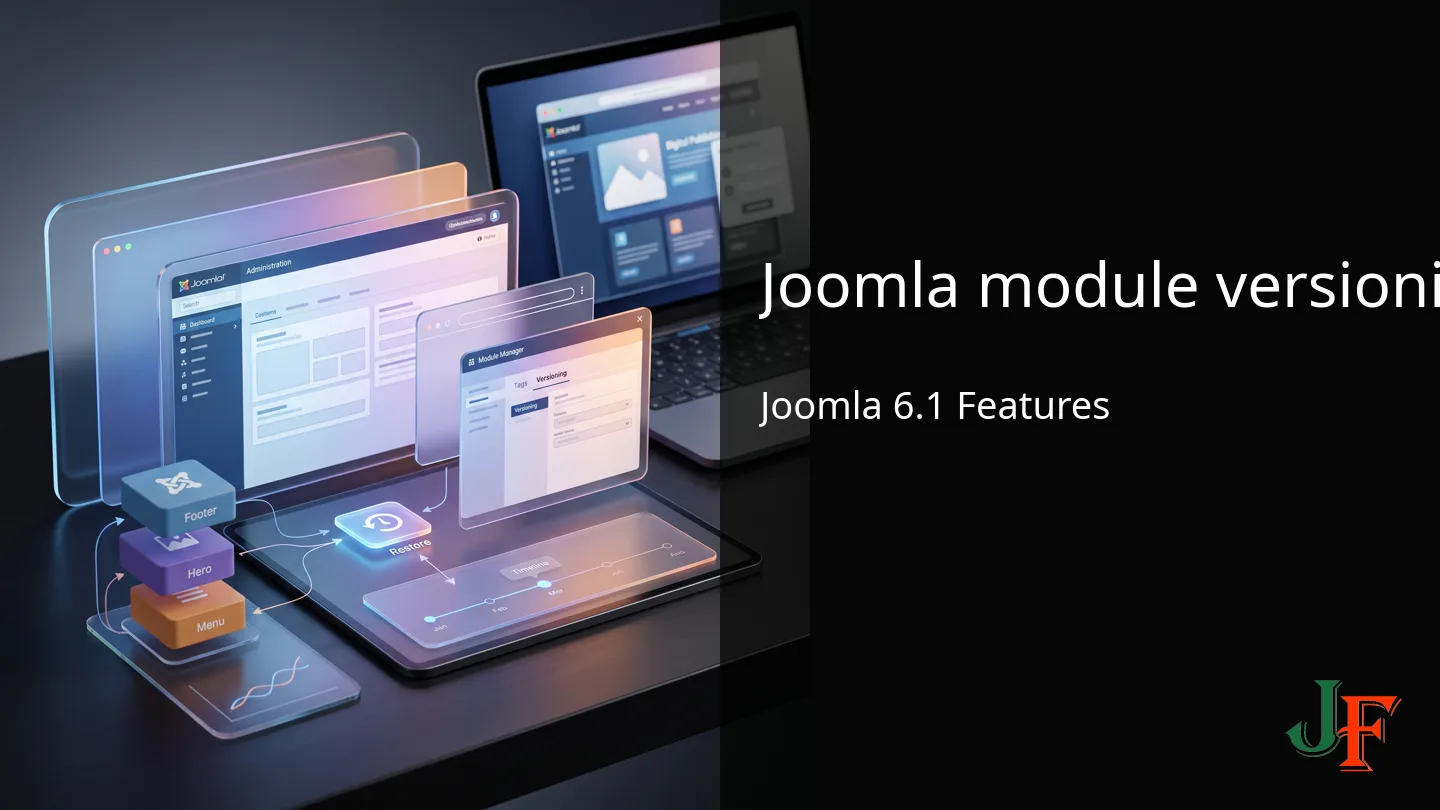
Joomla module versioning: learn what Joomla 6.1 adds, how to upgrade safely, developer notes, system checks and roadmap guidance for site owners.
What’s new in Joomla 6.1 (quick overview)
Joomla 6.1 ships a handful of incremental improvements — most importantly, a new built-in module versioning tool that lets you track, compare and restore module changes if an edit breaks your layout. For the official release notes and the full list of changes, see the Joomla announcement linked below.
- Module versioning: store historical copies of a module’s settings/content and revert when needed. Joomla 6.1 is here!
- Usability and admin UI refinements: small workflow improvements intended to speed common tasks.
- Performance & security updates: ongoing hardening and optimisations across the platform.
- Quiet / practical features: community notes highlight useful behaviour and caveats for site owners.
For practical tips and lesser-known behaviour that site owners should watch for, see the Joomla Community Magazine piece below. If you plan to rely on module versioning in production, verify exact UI labels and steps in the official docs before publishing changes.
The Quiet Features of Joomla 6.1
Want more context on what’s coming in 6.1 for site owners? See our internal overview: Joomla 6.1 features and roadmap.
What is module versioning (plain English explanation)
Module versioning means the site keeps historical copies of a module's settings and content so you can see what changed and, if needed, revert to an earlier state. In Joomla 6.1 this is provided as a built‑in tool to help site owners undo module edits and review who changed what. See the official announcement for the release that introduces this feature: Joomla 6.1 is here!.
What the versioning covers — in plain terms: it typically stores snapshots of a module's configuration (positions, parameters, published status), any module content where the extension stores it, and often layout-related parameters. Exact behaviour can vary by module — some third‑party modules may store settings in ways that the core versioning can't capture. Check the official documentation for precise scope and storage details: Joomla! Documentation.
How this differs from other versioning:
- Module versioning — saves snapshots of a single module's settings/content so you can compare and restore that module only.
- Article/content versioning — tracks changes to articles or other content items (different UI and storage; affects content, not module positions or params).
- Extension/package versioning (Git or updates) — manages code releases and package updates for an extension; this is developer-focused and does not replace per-module snapshots.
Quick benefits for site owners — rollback broken edits, maintain an audit trail of who changed a module and when, safely experiment on a live or staging site knowing you can revert, and make team coordination easier by keeping notes with versions. Module versioning complements, but does not replace, full-site backups or source control for extension code — consider using both together (see our guide on version control for Joomla extensions).
Note: Because implementation details can change, verify the exact capabilities and UI labels on the official Joomla 6.1 documentation before publishing instructions that assume specific fields or behaviours.
Why module versioning matters for site maintenance (with real examples)
Module edits are one of the most common ways a Joomla site layout breaks: a missing CSS class, a moved module position, or an unintended parameter change can affect every page that uses that module. Joomla 6.1’s module versioning records those changes so you can compare, revert, and audit edits instead of guessing what went wrong. For practical notes on how small features like this help day-to-day maintenance see the community overview: The Quiet Features of Joomla 6.1 (Joomla Community Magazine).
- Footer — accidental layout break: A common edit is removing or changing CSS classes or switching the module position. That can collapse columns or push the footer out of alignment site-wide. How versioning helps: you can quickly compare the current footer settings with a previous version to see which class or position changed. Recovery step: restore the prior version of the footer module and clear Joomla/server caches to make the fix visible immediately.
- Hero (page top) — responsiveness and HTML edits: Editing the hero module’s HTML or parameters (image sizes, container settings) can break mobile responsiveness or overlap other content. How versioning helps: view the previous version to identify the exact parameter or snippet that caused the responsive issue and roll back that change. Recovery step: restore the working version, test on mobile breakpoints, then reapply any safe tweaks on staging.
- Menu — navigation disappears or changes behaviour: Switching menu type, template assignment or CSS for a menu module can hide navigation or change link order. How versioning helps: see who changed the menu and which setting was altered, then revert only the module config without touching other site elements. Recovery step: restore the earlier menu version and check permissions/assignments to confirm the menu is visible everywhere.
Benefits demonstrated: quick restore of a working state, the ability to compare exact field-level changes, reduced downtime while troubleshooting, and a clear audit trail for team collaboration (who edited what and when). In real maintenance workflows, these advantages typically shorten the time you spend diagnosing and fixing layout problems — though results depend on caching, template overrides and third-party extensions, so always verify restores on a staging copy when possible.
How to use module versioning in Joomla 6.1 — step-by-step
Follow these cautious, practical steps every time you plan a module change. This section focuses on safe preparation, creating versions, comparing and restoring, and post-restore checks. Verify exact UI labels and navigation in the official docs before publishing.
- Pre-checks (always do these first)
- Confirm your site is running Joomla 6.1 and is fully updated; if you need upgrade help, see the Joomla 6.0.4 and 5.4.4 updates guide for pre-check steps.
- Create a full site and database backup, and work on a staging copy whenever possible.
- Note who will make the change and when (use a calendar entry or ticket in your workflow tool).
- Locate module versioning in the admin
Open the Administrator and go to the Modules list, then edit the module you want to change. Look for a Versions/History/Change log area inside the module edit screen — exact wording and location should be verified against the official Joomla documentation and release notes before you publish instructions for editors. For authoritative details see the Joomla 6.1 announcement and the official docs.
- Create a new version
- Before making edits, create or save a new version (if the UI offers a "Create version" button, use it). If Joomla 6.1 auto-saves versions on save, still add a short descriptive note like: "Footer tweak — removed extra DIV, 2026-07-07" so editors know the intent.
- Suggested placeholder for article images: [Screenshot: module edit → create version].
- Compare versions
Use the compare/diff view to see which fields changed (position, CSS classes, custom HTML, parameters). The comparison typically highlights changed fields so you can judge if a rollback is safe.
- Restore a previous version
- Select the desired older version and choose Restore (or equivalent). This usually replaces the module’s current configuration with the saved values — expect the change to take effect immediately in the admin, but verify on the front end.
- If a restored change doesn’t appear on the live site, clear Joomla caches, any server cache and your CDN/browser cache (see official docs for cache guidance).
- Post-restore checks
- Clear site and server caches, then test the affected pages on desktop and mobile breakpoints.
- Check related areas such as menus and footers to ensure template overrides or CSS didn’t keep the old layout broken.
- Safety tips
- Always add descriptive change notes when saving versions.
- Limit who can restore versions via ACL rules and document your restore policy in your team playbook.
- Mark any screenshots you include in the final article so editors know where to look: [Screenshot placeholders].
Important: UI labels and exact navigation text can change between releases. Verify each button name and menu path on docs.joomla.org and the official Joomla 6.1 release announcement before publishing this how-to for staff.
Best practices: workflows and governance for module changes
When multiple people edit a site, small module changes can cause big layout problems. Use a simple, repeatable workflow so edits are safe, auditable and easy to roll back.
- Always use a staging site first. Test experiments and layout changes on staging. Only apply to live after verifying responsive views, menus and any template overrides.
- Backup before major edits. Take a full site + database backup before large changes — even when using module versioning. Backups protect against unexpected extension or server-level failures.
- Descriptive version names and notes. When saving a module version, add a short note (what changed, why, and who). Use a naming convention such as "YYYY-MM-DD — editor — change summary" so versions are easy to scan later.
- Define roles and permissions. Decide who can create, approve and restore versions. Limit restore permissions to senior editors or administrators to avoid accidental rollbacks; document the approval steps in an internal policy.
- Combine module versioning with source control for extension packages. For custom module code or packaged extensions, keep code in Git and deploy to staging. Module versioning handles configuration content while Git manages code changes — see our version control for Joomla extensions guide for workflows and packaging tips.
- Routine housekeeping and audits. Periodically archive or delete very old versions, review the version audit log for unexpected edits, and keep a rolling retention policy (for example, keep 6–12 months of important versions).
Two short team rules you can adopt today:
- Rule A — "Staging, note, review, then deploy": never change live footer/hero/menu without this sequence.
- Rule B — "One editor per change": if two people must edit the same module, coordinate via a shared task and include the task ID in the version note.
These simple practices reduce mistakes and make restores predictable. When in doubt, test on staging or ask a developer for modules that behave oddly with built-in versioning.
Compatibility & migration: what site owners must check
Before relying on Joomla 6.1's module versioning on a live site, check that each third-party module you use is compatible with Joomla 6.1 and that the extension stores settings in a way the new versioning can track. Not all extensions behave the same; some third-party modules may require updates from the author or extra testing. For a quick place to look for complementary tools and versioning-related extensions, check the Extensions Directory tag for "Module Version" options and always verify compatibility on the extension page. Module Version (Extensions Directory tag).
Older modules — especially ones written for much earlier Joomla releases — sometimes store configuration or content in custom ways that the built-in versioning may not capture. In those cases a developer may need to refactor the module so its settings use Joomla's standard storage patterns and APIs. If you are unsure, consult the module author or review developer guidance such as the Module Development Tutorial before asking for code changes. Module Development Tutorial (Joomla Manual). You can also follow a practical refactoring protocol if you maintain older extensions: refactoring Joomla 3 extensions for modern Joomla versions.
Practical validation steps for site owners:
- Test on a staging copy: create a duplicate of the site or of the specific module and try creating, comparing and restoring versions there first.
- Confirm restore scope: verify that restoring a module affects only that module’s settings (and not unrelated content or menu items) on your test copy.
- Check template overrides and caching: some visual problems come from template overrides or cached files, not the module data itself.
- Contact the author or developer: if versioning does not capture expected fields, request an update or ask a developer to refactor the module.
Do not assume every extension will work with module versioning out of the box. Manual verification by a developer or the extension author is often required before you rely on versioning for critical site modules.
Troubleshooting & common pitfalls
Module versioning usually makes restores simple, but sometimes the site still looks unchanged or layout still breaks. Use this guide to find common causes and next steps.
Common culprits:
- Caching: Joomla cache, server-side cache, CDN caches and browser cache can prevent restored changes from appearing — clear each one. See Joomla cache & performance tips.
- Template overrides or CSS: A template override or site CSS can make a restored module look broken even though the module settings were reverted.
- Permissions/ACL: Users without required permissions may not see versioning controls or restore versions.
- Third‑party module behaviour: Some extensions store settings differently; a restore may not include all values.
Quick diagnostic checklist (If A → then B):
- If a restored version doesn’t appear → clear Joomla cache, server cache, CDN, and browser, then reload the page.
- If layout is still broken → check for template overrides, custom CSS, and module position or custom classes.
- If you can’t see version controls or restore → check backend user permissions or ask an administrator to perform the restore.
- If restore doesn’t fix content/state → compare saved module parameters (position, menu assignment, HTML/params) between versions.
- If the module is third‑party → consult the extension’s documentation or contact the author for compatibility notes.
- If unresolved → revert to a staging copy or restore from a full backup and escalate to a developer or support.
Always test restores on staging and keep backups. Verify any step that interacts with third‑party extensions against that extension’s documentation before relying on it in production.
Resources, further reading and recommended tools
Below are authoritative references, practical community notes, and JoomlaForever guides to help you verify details and find compatible tools. For any UI labels, procedures, or extension compatibility, double-check the current pages before applying changes to a live site.
- Joomla 6.1 is here! — official release announcement and full release notes (primary source for feature confirmation).
- Joomla! Documentation (verify current page for Joomla 6.1) — official manuals and admin UI how‑tos for exact steps and labels.
- Extensions Directory — Module Version / Content Versioning — curated plugins and tags; always check compatibility, reviews and support before installing third‑party tools.
- upgrading from Joomla 3.10 to Joomla 4 — JoomlaForever upgrade guide for readers who need a modern baseline before using 6.1 features.
- Joomla 6.1 features and roadmap — internal analysis and recommended next steps tailored to site owners.
Quick checklist: safe module changes (printable)
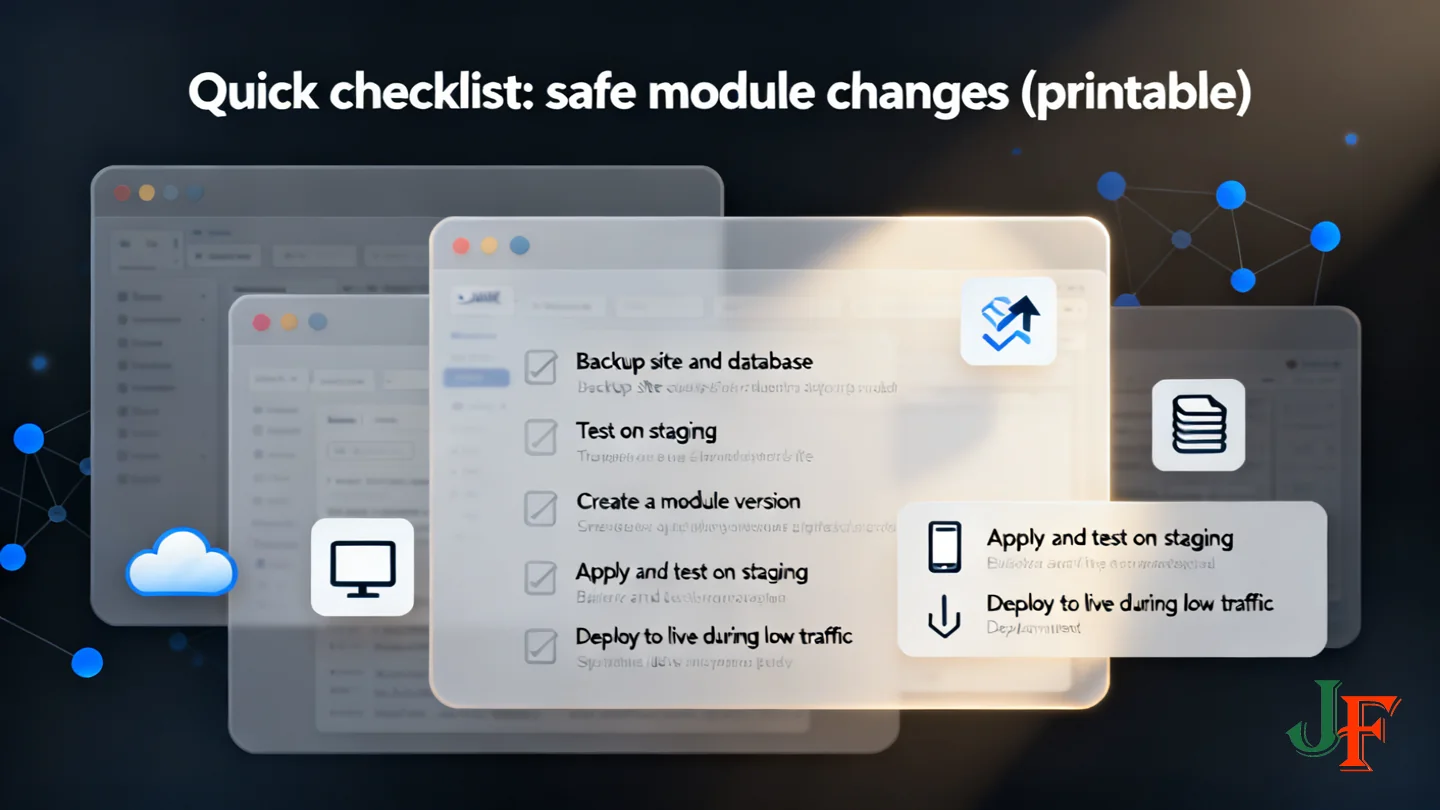
Before you edit a module, follow this short, printable checklist to reduce risk.
- Backup site and database — create a full backup and verify it; keep a downloadable copy.
- Test on staging — clone the site or module and apply changes on staging first.
- Create a module version — save a new version with a descriptive note (what you changed and why).
- Apply and test on staging — check desktop, tablet, mobile and navigation/menu behavior.
- Deploy to live during low traffic — clear Joomla, server, CDN and browser caches after deploy.
- If something breaks — restore the previous module version, clear caches, retest, then escalate to the extension author or a developer if needed.
- Log and tidy — record the change in your team log and prune old versions periodically.
See the official Joomla! Documentation for backup and staging best practices (verify current pages for Joomla 6.1).

Add comment