
Joomla 6.1 update checklist: learn what Joomla 6.1 adds, how to upgrade safely, developer notes, system checks and roadmap guidance for site owners.
Quick summary: Joomla 6.1 and why it matters
Joomla 6.1 is a new point release in the Joomla 6 series that bundles features, admin and performance improvements, plus bug fixes. See the official announcement for the full scope and for the project's upgrade guidance: Joomla 6.1 is here!
Shortly after the initial release a security and bugfix follow-up (6.1.1) was published — apply security releases promptly, especially for public-facing sites: Joomla 6.1.1 & 5.4.6 Security & Bugfix Release
This article walks through what site owners should do next: a pre-upgrade checklist (requirements, extension/template checks), reliable backup and rollback steps, a safe upgrade sequence (staging → updater or download packages), and post-update security hardening and verification. Use the Pre-Update Check and test on staging before changing production. The rest of this article gives step-by-step guidance and links to the official release and security notes. For additional context on features and roadmap, see our local commentary on Joomla 6.1 features and roadmap.
Editorial note: Verify exact download URLs and live documentation pages (technical requirements, downloads) before publishing or performing an upgrade.
What’s new in Joomla 6.1 — highlights for site owners
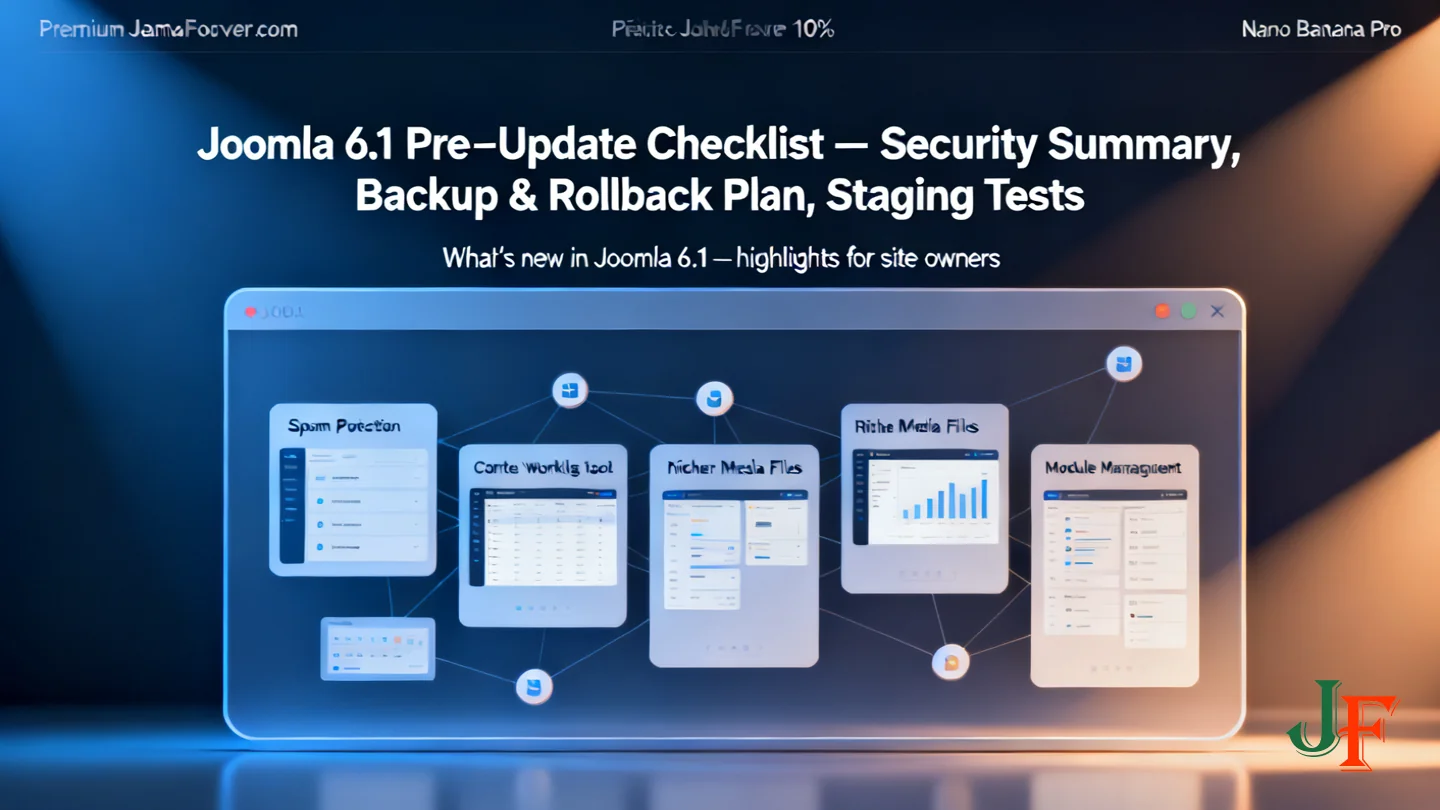
Joomla 6.1 is the latest minor release in the Joomla 6 series and focuses on practical improvements for site owners and editors: spam protection, content workflow tools, richer media fields and better module management. The official announcement lists user-facing enhancements and explains the automatic update behaviour for minor releases — read the release notes linked below for the full details.
- Proof‑of‑Work CAPTCHA — a privacy‑friendly spam protection option that runs a background proof‑of‑work task to reduce bot signups without requiring third‑party services.
- Visual Workflow Editor — an interactive workflow diagram that makes content publication steps easier to see and manage from the administrator interface.
- Media Custom Fields — three new custom field types (Audio, Video and Documents) so content creators can attach more kinds of media directly to articles and items.
- Module versioning & multilingual associations — version history for modules and the ability to associate module instances across languages, which helps multilingual site workflows.
Automatic updates and compatibility notes: The announcement clarifies that automatic updates are supported for patch and minor updates within the same major series (for example, 6.0.x → 6.1.x) where automatic updates were already enabled. Major version changes still require a manual upgrade. Before updating, check the Pre‑Update Check in your site admin and verify any third‑party extension or template compatibility.
For the complete list of changes (developer pull requests, full changelog and download links) consult the official release announcement and follow up documentation. You can also read our local analysis: Joomla 6.1 features and roadmap.
Editorial note: verify the exact download URL and version numbers on the official release page before publishing or performing an update.
Security and bugfixes: why updates matter (including 6.1.1)
The Joomla Project released 6.1.1 as a security & bugfix update for the 6.x series — a follow-up to the 6.1 release that consolidates important fixes. For the official details and the full list of fixes, see the project announcement linked below.
Security and bugfix releases matter because they close vulnerabilities that attackers can exploit on public sites. The 6.1.1 announcement lists multiple resolved issues across the core including cross-site scripting (XSS), CSRF, authenticated SQL injection (SQLi), local file inclusion/path traversal, multi-factor authentication bypasses and several privilege‑escalation and access-control fixes. Applying these patches reduces the window of exposure and prevents known attack techniques from being used against your site. Joomla 6.1.1 & 5.4.6 Security & Bugfix Release
Recommended urgency: for public-facing or business‑critical sites, treat security releases as high priority. Best practice is to test the 6.1.1 update on a staging copy first, verify site functionality and extensions, then apply to production during a low‑traffic window. If immediate testing is not possible, increase monitoring, restrict admin access, and schedule the update as soon as you can.
After updating, run the Joomla Security Checklist to harden and verify the site (HTTPS, file permissions, disable unused extensions, review admin users) and confirm the patch was applied successfully. Link: Joomla Security Checklist.
Pre-upgrade checklist — what to check before you update
Before you start the Joomla 6.1 upgrade, complete a short checklist to reduce risk and downtime. Follow these steps in order: verify technical requirements, run the Pre-Update Check, confirm extension and template compatibility, create and verify full backups, and test the upgrade on staging or a copy of your site.
1. Verify server and PHP/database requirements
Check your host's PHP, database and server settings against the official Technical Requirements before attempting the update. These settings include supported PHP and database versions, memory limits and required PHP extensions — confirm details on the Joomla documentation page: Technical Requirements (Joomla Manual). Do not assume your current environment is compatible; if you are unsure, ask your host or use a staging server with the correct configuration.
2. Run the Pre-Update Check
In the administrator > System > Update > Pre-Update Check, Joomla will report common compatibility issues and recommendations. Review every warning and error the tool lists and address them before upgrading. The Pre-Update Check documentation explains how to interpret results: Pre-Update Check. If extensions or templates are flagged, update them first or plan to test without them.
3. Confirm extension and template compatibility
Inventory third‑party extensions and any custom templates. For each critical extension check for a compatible release or vendor guidance. Where possible, update extensions and templates while still on your current version and record versions so you can roll back if needed. If a critical extension has no compatible update, delay the upgrade or plan a workaround.
4. Create and verify full backups
Create a complete backup of site files and the database, then verify the backup can be restored on a test environment. Follow the official backup guidance: Backup Basics for a Joomla! Web Site. Popular tools (for example, Akeeba Backup) can help; always test a restore rather than assuming the backup is valid.
5. Test on staging, schedule and communicate
Restore your verified backup to a staging site and perform a test upgrade. Check front‑end and administrator functions, extensions, forms and payment flows. Schedule the live upgrade for a low‑traffic window, notify stakeholders, and plan a rollback window in case you must restore the backup.
Verification note: Some manual pages are continuously updated; verify the live Technical Requirements and Pre-Update Check documentation before publishing or performing the upgrade. See our local pre-upgrade checklist and the comprehensive guide to updates for step‑by‑step examples.
A safe upgrade path: step-by-step overview
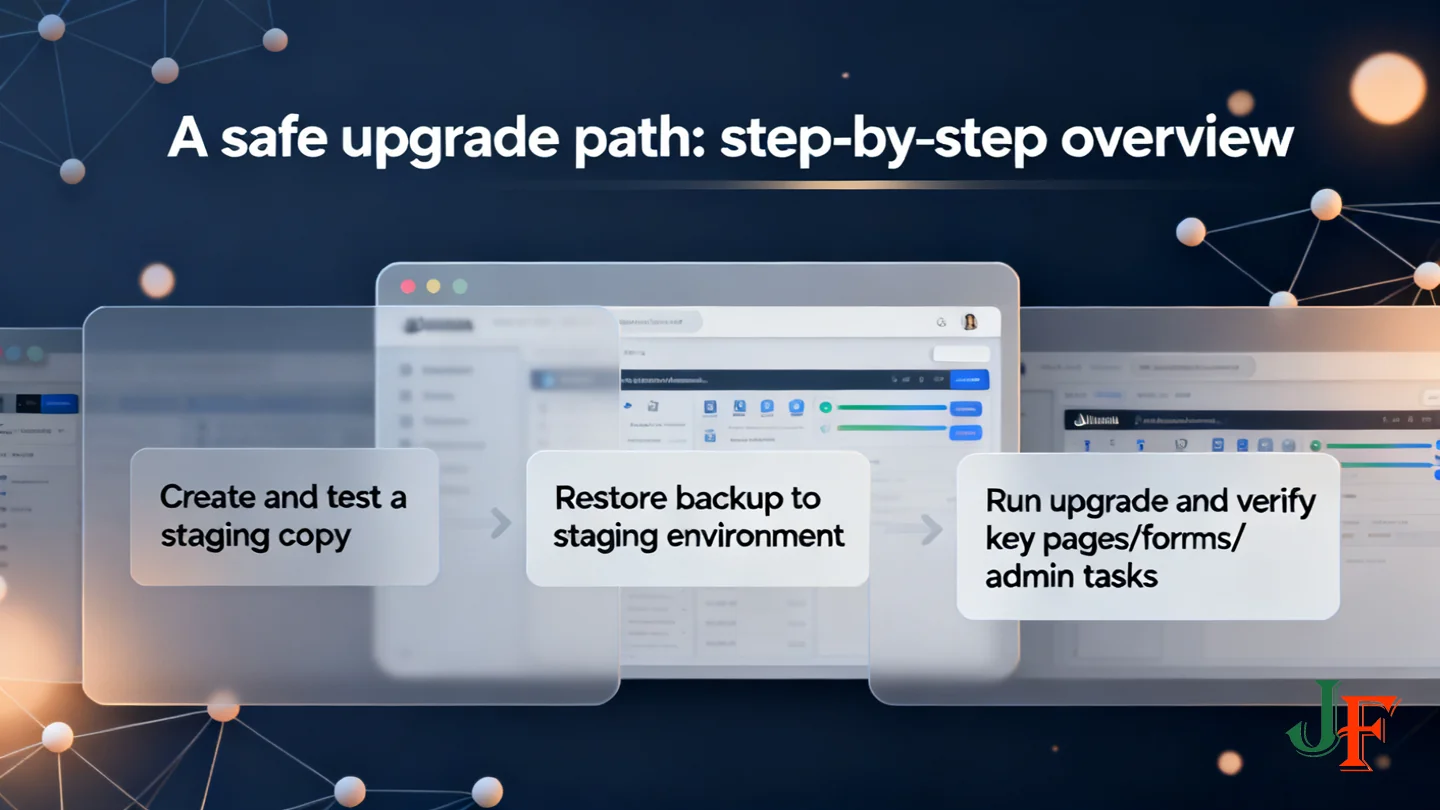
Follow a simple, repeatable sequence: test the upgrade on a copy, back everything up, run the update, then verify the site and extensions. The steps below give site owners a practical high-level workflow you can follow or hand to your developer or host.
- Create and test a staging copy. Restore your most recent backup to a staging environment and run the upgrade there first. Confirm key pages, forms and admin tasks work after the test upgrade before touching your live site.
- Verify requirements and Pre-Update Check. Use Joomla's Pre-Update Check in the administrator updater and confirm your server meets the technical requirements listed in the official announcement. This helps identify PHP, database or extension compatibility issues before you proceed. For official guidance about the release and updater behaviour see the Joomla 6.1 release announcement: Joomla 6.1 is here!.
- Make full backups (files + database). Take a complete, verifiable backup of files and database. Test that the backup can be restored on staging so you know rollback will work if needed.
- Use the built-in updater when possible. If your site meets the checks and the updater shows the 6.1 package, use Joomla's built-in update tool for a straightforward process. The release announcement explains the recommended update flow; follow it and the Pre-Update Check results closely. (official guidance)
- Manual downloads when required. If you must download an update package manually (for offline installs or custom workflows), use the official downloads archive and verify the exact file/version before installing: Joomla 6.1 download archive. Editorial note: confirm the exact URL/version at publish time.
- Post-update verification. After updating (staging first, then live), check site functionality, test all third‑party extensions and your template, review error logs, clear caches, and verify important pages are crawlable. Re-submit or check XML sitemaps and monitor traffic/SEO metrics for unexpected changes.
If you prefer step‑by‑step screenshots or a detailed walkthrough for the admin updater, see our local comprehensive guide to updates which complements this high-level path.
Quick reminder: always test on staging, confirm backups, and verify the exact download/package version from the official Joomla downloads page before applying changes to a live site.
Backup and rollback: recommended tools and procedures
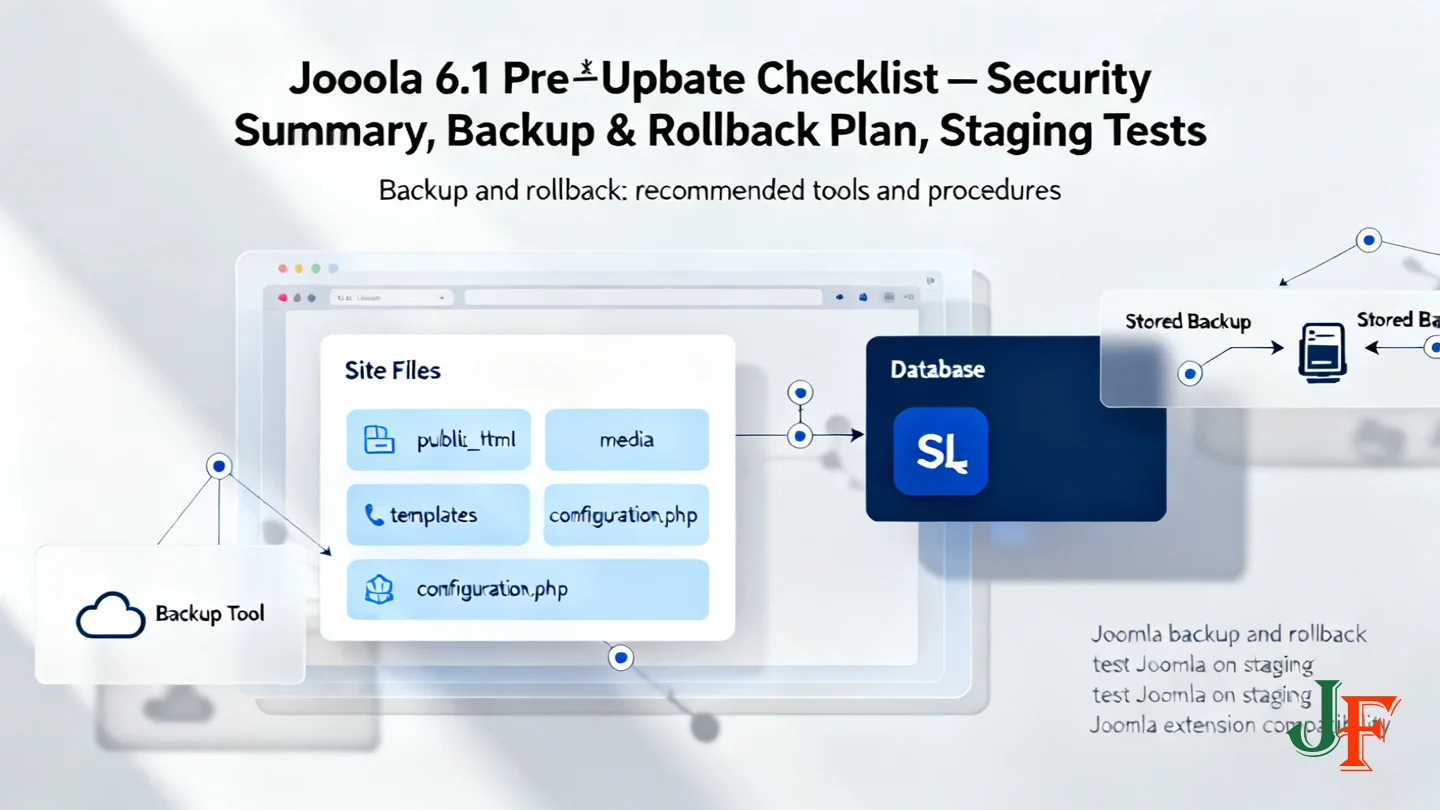
Before upgrading, take a full backup of your site — this means all site files (public_html, media, templates and configuration.php) and the full database. Backups let you restore the exact state if an update breaks extensions, templates or site layouts. Follow Joomla's official backup guidance to ensure you capture both files and the database and to understand host-specific options and limitations.
Recommended tools: many site owners use a tested Joomla backup extension. Akeeba Backup (recommended tool) is a common choice—see our local review for setup tips and restore walkthroughs. If your host offers snapshots or full-site backups, learn how those integrate with a Joomla-aware backup solution (host features vary).
- Create a verified backup: produce a file + database backup and immediately verify it by restoring to a staging environment or local copy. Confirm the site loads, key pages render and the administrator login works.
- Check backup integrity: verify database tables are present, confirm
configuration.phpexists, and spot-check file permissions on the restored copy. - Keep multiple restore points: retain at least one pre-upgrade backup and one recent pre-change backup so you can compare states if needed.
Basic restore / rollback plan:
- Restore the latest verified backup to a staging site and confirm whether the problem is reproducible there.
- If the staging restore looks correct, schedule a maintenance window and restore the verified backup to the live site; if problems persist on staging, investigate logs and extension conflicts first.
- After rollback, disable any problematic third‑party extensions, clear caches, review error logs and update offending extensions in staging before attempting a new upgrade.
Avoid making direct edits on live files during an upgrade — always test on staging first. For step‑by‑step backup essentials and why each item matters, see the Joomla Backup Basics documentation. For a hands‑on Akeeba walkthrough and a real restore example, see our Akeeba review and the practical restore case study.
Post-update security: hardening and verification
After you update, run a concise security routine to confirm the site is fully patched and not compromised. Prioritize critical checks first, then follow the fuller checklist below.
- Confirm patch and version: Verify your site shows the new Joomla version in System → System Information or the updater log. Check the official announcement for 6.1.1 to confirm which fixes were included and whether additional patches are listed: Joomla 6.1.1 & 5.4.6 Security & Bugfix Release.
- Run the Joomla Security Checklist: Work through the official checklist—ensure HTTPS is enforced, file and folder permissions are correct, unused extensions are removed or disabled, and admin accounts are reviewed and secured. See the official checklist: Security Checklist.
- Update extensions and templates: Install available updates for third‑party extensions and templates; many compromises exploit outdated add-ons.
- Scan for signs of compromise: Compare current files to a known‑good backup or use a file‑integrity tool; look for unexpected admin users, modified files, unfamiliar scheduled tasks or suspicious PHP files. If you find indicators, isolate the site and follow incident response steps (restore a verified backup on staging, investigate logs).
- Verify logs and monitoring: Check webserver and Joomla logs for errors or suspicious activity, re‑run automated scans, and enable ongoing monitoring where possible.
If you discover issues, avoid editing live files directly; restore a verified backup to staging and follow incident guidance (see our local walkthrough to fix the JCE Profiles hack for an example of detection and remediation). Finally, keep a short post‑update checklist for recurring checks and re‑check the official release notes for any follow‑up patches before closing the update ticket.
Troubleshooting common issues after upgrading
After an upgrade, most problems fall into a few predictable categories. Use this quick troubleshooting guide to identify the cause and choose a safe next step. If possible, perform all diagnostic steps on a staging copy to avoid further impact to your live site.
1. Extension or template compatibility breaks
- Symptoms: missing features, admin pages erroring, or front-end pages failing to load for parts of the site.
- First step: go to Administrator → Extensions → Manage and sort by "Enabled". Temporarily disable recently updated or third‑party extensions one at a time to see if the issue clears.
- If disabling an extension fixes the problem, check for updates from the extension author or revert that extension to the previous working version on staging.
- Use the Pre-Update Check output as a starting point — it flags known compatibility issues before and after updating.
2. White screen or PHP errors
- Symptoms: blank pages or visible PHP error messages. Check your server error logs (or ask your host) for the exact error.
- If you must debug, enable debugging on a staging site (System → Global Configuration → System → Debug System) rather than on production.
- Verify the site runs on a PHP version supported by your Joomla release — mismatched PHP versions commonly cause fatal errors.
3. Missing assets or layout changes
- Symptoms: broken images, missing CSS, or changed layout. Clear Joomla and browser caches first, then check template overrides and media paths.
- If a template is incompatible, switch temporarily to a default core template on staging while you obtain a compatible update from the template developer.
When to restore backup vs. seek professional help
- If the site is widely broken and a quick fix is unclear, restore your most recent verified backup to staging or live and investigate there.
- If logs show signs of compromise, errors you cannot interpret, or the site hosts critical services, stop and consult a professional — avoid repeated live changes that could worsen the issue.
For step‑by‑step screenshots and deeper troubleshooting, see our comprehensive guide to updates.
When you might want to delay upgrading
Upgrading promptly is usually best for security, but there are valid, temporary reasons to wait — provided you have a clear mitigation plan.
- Extension or template compatibility: If critical extensions or your template are not yet confirmed compatible, postponing avoids breaking site features. Test extensions on staging and ask vendors for timelines.
- No recent, verified backup or staging: Never upgrade without a full, tested backup. If you can't verify backups or restore on staging, delay until you can.
- Active security incident: If your site is under investigation or remediation, coordinate with your security team before changing the environment — apply patches on isolated systems first.
- Planned staged rollout: For multi-site or business-critical environments, update a non-critical site first, monitor for issues, then proceed.
If you delay, document the reasons, increase monitoring, and set a concrete re-evaluation date. Re-evaluate as soon as vendors provide compatibility updates or when critical security patches (for example, 6.1.1) are released. For broader project timing and upcoming releases consult the Joomla! Project Roadmap.
Further reading and official resources
Below are the official release, security bulletin, downloads and core documentation to check before updating, followed by recommended JoomlaForever how‑tos for backups and recovery.
- Joomla 6.1 is here! — official release announcement with upgrade notes.
- Joomla 6.1.1 & 5.4.6 Security & Bugfix Release — immediate security/bugfix bulletin; review for urgency.
- Joomla! 6.1 (download page) — official downloads and update packages (verify exact file/version before downloading).
- Technical Requirements (Joomla Manual) — confirm PHP, database and server requirements for Joomla 6.x.
- Akeeba Backup (recommended tool) — extension review and backup guidance.
- restore a Joomla backup — practical restore walkthrough.
- Joomla 6.1 features and roadmap — local commentary and context.
Verification note: Always confirm the downloads URL and live manual pages before publishing or downloading packages.

Add comment