
Joomla 6.1 module language associations: learn what Joomla 6.1 adds, how to upgrade safely, developer notes, system checks and roadmap guidance for site owners.
What's new in Joomla 6.1: Multilingual module associations (quick summary)
Joomla 6.1 introduces improved multilingual module associations that let administrators link module instances across site languages so they behave as a single logical module with language-specific variants. The official release announcement highlights this change as a targeted improvement to how multilingual sites manage module content and administration. Joomla 6.1 is here!
For site owners this matters because it reduces module duplication, simplifies updates (you can maintain a clearer set of module variants instead of separate orphaned modules), and makes translating module content and visibility settings more straightforward. Expect cleaner module lists in the admin and fewer manual steps when creating language-specific banners, custom HTML blocks, or content carousels.
This section of the guide explains the concepts, how to enable and configure associations, troubleshooting tips, and upgrade/safety notes. Also see our practical summary of changes in the JoomlaForever roadmap: Joomla 6.1 features and roadmap.
Note: confirm your installed Joomla version before following configuration steps — the behaviour described here is based on the official Joomla 6.1 announcement.
Why module associations matter for multilingual Joomla sites
Managing modules across multiple languages is a common administrative headache. Without associations you often create duplicate module instances for each language, which leads to inconsistent content, extra work to keep translations in sync, and a cluttered Module Manager. The Joomla user guide describes multilingual associations as the user-facing way to link language-specific variants so they behave as a single logical module. Multilingual Associations (Joomla User Guide).
Problems without associations
- Module duplication: admins copy modules per language and end up with many near-identical entries to maintain.
- Inconsistent content: translated variants can become out-of-date or contain different settings by mistake.
- Complex workflows: updating layout, menu assignments or module settings must be repeated for every language variant.
- Visibility mistakes: menu-to-module mismatches can show the wrong module when switching languages.
Benefits with associations
- Single logical module: link language-specific instances so they are managed as variants of one module.
- Easier updates: administrative tasks and structural changes become faster because the association groups related instances.
- Cleaner admin UI: fewer orphaned modules and clearer language scope in the Module Manager.
- Consistent frontend experience: visitors see the correct language-specific content when using the language switcher.
Community coverage has highlighted these improvements in Joomla 6.1 as small but helpful quality‑of‑life changes; treat such articles as community commentary and cross‑check technical details with the official documentation. The Quiet Features of Joomla 6.1 (Joomla Magazine).
Typical scenarios where associations help
- News or articles carousel that should show translated headlines per language (example modules such as DC Carousel require language-aware configuration — see the DC Carousel Articles v1.1.0 guide).
- Custom HTML modules with localized copy or contact information.
- Language-specific promotional banners or regional offers that must appear only for a given language.
- Modules tied to menu items where menu associations must align with module visibility.
In short, associations reduce duplication and admin effort while improving frontend consistency—just verify extension support and test on a staging site before changing production content.
How multilingual module associations work in Joomla 6.1 (conceptual overview)
This section explains, in plain language, how Joomla links module instances to languages and how those links differ from ordinary language or menu assignments. Read this to understand the concepts you’ll use when creating and testing language‑specific modules on your site. For implementation details and the admin UI reference, consult the user manual and programmer documentation linked below.
Key definitions
- Language assignment — the language value set on a module (for example "English" or "French"). This tells Joomla which language a particular module instance is intended for.
- Association — a relationship that links two or more module instances so they are treated as language variants of the same logical module (for example, an English custom HTML module associated with its French translation).
- Menu assignment — the set of menu items where a module is published. Menu assignments must also be managed per language so the correct module appears with the corresponding page.
How associations work (conceptual steps)
- Create or copy a module instance for each language and set the correct language assignment on each instance.
- Link those instances as an association so Joomla knows they are translations/variants of the same logical module.
- When users switch languages on the frontend, Joomla uses associations (together with menu and page associations) to show the matching language module for the active language.
Associations differ from simply setting a module’s language because they explicitly connect the language variants. That connection allows administrators to manage related modules as a group (for example, finding the translated partner module from the module manager), rather than as unrelated duplicates. See the user manual for how these controls appear in the Module Manager. Multilingual Associations (user manual).
Synchronization, caching and rendering
Associations do not automatically merge content; they create linked variants. Depending on module behaviour, some properties (such as position or basic settings) may be consistent while content remains language‑specific. Because the frontend output depends on both associations and menu/page associations, caching can sometimes serve the wrong language variant if cache rules are broad. When testing associations, clear Joomla and server caches and check module visibility after switching languages. For architectural and API details that explain how associations integrate with rendering and extensions, consult the programmer documentation. Multilingual (programmer documentation).
In short: set the language on each module, link them as associations so Joomla recognises them as language variants, align menu assignments, and test with cache cleared to verify correct frontend behaviour.
Step-by-step: Configure multilingual module associations (for site owners)
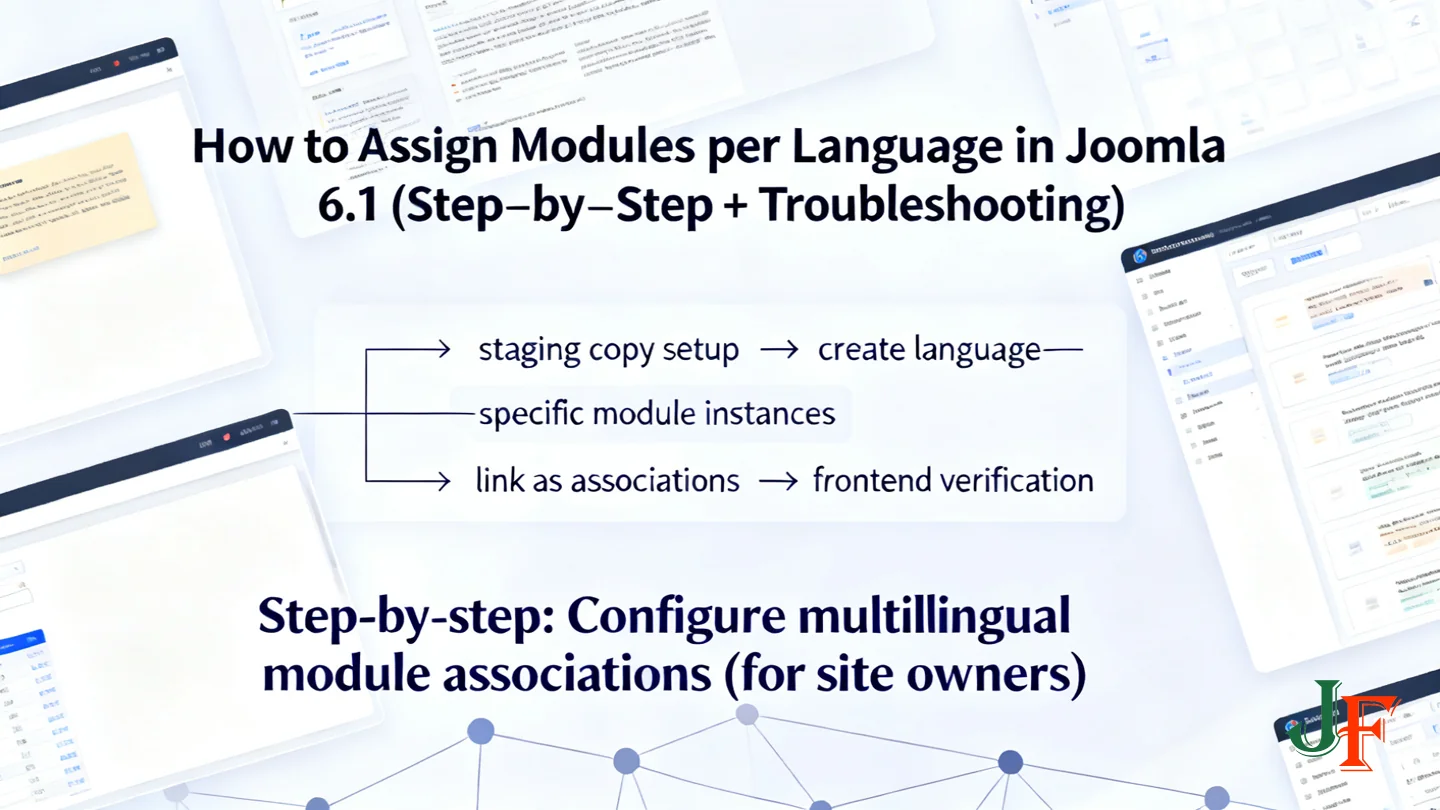
Use the steps below on a staging copy of your site. They show a practical workflow to prepare your site, create language-specific module instances, link them as associations and verify behaviour on the frontend. If you are unsure of menu names or the admin UI, consult the official multilingual setup guide linked below before making changes.
- Pre‑flight checklist
- Make a full backup and create a staging copy (file + database snapshot) — do not work on production.
- Confirm your installed Joomla version and note it for extension compatibility checks; verify installed extensions list and their versions.
- Create a simple test page and ensure you can restore the site from the staging copy if needed.
- Install and enable required multilingual components
Before creating module variants, ensure you have the languages installed and the core multilingual plugins enabled. Follow the official setup steps in the Joomla documentation for the full checklist and recommended plugin settings.
- Create module language variants
For each module you want language-aware, create a separate module instance per language and set its Language parameter to that language (instead of "All"). A typical sequence:
- Go to Extensions → Modules and open the module you will use as the base (for example a Custom HTML or a news carousel module).
- If you already have an existing module, use the "Save as Copy" action to make a second instance; otherwise click "New" and choose the same module type.
- Edit the copy: set the Title (add language code in the title if helpful), paste the translated content, and set the Language dropdown to the target language.
- Assign the same module position and appropriate menu assignments for that language (menu assignment should match the translated menu items for correct visibility).
- Save the module. Repeat for every language you support.
When working with third‑party modules (for example a carousel extension), confirm the extension supports associations or language‑aware instances before depending on a single shared module—some extensions require one instance per language. If you use a carousel that needs extra configuration, consult the module's documentation; for an example walkthrough see the DC Carousel Articles v1.1.0 guide.
- Link modules as associations
Joomla 6.1 provides UI to associate module instances across languages. The association control can appear in the module edit screen or via an Associations button/list view depending on your admin UI. To link modules:
- Open the module edit for one language and look for an "Associations" area (or open the Modules list and use the Associations action).
- Select or search for the matching module instance in the other language(s) and save the association.
- Confirm each language pair/trio is linked — associations tell Joomla which module is the counterpart to display when a visitor switches languages.
See the user manual for more on how associations are represented in the admin UI: Multilingual Associations – Joomla User Manual.
- Example: Custom HTML module
- Create "Custom HTML" module for English: add translated content, set Language = English, assign position and menus.
- Save as copy, edit the copy for French content, set Language = French, save.
- Open either instance and add an association to link the English and French modules so switching languages shows the right content.
- Example: News or carousel module
If the module pulls articles, ensure the underlying articles are also language‑correct and associated. For some carousel extensions you must create separate module instances per language and feed them language‑specific content; verify the extension supports or recommends associations before choosing a single shared instance.
- Testing and verification
- Clear Joomla cache and any server/ CDN caches after saving associations.
- Open the frontend in a private browser window, use the language switcher and confirm the module content switches to the associated language variant.
- If a wrong module appears, verify: module Language setting, menu assignment alignment, and the association entries in the admin UI.
- Repeat tests with caching enabled to reproduce real visitor behaviour; if caching shows wrong language, consider excluding the affected module position from cache or adjust cache rules.
Quick test checklist
- Work on staging and have a backup ready.
- Create language-specific module copies and set Language per instance.
- Link each pair/trio with the Associations control and save.
- Clear caches, switch languages on the frontend, confirm correct modules display.
Common compatibility issues and troubleshooting
Multilingual module associations reduce duplication but can surface a handful of repeatable issues. Below are the most common problems site owners see, short diagnostics and practical fixes you can try on a staging site before touching production.
-
Problem: an extension does not appear to support associations
Cause: some third‑party modules were not written to expose or store association metadata. Detection: the module edit screen has no association controls and creating a paired module in another language does not link or switch as expected.
Fix: check the extension documentation first and, if uncertain, test on staging. If the extension truly lacks support, options are: keep manual language‑specific module instances and manage them by name; request association support from the developer (include your Joomla version, extension version and clear reproduction steps); or consider a replacement extension that documents multilingual support.
-
Problem: wrong language module displays due to caching
Cause: page cache, opcode cache, third‑party caching plugins, CDNs or edge caches can serve a cached page that contains the module for the other language.
Fix: while testing, disable or flush Joomla cache and any server/CDN caches. If you rely on caching in production, investigate cache exclusion rules (for example exclude language switcher or specific modules where supported) or use cache variation keys that include language. Remember to clear your browser cache and test in a private window.
-
Problem: menu-to-module assignment mismatches
Cause: modules are often assigned to specific menu items; if translated menu items are not aligned one‑to‑one, a module may not appear on the expected pages in another language.
Fix: confirm each language has equivalent menu items and assign the language‑specific module to the corresponding translated menu item(s). Use clear naming conventions for modules (e.g., "Sidebar - EN" / "Sidebar - FR") so you can match them easily across languages.
-
Problem: template overrides, module chrome or CSS break when switching languages
Cause: overrides or language‑specific CSS selectors may assume a particular language or module ID and not apply correctly to associated module instances.
Fix: inspect template overrides and CSS rules for language‑specific selectors (for example body[lang="..."]). Where possible use language‑agnostic classes or target the module position/feature rather than a fixed module ID. Test changes on staging.
Practical debugging checklist
- Replicate the issue on a staging copy of the site so you can test safely.
- Enable error reporting on staging and check PHP/webserver error logs for extension errors.
- Use your browser dev tools to inspect the rendered HTML: check lang attributes, module markup and whether the expected module is present but hidden by CSS.
- Turn off caching layers one at a time to isolate where stale content is served.
- If an extension is involved, review its docs and changelog and contact the developer with Joomla version, extension version and reproducible steps.
For technical background on how multilingual behaviour integrates with extensions and where to look for developer guidance, consult the Joomla programmer documentation: Multilingual | Joomla! Programmers Documentation.
Security and upgrade considerations
Before updating a live site, always apply changes on a test or staging environment and create full backups or snapshots. This ensures you can revert quickly if module associations or other extensions behave differently after the update.
Keep both Joomla core and extensions up to date with security and bugfix releases. Apply patches promptly but only after testing — for example, consult the official security & bugfix release notice when planning updates. Joomla 6.1.1 & 5.4.6 Security & Bugfix Release is an example of the type of notice you should review for relevant fixes.
Follow this quick upgrade checklist:
- Take a full backup (files + database) and a snapshot of your server or hosting environment.
- Clone the site to a staging environment or use a local test site.
- Verify installed extensions are compatible with your target Joomla version; check extension changelogs and developer guidance.
- Apply the core update on staging and run the site's test plan (including module association tests).
- Clear caches, test frontend language switching and review error logs for issues.
- If all tests pass, schedule a maintenance window and repeat the process on production.
Always check the Joomla Security Centre for advisories and to confirm whether any listed vulnerabilities affect your installed version. See the Security Centre here: Joomla Security Centre. Manual verification is required to determine whether an advisory applies to your site.
If you encounter issues, gather Joomla and extension versions, reproduction steps and logs before contacting extension authors or your developer.
Advanced tips: automation, extensions and developer notes
This section covers higher‑level options for site owners who want to automate multilingual workflows and for developers who need to extend or test association support. For programmatic details and API behaviour, refer to the Joomla programmer manual for multilingual concepts and recommended patterns: Multilingual | Joomla! Programmers Documentation.
Programmatic associations (overview)
Joomla provides developer APIs and data models that allow associations to be created or updated by code rather than through the admin UI. In practice this means you can create a module instance for each language and mark them as linked so the site treats those instances as language variants of the same logical module. Do not assume exact API names or parameters without checking the programmer manual above — treat the manual as the authoritative reference when writing or reviewing code.
Automation possibilities
Automation tools can speed repetitive work: for example, an automation flow can clone a module, insert translated text or HTML, set the module language, and then link the new instance as an association. Workflows built with external automation platforms (for example, automation with n8n and Joomla) are useful starting points for these tasks. Always run such automation against a staging site first and log every change so you can roll back if needed.
When to involve a developer
- Templates that use custom module chrome or overrides and require language-aware rendering.
- Custom modules that store language metadata or need association handling added.
- Large sites where automation must be robust, idempotent and covered by tests.
Testing strategies for developers
- Use a staging environment and fixture data containing multiple languages.
- Write unit tests for any code that creates or resolves associations; mock language contexts where possible.
- Run integration tests that cover frontend switching, cache clearing and menu-module alignment.
- Include automated browser checks (e.g., Playwright or Selenium) to verify the visible module variants render correctly when switching languages.
Caution: Avoid programmatic changes on production sites without backups and a rollback plan. When in doubt, involve a developer and verify API usage against the official programmer documentation linked above.
Real‑world examples and use cases
Joomla 6.1's multilingual module association improvements are most valuable when seen in everyday site workflows. The community article "The Quiet Features of Joomla 6.1" highlights several smaller usability gains; readers should verify any technical claims against the official release announcement and documentation before changing production sites.
Multilingual news carousel
A common scenario is a homepage carousel that displays translated headlines. Rather than maintaining completely separate carousel modules per language, you create language‑specific module instances and link them as associations. When correctly associated, switching the site language shows the matching carousel automatically and reduces repetitive administrative steps. Typical benefits include:
- One logical module with language variants instead of several independent modules.
- Easier content updates because translations are managed as linked variants.
- Cleaner menu and scheduling management across languages.
If you use a third‑party carousel such as DC Carousel Articles, follow the module's multilingual configuration notes — see the DC Carousel Articles v1.1.0 guide for a concrete example. Always confirm the extension explicitly supports associations before relying on it in production.
Region‑specific banners and visibility
Promotional banners, regional notices or language‑aware CTAs often need different copy, links or schedules per language. Using associated module variants allows a single module position in your template while delivering tailored content for each language or region. This approach helps avoid accidentally displaying the wrong promotion after a visitor switches languages and simplifies scheduling and expiry management.
Illustrative case study (hypothetical)
Illustrative example: a three‑language news site replaced three independently maintained carousel modules with one set of associated variants. On each content update the administrator performed fewer disconnected edits and reported fewer missed translations. This is a hypothetical scenario for illustration only — actual results will vary by site complexity and extensions used.
Suggested quick testing checklist for similar projects:
- Create and test changes on a staging copy first.
- Ensure languages and language switcher are configured and menu associations exist.
- Edit the module variants, link associations, then use the frontend language switcher to confirm correct output.
- Clear Joomla and any proxy cache and retest on desktop and mobile.
These examples are illustrative; always verify behaviour against official docs and test thoroughly before deploying to production.
Checklist: before and after enabling multilingual module associations
Use this concise checklist to prepare, implement and verify multilingual module associations on a staging site before deploying to production.
- Pre‑implementation
- Create a full backup and a staging copy (files + database).
- Confirm your installed Joomla version and extension versions; note any required updates.
- Install required languages and enable language plugins.
- Read the official multilingual setup guide for core prerequisites: Setup a Multilingual Site.
- Implementation
- Install/configure the Language Switcher module.
- Create or copy module instances for each language; set each module’s Language parameter appropriately.
- Link module instances as associations in the Module Manager.
- Verify menu assignments for each language match their associated modules.
- Post‑implementation & testing
- Clear Joomla and server caches; disable relevant caches while testing if needed.
- Switch languages on the frontend and verify the correct module appears and content is translated.
- Check analytics and error logs for unexpected behaviour over 24–72 hours on staging.
- When satisfied, repeat the process on production following the same backup/update steps.

Add comment