
A Joomla members only area can give a club, association, school, or other organization a private place for notices, documents, meeting information, and member resources. For a basic implementation, you do not need a separate membership component. Joomla core provides user accounts, user groups, viewing access levels, protected articles, controlled menu and module visibility, and frontend login interfaces.
The important principle is that hiding a menu link is not the same as protecting its content. You must apply the intended viewing access level to every underlying article and any module that displays private information. This tutorial starts with the straightforward Registered-user model, then explains how to create separate audiences such as Committee, Staff, or Parents. It also covers registration, account activation, login and logout visibility, public teasers, testing, troubleshooting, and the point at which a third-party membership extension may be necessary.
How a Joomla members only area works
A members area is a configuration pattern rather than a separate Joomla core component. The pattern combines:
- Users: the individual accounts that can sign in.
- User groups: collections of users, such as Registered, Committee, Staff, or Parents.
- Viewing access levels: rules defining which groups can see an object.
- Protected objects: articles, menu items, and modules with an appropriate Access value.
- A login interface: either a Login Form menu item or Login Form module.
Joomla makes an important distinction between viewing access and action permissions. A viewing access level determines who can see an object. Permissions determine what actions a user can perform, such as editing content or logging in to the administrator interface. Giving ordinary members access to Registered content does not itself give them authoring or administrator permissions. Joomla also provides separate Access fields for articles, menu items, and modules, according to the official Access Control documentation.
Essential rule: menu visibility is navigation control, not complete content protection. Protect the article itself and every module that could reveal private information.
Supported Joomla versions and the current release warning
This tutorial targets the Joomla 6.1 documentation branch. As of 30 July 2026, Joomla 6.1.2 and Joomla 5.4.7 were the current releases; both were released on 7 July 2026. Joomla 6.2 was still listed as upcoming, while Joomla 5.4 was labeled Legacy in the documentation selector. These details are time-sensitive and should be checked against the Joomla Project Roadmap, the 6.1.2 and 5.4.7 release announcement, and the documentation version index before publication or implementation.
The published schedule listed Joomla 5 regular bug-fix support through 13 October 2026 and security support through 12 October 2027. Joomla 6 security support was scheduled through 16 October 2029, subject to project planning. Joomla 5.4.7 and 6.1.2 also had a documented regression in which article-specific parameters could be ignored in favor of menu-item or global settings. The project supplied an official hotfix and planned corrections for 5.4.8 and 6.1.3. Check whether fixed versions have since shipped, then install the current official update or applicable hotfix. The release notice does not characterize this parameter-precedence issue as an ACL bypass.
Administrator labels and paths can differ slightly between Joomla 5.4 and 6.1 installations. The workflow below follows the current documented interface, but verify every label on the exact site before preparing screenshots or instructions for other administrators.
Choose a membership model

One area for all logged-in members
Use the built-in Registered group and Registered viewing access level when every accepted member can see the same content. This is the simplest model for a small club, parent association, alumni group, or internal information area. An object assigned Registered access is visible to authenticated users whose groups are included in that viewing access level, as explained in the Article Access Restriction guide.
Registered means that an account has the relevant Joomla group membership. It does not, by itself, establish payment status, renewal status, or whether a real-world membership remains active.
Separate areas for different audiences
Create custom user groups and matching viewing access levels when audiences must be separated. Examples include Committee, Staff, Parents, Coaches, or Premium Members. You can then assign each protected article, menu item, and module to the appropriate custom access level without granting ordinary viewers administrative or editing roles.
Prerequisites and pre-launch checklist
- Back up the site before changing registration or access settings.
- Use a staging site where practical, especially when changing an established site's menus.
- Decide whether enrollment will be public, approved by an administrator, or completely manual.
- List the audiences that need access and the content each audience should see.
- Confirm that outgoing email works before relying on emailed account activation.
- Create test accounts for an ordinary member and every custom group.
- Identify every article, menu item, and module that might reveal member information.
Step 1: Enable registration or create members manually
Option A: Allow self-registration
Joomla user self-registration is disabled by default. In the current documented workflow, go to Users → Manage → Options and set Allow User Registration to Yes. The exact labels should be checked on Joomla 5.4 installations. Unless your access design requires another choice, retain Registered as the default group for newly registered users. These settings and defaults are documented in the official User Registration guide.
Open self-registration is appropriate only when anyone who completes the configured activation process may become a member. Do not use it merely because it is convenient if your organization must first verify eligibility.
Option B: Create accounts manually
Leave self-registration disabled when enrollment is controlled. An administrator can create each user and assign the appropriate user group manually. This model can suit a small committee, closed staff portal, or association with an externally maintained membership list.
Step 2: Configure activation and the default group
For self-registration, choose an activation process that matches the organization's enrollment policy:
- Self activation: the registrant receives an activation link and uses it to activate the account.
- Administrator activation: the user first follows the emailed link, after which an administrator activates the account.
Both approaches depend on reliable outgoing email. Configure and test email delivery before opening registration; otherwise users may be unable to complete activation. Administrator activation can be useful where a club or association must validate applicants, but fully manual account creation may be clearer for a small closed group.
For a single general members area, keep ordinary users in Registered. Do not place members into authoring or administrative groups simply so that they can view private content. Viewing access and action permissions are separate.
Step 3: Add a frontend login interface
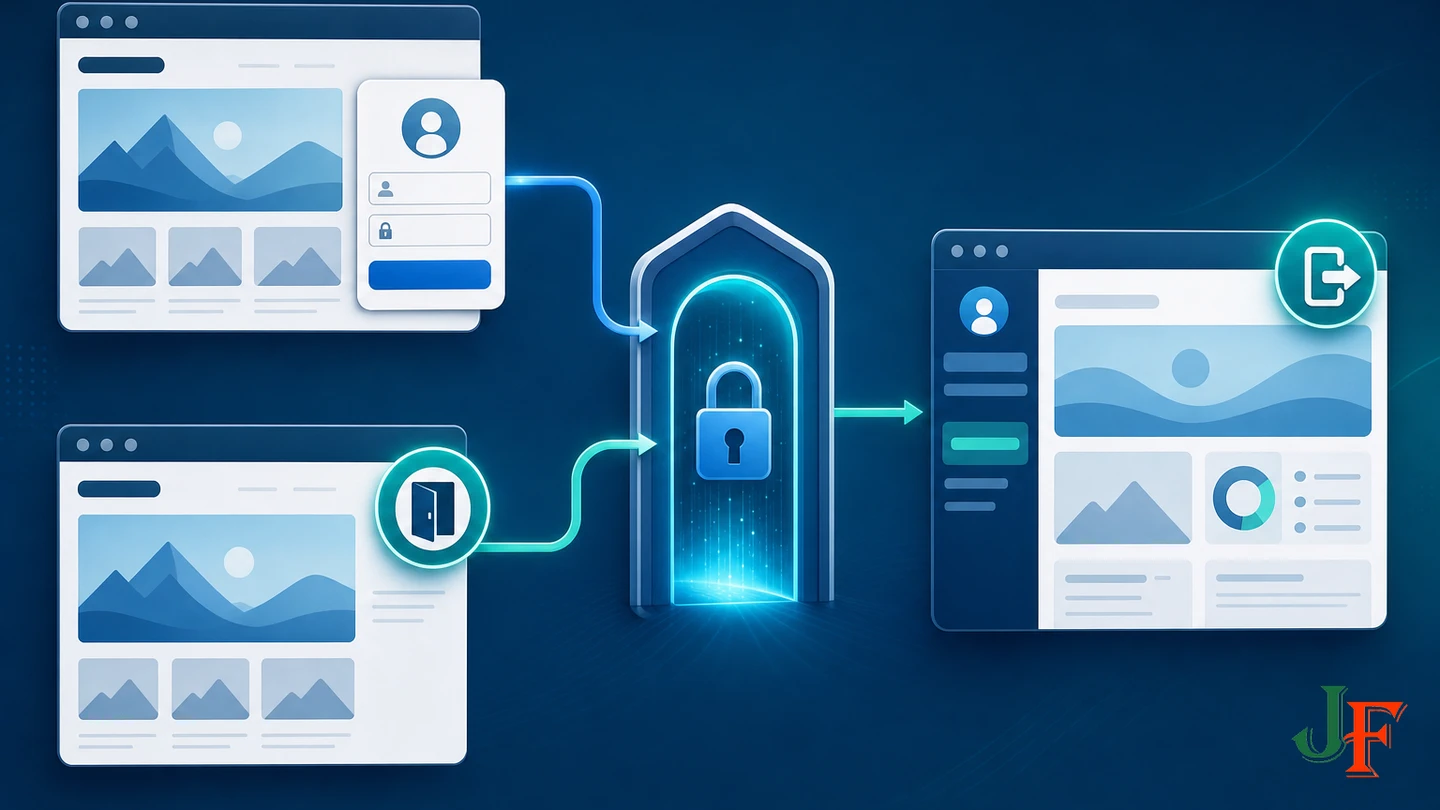
Joomla provides two core frontend approaches: a Users: Login Form menu item or a Login Form module. The module can be assigned to all pages, selected menu items, all pages except selected items, or no pages. After authentication, it changes to provide a logout interface. See the official Login Form documentation.
Using a Login Form module
- Create or open a Login Form module in the administrator interface.
- Publish it in a position provided by the active site template.
- Choose its menu assignment. Publishing it on all relevant public pages makes login easy to find.
- Save the module and test it while logged out and logged in.
Using a login menu item
- Create a menu item using the Users: Login Form type.
- Give it a clear title such as Member Login.
- Set its Access to Guest so it is intended for visitors who are not authenticated.
- Create a separate logout menu item and set its Access to Registered.
The documented result is that the Login item disappears after authentication and the Logout item is shown only to authenticated users. This Guest-versus-Registered pattern is described in the Guest Access guide.
Step 4: Create custom groups and access levels when needed
Skip this step if every member can use Registered access. For separate audiences:
- Open the administrator's user-group manager and create a descriptive group, such as Committee.
- Open the viewing-access-level manager and create a matching level, such as Committee Members.
- Include the Committee group in that viewing access level.
- Assign approved users to the Committee group.
- Use Committee Members as the Access value on the articles, menu items, and modules intended for that audience.
A user group organizes users, while a viewing access level controls visibility. Matching names can make the configuration easier to audit, but they remain different parts of Joomla's access model.
Related guidance: create a viewing access level.
Step 5: Organize and protect member articles
You may create a content category named Members to keep member articles organized. In this tutorial, the category is an editorial container only. Do not assume that organization alone protects its articles, and do not rely on an unverified category-level setting. Apply access protection to each underlying article.
- Create or edit a member article.
- Place it in the organizational Members category if that suits your content structure.
- Set the article's Access field to Registered for all ordinary logged-in members, or choose the appropriate custom viewing access level.
- Review the article for information that should not be included in a public introduction.
- Save the article and test its direct URL using accounts with and without the required access.
Joomla 5's article edit documentation confirms the article Access field and also distinguishes a Read More break from a Page Break. The former separates introductory and full text; the latter paginates a long article. See Help5.x: Articles: Edit.
Step 6: Restrict members menus and private modules
Create a menu item leading to the members content and set its Access to Registered or the relevant custom level. This keeps the navigation appropriate to the current user's viewing level. Then inspect the page's modules. A module containing member notices, contact details, downloads, or other private information must receive the same intended access level.
Do not stop after changing the menu item. Articles, menu items, and modules have independent Access fields. A hidden link does not establish protection for the underlying article. Conversely, an article may be protected correctly while an accompanying Public module still discloses information. Audit all three object types.
Optional: Show a public teaser
Joomla can expose an introductory teaser for a restricted article through the Unauthorised Links option. If you use this feature, insert a Read More break between the public introduction and protected full text. Treat everything before that break as public. Never put confidential dates, names, contact information, document links, or other private details in the teaser.
Use a Read More break, not a Page Break, for teaser/full-text separation. If an article must be completely private, do not enable this public teaser behavior. The relevant behavior is documented in the current article restriction guide and the Joomla 5 article editor help.
Optional: Keep a public link that sends guests to login
Sometimes a site owner wants a Members link to remain visible to guests rather than disappear. Joomla documents a technique that places the Registered destination in an unpublished hidden menu and uses a Public alias to point to it. The intended flow sends a guest to login and then continues to the restricted destination after successful authentication.
This is an optional routing technique, not a universal promise about every protected URL. The response can depend on menu context, routing, and the site's configuration. Follow the official Auto Redirect Guests to Login guide, then test the exact site and template before launch.
Testing matrix
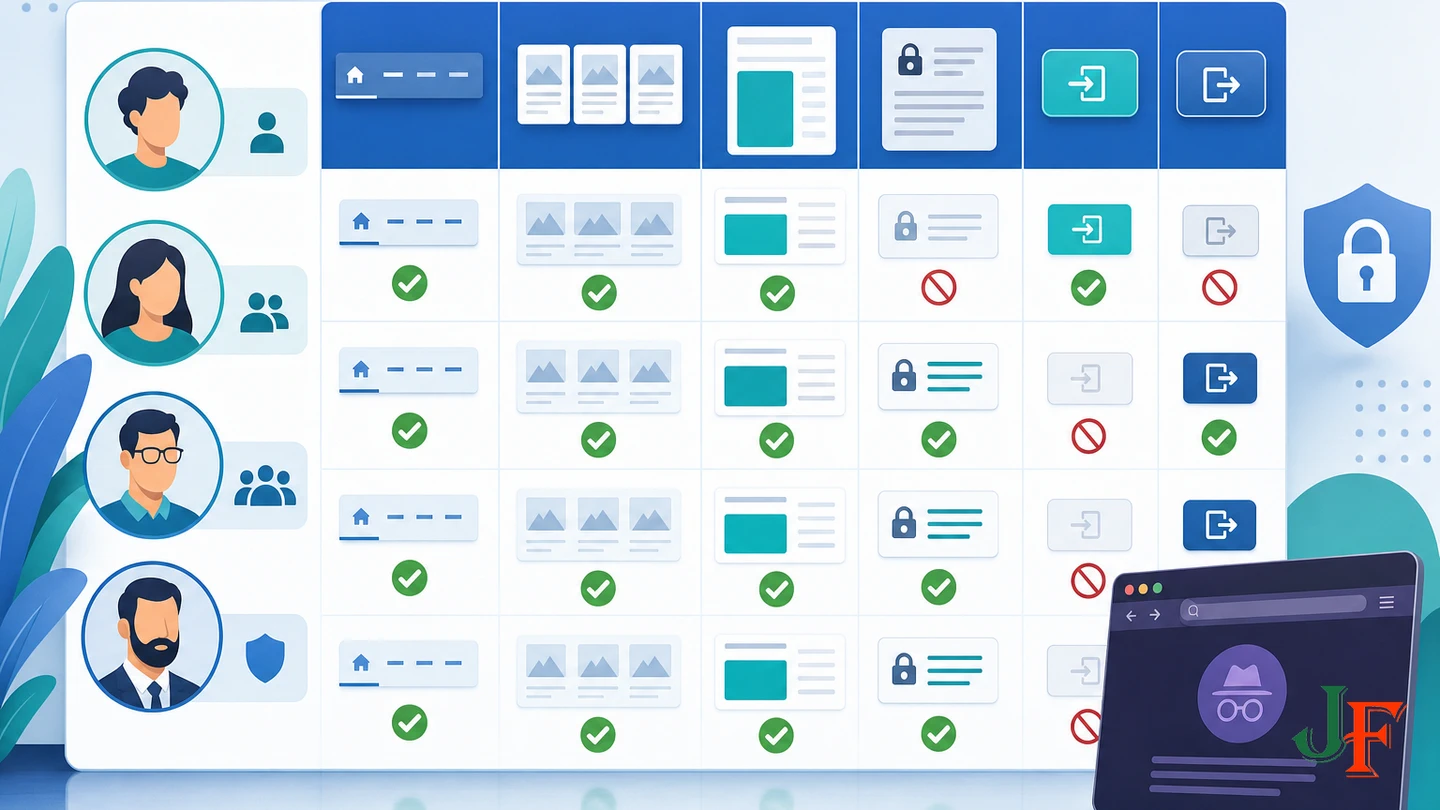
Access control should be tested with separate accounts, not only from a Super User session. Use a private browsing window or a separate browser where practical.
| Test identity | What to verify |
|---|---|
| Logged-out guest | Login is available; logout and private navigation are hidden as configured; direct protected URLs and optional teasers behave as intended. |
| Ordinary Registered member | General member articles, menu items, and modules are visible; administrative and custom-group content is not exposed. |
| Each custom group | The account sees its intended content and does not see content reserved for another custom audience. |
| Super User | Configuration can be reviewed, while remembering that elevated access does not represent an ordinary member's experience. |
Also test registration, activation email delivery, login and logout state changes, direct article URLs, menu visibility, module visibility, teaser behavior, and the optional post-login return. Remove a test user from a custom group and repeat the checks. If the site uses page caching, a CDN, reverse proxy, or optimization extension, perform site-specific tests to ensure authenticated output is not presented to guests; no universal cache behavior is assumed here.
Security, maintenance, accessibility, and metadata
- Keep the Joomla installation and extensions updated after taking an appropriate backup.
- Review group membership when a person joins, changes role, or leaves the organization.
- Use separate test accounts for access audits instead of relying only on administrator observations.
- Consider multi-factor authentication for sensitive groups and especially administrators. Joomla can require or disable MFA by user group, as documented in the Multi-factor Authentication guide.
- Perform accessibility testing on login, registration, navigation, forms, teasers, and protected articles.
- Review article metadata, but never use a Robots metadata value as a substitute for viewing access control.
Joomla 5 article forms document a Robots field and an Accessibility Check tool. Verify the displayed labels in Joomla 6.1 before creating version-specific instructions. Protected publishing still merits accessibility and metadata review, but neither review replaces the article's Access setting. Do not assume that every restricted URL is automatically excluded from every search engine, sitemap, cache, CDN, or external index.
When a membership extension is required
Core Joomla is sufficient for accounts, login, audience segmentation, and basic private content. Requirements such as paid plans, recurring billing, automatic expiry, renewal workflows, or automatic synchronization between subscription status and Joomla groups need additional membership automation. The Joomla Extensions Directory membership category lists third-party products advertising such capabilities.
Do not treat a directory listing as a guarantee of security, maintenance, support, billing behavior, or compatibility. Before selecting a product, evaluate its current version support, update history, vendor documentation, support policy, security history, and suitability for the site's requirements.
Practical examples
- Small club: manually create members in Registered, protect all member articles with Registered access, and publish a Login Form module.
- Association: use Registered for general notices and a Committee group plus Committee Members access level for board documents.
- School community: create separate groups and access levels for audiences such as Staff and Parents, then assign each article, menu item, and module deliberately. Technical ACL configuration alone does not establish legal or regulatory compliance.
Common mistakes and troubleshooting
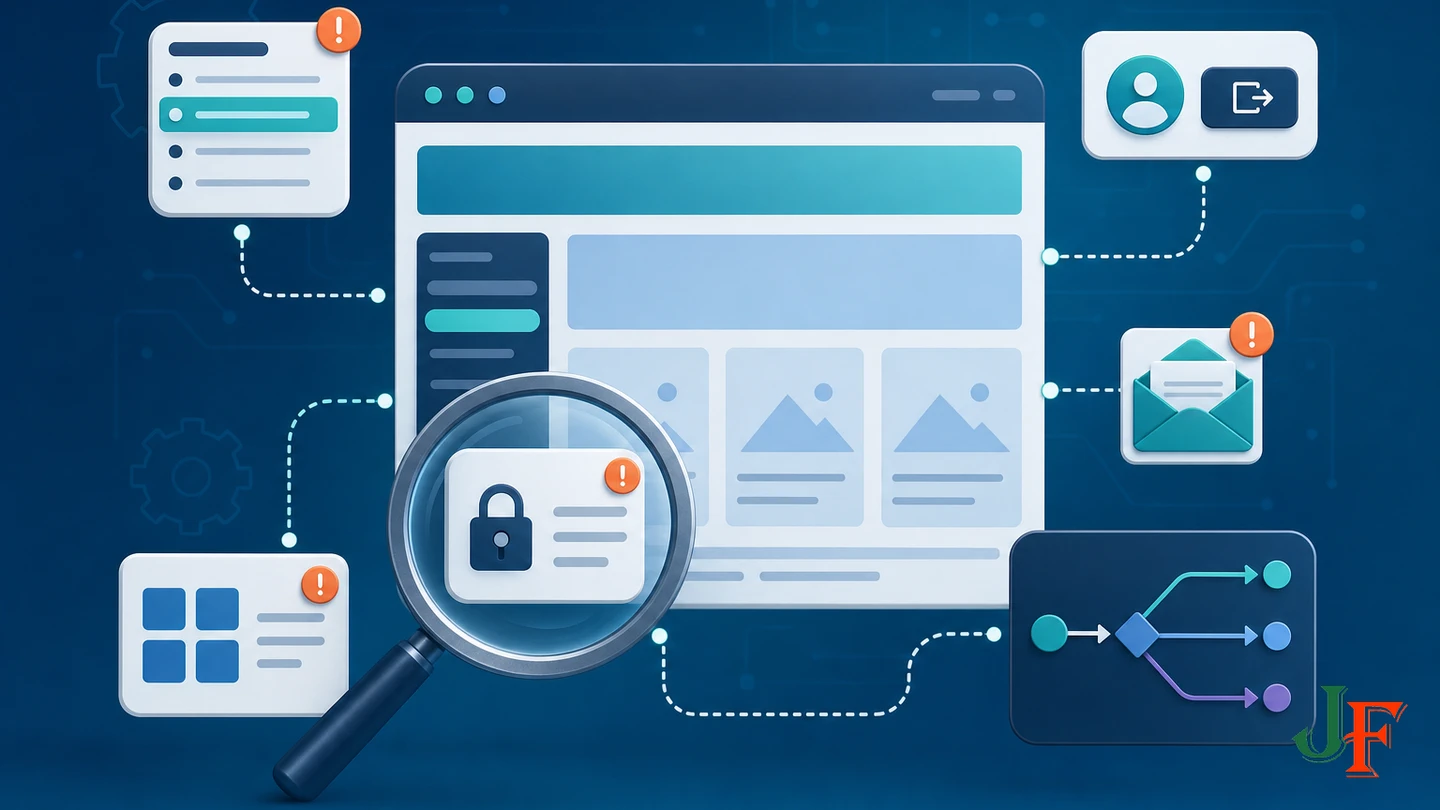
A guest can reach information that should be private
Check the article's Access value first, then inspect every module displayed on the page. Confirm that no confidential information appears before a Read More break. Do not assume the menu item's access setting protects the article.
A member logs in but cannot see the menu
Confirm that the account belongs to a group included in the menu item's viewing access level. Check that the menu item and its menu module are published in the expected context. Retest using an ordinary account rather than a Super User.
The Login link remains visible after login
Verify that the Login menu item uses Guest access. If you created a separate Logout item, verify that it uses Registered access. If using the Login Form module, confirm that you are observing the published module and its authenticated logout state.
Activation messages do not arrive
Self and Administrator activation depend on outgoing email. Test delivery before changing other access settings. Detailed mail-server configuration is outside this tutorial, so use the site's verified mail configuration process rather than guessing at server values.
Article options do not behave as configured
If the site is still running Joomla 5.4.7 or 6.1.2, review the official release notice for the documented article-parameter regression. Determine whether a fixed update has shipped or whether the official hotfix remains applicable. Do not diagnose this documented parameter-precedence issue as an ACL bypass without separate evidence.
A guest does not return to the expected page after login
Routing behavior can depend on the menu context and configuration. Recheck the documented hidden-menu and Public alias workflow, then test the exact destination while logged out. Do not assume that every direct protected URL follows the same redirect sequence.
Frequently asked questions
Can Joomla create a members-only area without an extension?
Yes. Core users, user groups, viewing access levels, protected articles, restricted menu items and modules, and a core login interface can provide a basic private area. Billing, expiry, and subscription automation are separate requirements.
Should new members use the Registered group?
For one general members area, Registered is the normal choice. Use custom groups and matching viewing access levels when different audiences need different content.
Is hiding the Members menu enough?
No. Protect the underlying article and any module revealing private information. Menu visibility alone does not secure direct content access.
Can guests see an article teaser?
Yes, if Unauthorised Links is configured and the article uses a Read More break. Treat all introductory text as public. Do not enable teaser behavior for fully private material.
Does Registered access give a user administrator privileges?
No. Viewing access controls visibility, while permissions control actions. Ordinary members do not need authoring or administrative roles merely to view protected content.
Can Joomla support several membership tiers?
It can segment visibility with custom groups and viewing access levels. Payment, renewal, expiry, and subscription-to-group synchronization require additional automation.
Which identities should I test?
Test as a guest, an ordinary Registered member, a member of every custom group, and a Super User. Include direct URLs, menus, modules, login, logout, activation, teasers, and changes in group membership.
Sources
- Joomla! Project Roadmap
- Joomla 6.1.2 & 5.4.7 Security & Bugfix Release
- Joomla! Documentation Versions
- User Registration
- Login Form
- Access Control
- Guest Access
- Article: Access Restriction
- Multi-factor Authentication
- Joomla! Extensions Directory - Membership & Subscriptions
- Help5.x: Articles: Edit
- Auto Redirect Guests to Login

Add comment