
Joomla access levels determine who can see articles, categories, menu items, modules, contacts, and other supported objects. They are an essential part of Joomla ACL, but they are often confused with user groups and action permissions. That confusion can result in content being hidden from the wrong users—or a menu link being hidden while the underlying resource remains accessible through another route.
This tutorial explains Public, Guest, Registered, Special, Super Users, and custom viewing access levels in beginner-friendly terms. You will create a basic members-only area using Registered and then follow a simple client-portal pattern using a custom group. The tutorial targets Joomla 6.1, while the same verified core ACL model also applies to supported Joomla 5.4. Exact administrator labels can vary between versions, installations, and customized sites.
Joomla access levels in plain English
Joomla ACL has two related but distinct parts:
- Viewing access levels answer, “Who may view this object?”
- Action permissions answer, “What may this user do?”
An article could therefore be visible to a client without allowing that client to edit, delete, publish, or configure anything. Conversely, a user might have an editing permission but still need an appropriate viewing level to see a particular frontend item. Joomla's official Access Control guide and Permissions documentation treat visibility and actions as separate systems.
Access level, user group, and permission compared
| Concept | What it represents | Typical assignment |
|---|---|---|
| Viewing access level | One or more groups allowed to view an object | Assigned to an article, category, menu item, module, contact, or another supported object |
| User group | A collection of users that participates in group and permission inheritance | A user account can belong to one or more groups |
| Action permission | An authorization to perform an action such as create, edit, delete, publish, or configure | Configured globally or at supported component, category, and item levels |
A viewing access level is not itself a user role. It is a named collection of groups. Joomla grants viewing access when at least one of a user's direct or inherited groups matches a group selected in the object's viewing level. This matching model is documented in How Joomla Access Works and implemented in Joomla's Access class.
Simple rule: assign users to groups, include groups in viewing access levels, and assign viewing access levels to content and interface objects.
How Joomla group inheritance changes access
Inheritance must be understood before creating a custom group. Joomla's default groups form parent-and-child branches. A user assigned to a child group also participates in its inherited parent groups for access calculations. The default Joomla 6.1 installation data contains nine groups: Public, Registered, Author, Editor, Publisher, Manager, Administrator, Super Users, and Guest. These are defaults rather than a required configuration for every site, because administrators can create and modify groups and levels. The exact default records are available in Joomla's official 6.1 installation data.
For example, Author, Editor, and Publisher belong to the standard authenticated branch beneath Registered. Manager and Administrator form another inherited branch in the default hierarchy. This is why a viewing level can select a parent or branch group and allow qualifying descendants without listing each descendant separately. Joomla's guide to changing user groups explains group assignment and inheritance.
A custom frontend group for clients is normally created as a child of Registered in the official Joomla pattern. That gives the group the inherited authenticated frontend branch. It does not automatically make the group part of Special. The group would need to be explicitly included in Special or inherit through a group already selected by Special.
Inheritance is different from permission denial
Do not apply action-permission terminology to viewing-level membership. Viewing access depends on whether a qualifying group is included in a level. Action permissions use Allowed, Denied, and Inherited rules across an asset hierarchy. For action permissions, an applicable explicit Denied rule can block an action even when another applicable rule allows it. The official permissions reference documents this precedence. Beginners should avoid unnecessary Denied settings because multiple group memberships can make the final action result harder to diagnose.
The default Joomla access levels at a glance
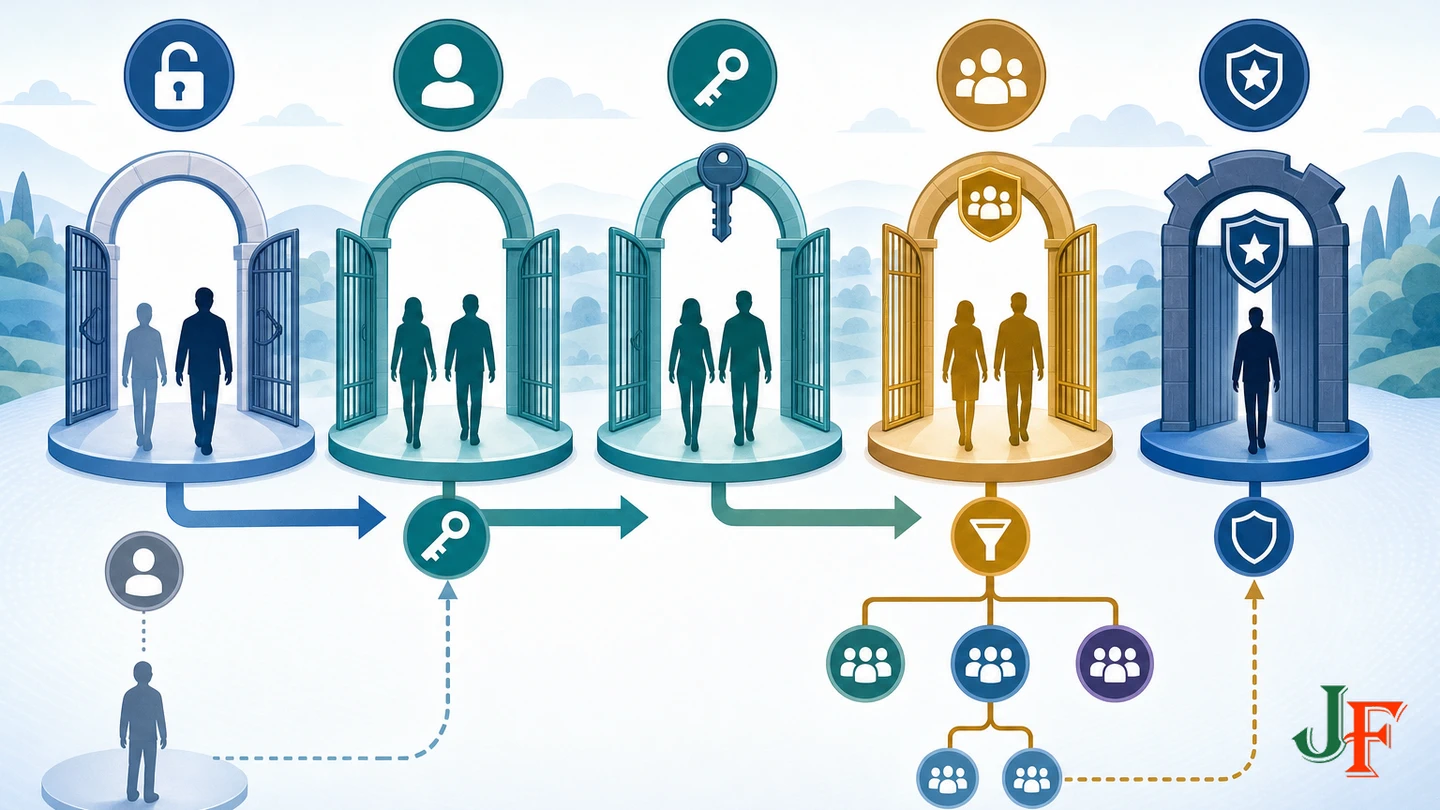
Joomla 6.1's default viewing levels are Public, Registered, Special, Guest, and Super Users. Administrators can deliberately change these mappings or create additional levels, so check the actual configuration of an established site before assuming it still uses the defaults.
| Default level | Groups selected directly in Joomla 6.1 defaults | Practical meaning under the default hierarchy |
|---|---|---|
| Public | Public | Visible to guests and logged-in users |
| Guest | Guest | Visible before login and hidden after login |
| Registered | Manager, Registered, and Super Users | Available to standard authenticated branches and excluded from Guest |
| Special | Manager, Author, and Super Users | Also includes qualifying descendants through inheritance, but excludes plain Registered users |
| Super Users | Super Users | Visible to the Super Users group |
These exact default mappings are verified by the Joomla 6.1 installation SQL, while recursive group matching is shown in the official Access implementation.
Public: visible to everyone
Under Joomla's default hierarchy, Public content is visible to guests and authenticated users. Public visibility does not grant permission to create, edit, publish, configure, or administer content. It only describes who can view the object.
Guest: visible only before login
The default Guest level is useful for interface elements that should disappear after authentication. For example, a login menu item or login module can use Guest, while a corresponding logout item can use Registered. This default behavior is described in Joomla's article access restriction guide.
Registered: the practical members-only level
Registered is generally the simplest built-in choice when content should be available to all ordinary authenticated branches on a site that retains Joomla's default group structure. It is appropriate for a general members-only announcement, handbook, or article that does not need to distinguish one type of member from another.
Special is not a premium-members level
Special does not mean every logged-in user, subscriber, customer, or paid member. In Joomla 6.1's default data, it directly selects Manager, Author, and Super Users. Editor and Publisher qualify through the Author branch, and Administrator qualifies through the Manager branch. A plain Registered user does not qualify. A custom Clients group placed directly under Registered also does not automatically qualify. The mapping may be deliberately reconfigured, but administrators should not use the label “Special” as a guess for members-only access.
Tutorial: create members-only content with Registered
Use this pattern when every standard logged-in member should see the same content. Work on a staging site or a non-sensitive test article first.
- Create or select the article. Use a harmless test article before applying the pattern to real information.
- Set the article's Access field to Registered. This protects the Joomla article object according to the Registered viewing level.
- Review its category and list views. Decide whether the whole category is members-only or whether it intentionally mixes public and restricted articles. Test every relevant category or blog view.
- Align the menu item. Set the related menu item to Registered if it should be hidden from guests. Hiding the menu item is for coherent navigation; it is not a replacement for restricting the article.
- Align supporting modules. A members menu, portal notice, or related module should normally use the intended level so guests do not see controls leading to inaccessible content.
- Configure the login experience deliberately. A login item can use Guest and disappear after login, while a logout item can use Registered.
- Test both navigation and the direct article URL. Confirm the result as a guest and as an ordinary Registered user.
Depending on the component and implementation, an unauthorized request may be hidden, redirected to login, answered with HTTP 403, or handled in another extension-specific way. Joomla's developer documentation makes extension developers responsible for applying access checks, so do not assume that every third-party component behaves identically to core content.
Tutorial: build a simple client portal with a custom group
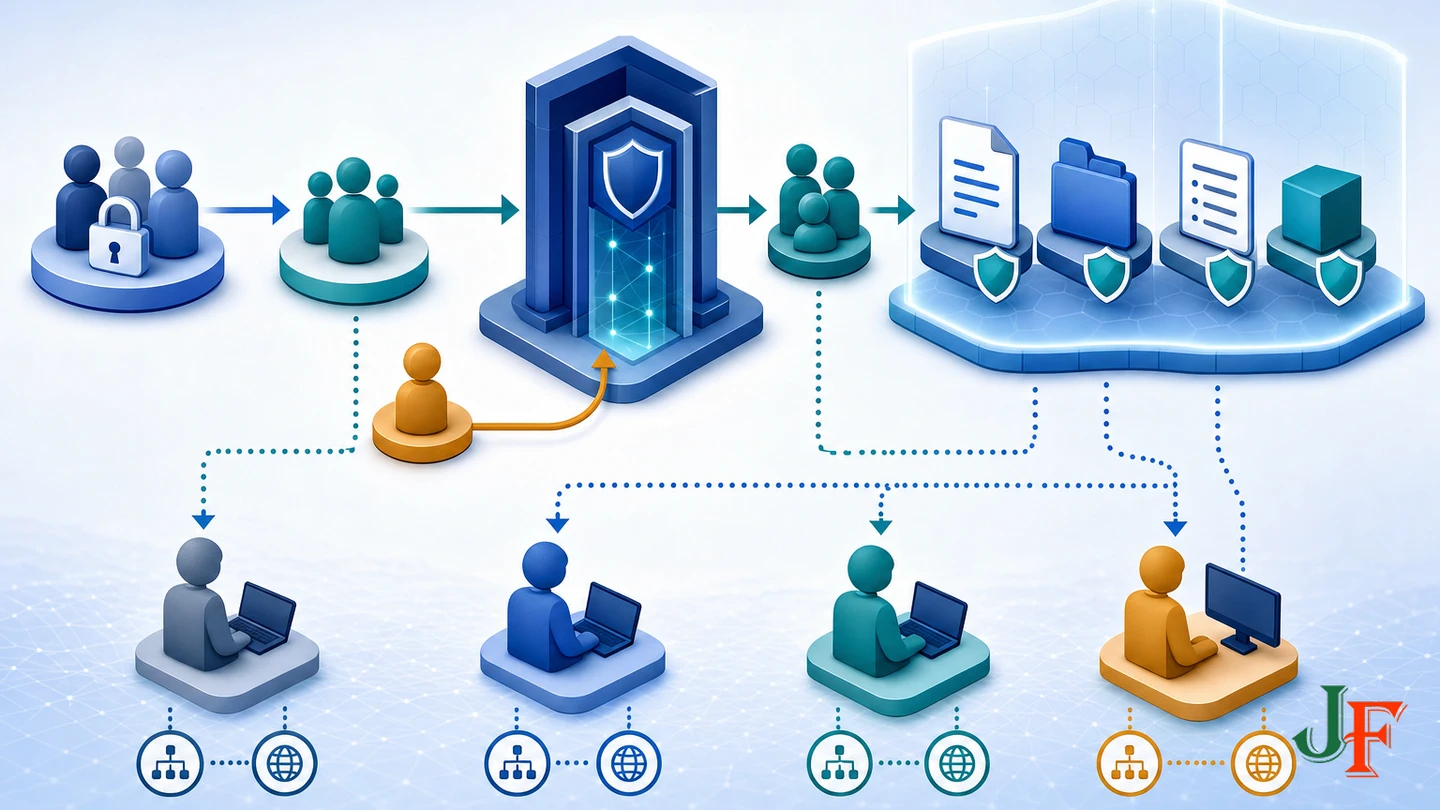
This example creates one shared Clients area. It is a simple core ACL pattern, not a complete solution for subscriptions, billing, automated provisioning, secure document delivery, or large numbers of separate client spaces.
Step 1: create the Clients user group under Registered
Open the administrator area for user groups and create a group named Clients. Select Registered as its parent. This follows Joomla's official frontend custom-group pattern and lets members inherit the standard authenticated branch. Do not copy permissions from another role merely because its name sounds useful.
Step 2: create the Clients viewing access level
Create a viewing access level named Clients and select the Clients group. The group and level may share a name, but they remain different objects: users belong to the Clients group, while portal articles and interface elements receive the Clients access level.
Step 3: include Super Users when administrators need frontend visibility
Add the Super Users group to the Clients viewing level if administrators must inspect the portal from the frontend. An ordinary Super User is not automatically granted every custom viewing level. Joomla's Workflow Example 2 demonstrates a custom-level menu item that is not visible to a Super User until the group is included. Some extensions may implement a separate core.admin bypass, so extension behavior can vary.
Related guidance: understand Joomla Super Users.
Step 4: assign client accounts to the group
Edit each appropriate user account and assign it to Clients. Users can have more than one direct group assignment, and inherited parent groups also participate in access calculations. Review existing assignments rather than assuming that adding Clients removes another role. Multiple groups can also combine action permissions, including any applicable explicit Denied rules.
Step 5: apply the level to the actual resources
Set the Clients access level on each portal article or other supported resource. Then align the related category, menu item, and modules where applicable. The article or resource setting is the essential protection decision; menu and module settings create a coherent interface around it.
Do not begin by restricting only the menu item. A hidden link does not establish authorization for the underlying resource. Test direct URLs, category pages, blog or list views, and every component view through which the item might appear.
Step 6: decide what guests should experience
You can hide portal navigation from guests or deliberately show a public login prompt. If Joomla's Unauthorized Links behavior is enabled, a restricted article can be represented by public intro text linking toward the restricted full item. That teaser is public by design.
The official restriction guide warns that without a suitable Read More boundary, all article text may be treated as intro text in a listing. The guide inconsistently uses Page Break and Read More terminology, and this behavior was not clean-install tested on Joomla 6.1.2 for this tutorial. Until it is verified on the publication target, keep sensitive information out of any public intro text and test the exact listing view.
Step 7: test with four separate account types
Do not test only while signed in as the administrator. Use independent sessions or clean browser profiles for:
- Guest: not logged in.
- Ordinary Registered user: logged in but not assigned to Clients.
- Clients user: assigned to the custom Clients group.
- Super User: used to confirm whether frontend administrator visibility was configured as intended.
For each identity, test the menu, direct article URL, category or list view, relevant modules, login behavior, logout behavior, and any relevant search view. Also confirm that error or login messages give users an understandable next step. Search and third-party extension behavior must be verified separately rather than inferred from core article behavior.
Permissions control what clients can do
A viewing level alone does not let Clients create or edit content. If clients only need to read portal pages, avoid granting additional action permissions. If a project later requires frontend creation or editing, design and test those permissions separately.
Joomla supports permission rules globally and at supported component, category, and individual-item levels, with lower levels inheriting from or overriding higher levels. An explicit Denied rule encountered for an applicable group in the permission hierarchy can block the action despite an Allow elsewhere. This Denied precedence belongs to action permissions, not viewing-level membership. Review the calculated result for each relevant group and user instead of relying only on the value selected in one field.
Security warnings for restricted Joomla content
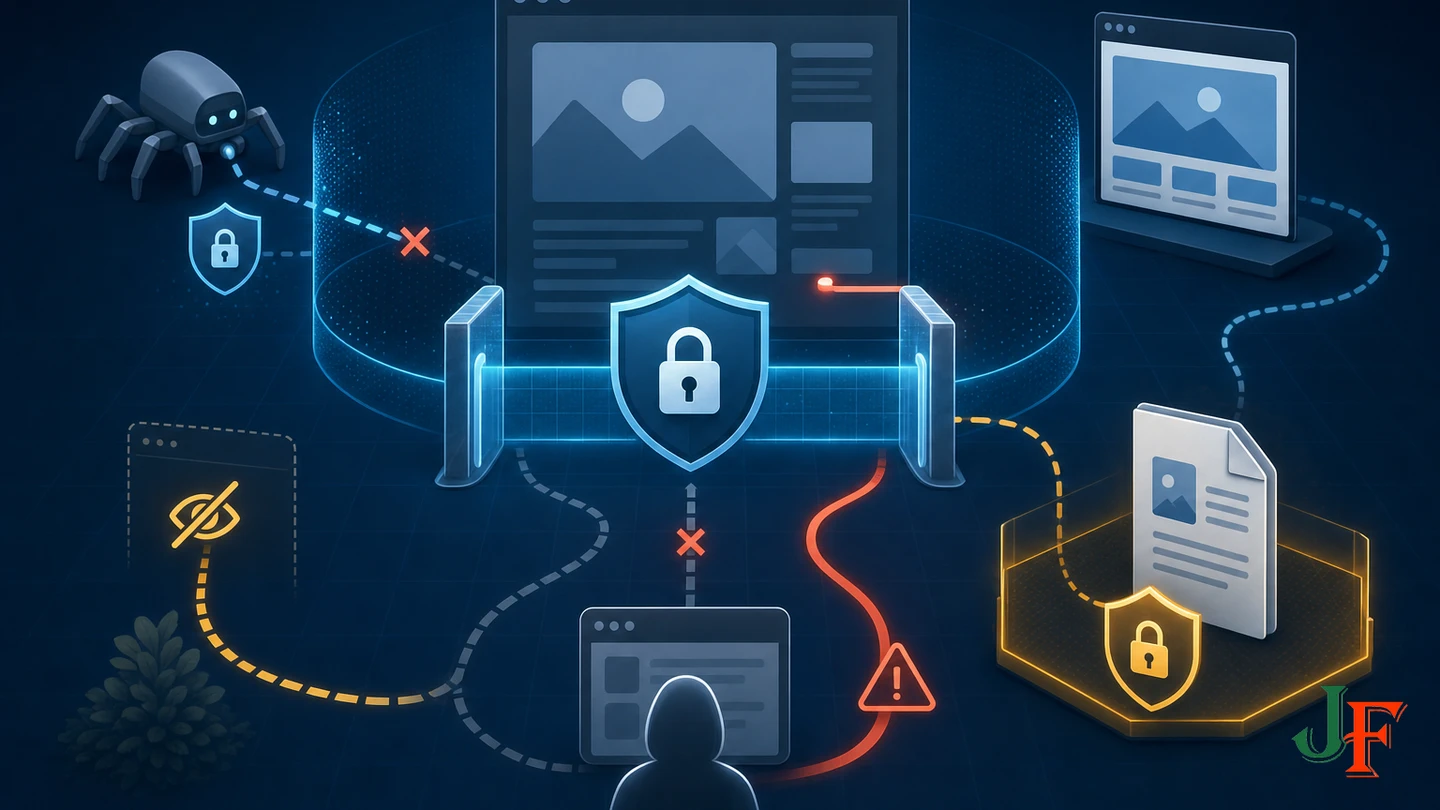
Hiding navigation is not resource protection
Always apply the intended access level to the underlying article or supported resource. Menu-item and module access should then be aligned to prevent confusing navigation. A visitor may know or discover a direct URL even when no menu link is displayed.
Article ACL does not prove that a static file URL is protected
The researched Joomla sources verify access checks for Joomla objects, but they do not establish that placing a PDF, image, video, or other static-file URL inside a restricted article protects that independently reachable file. Confidential downloads require separately verified protected delivery. Do not publish a sensitive file at a public URL and assume that the surrounding article's access level secures it.
Noindex and robots.txt are not authorization
Confidential pages should be protected through authentication and authorization. Google's guidance on controlling shared content distinguishes login protection from indexing controls such as noindex and robots directives. Content that genuinely requires login is normally unavailable to ordinary crawlers, but a deliberately public teaser, metadata, link, or separately accessible file may remain discoverable. Restricted content should therefore not be described as having no SEO footprint.
Common mistakes and troubleshooting
A Registered user cannot see a Special item
This is expected under Joomla 6.1's default mapping. Special does not include plain Registered users. Use Registered for all-member content, create a suitable custom level, or deliberately reconfigure an existing level only after reviewing everything that uses it.
A client can see the menu but not the article
Check the access level on the article, its category and relevant views, the menu item, and any surrounding modules. Confirm that the account is assigned to the intended group and that the viewing level includes that group. Also test whether a third-party component performs its own access checks.
A Super User cannot see the client menu
Check whether Super Users is explicitly selected in the custom Clients viewing level. Do not assume that an ordinary Super User receives every custom level automatically.
Guests can see part of a restricted article
Check whether Unauthorized Links or public teaser behavior is enabled. Review the intro text and verify the Read More boundary in the exact category or listing view. Never put confidential information in text intended to be public.
One account gets an unexpected permission result
Review all direct and inherited group memberships. For action permissions, inspect parent asset levels and look for explicit Denied rules. For visibility, inspect which groups are actually included in the viewing level. Do not troubleshoot visibility using Denied terminology because the two calculations are different.
Caching and authenticated portal testing

Joomla's documented core module caching varies by module ID, the user's viewing access levels, and the menu Itemid. Core page caching is intended for guest visitors rather than authenticated sessions, according to Joomla's Cache guide. These statements apply to documented core behavior only.
Test every authenticated portal view with the site's actual cache configuration. Reverse proxies, hosting caches, CDNs, and third-party cache extensions were not verified by the core documentation and must be tested separately. Confirm that a response created for one identity is never served incorrectly to another.
Joomla 6.1 and 5.4 version notes
As verified on 28 July 2026, the current releases were Joomla 6.1.2 and Joomla 5.4.7, both announced as security and bugfix releases on 7 July 2026. Joomla 6.x was the current major series. Joomla 5.x remained supported in bugfix mode, with regular bugfix support scheduled through 13 October 2026 and security-only support through 12 October 2027. Check the current Joomla Project Roadmap and the official Joomla 6.1.2 and 5.4.7 release announcement before relying on these time-sensitive details.
The verified core access model applies to Joomla 5.4 and 6.1, but this does not guarantee that every administrator label, screen, extension, or unauthorized-request response is identical.
Frequently asked questions
Which access level should I use for members-only articles?
Use Registered when all standard authenticated branches should have access under Joomla's default group structure. Restrict the article itself and align related menu items and modules.
Does Special mean all logged-in users?
No. The default Joomla 6.1 Special level selects Manager, Author, and Super Users, with qualifying descendants included through inheritance. Plain Registered users and arbitrary custom groups are excluded unless deliberately included or inherited through a selected branch.
Can a user belong to more than one group?
Yes. Joomla evaluates direct assignments and inherited parent groups. Multiple assignments can expand viewing access and combine action-permission results, so test the actual account.
Why can a Super User miss a custom-access item?
Custom viewing levels require a matching selected group. Add Super Users to the level when frontend visibility is required, while recognizing that some extensions may separately implement a core.admin bypass.
Is hiding a menu item enough to secure an article?
No. Restrict the underlying article or resource. Menu and module settings organize the interface but do not replace resource authorization.
Do I need an extension to restrict ordinary Joomla articles?
No. Core Joomla provides groups, viewing levels, article access, menu access, module access, and action permissions. Additional functionality may be needed for requirements not established by core article ACL, such as verified protected-file delivery, subscriptions, billing, or automated client provisioning.
Sources
- Joomla! Project Roadmap
- Joomla 6.1.2 & 5.4.7 Security & Bugfix Release
- Access Control
- Article: Access Restriction
- Changing User's Groups
- Workflow Example 2
- How Joomla Access Works
- Permissions
- Joomla CMS 6.1 Installation SQL: base.sql
- Joomla CMS 6.1 Access Class
- Cache
- Control What You Share With Google

Add comment