
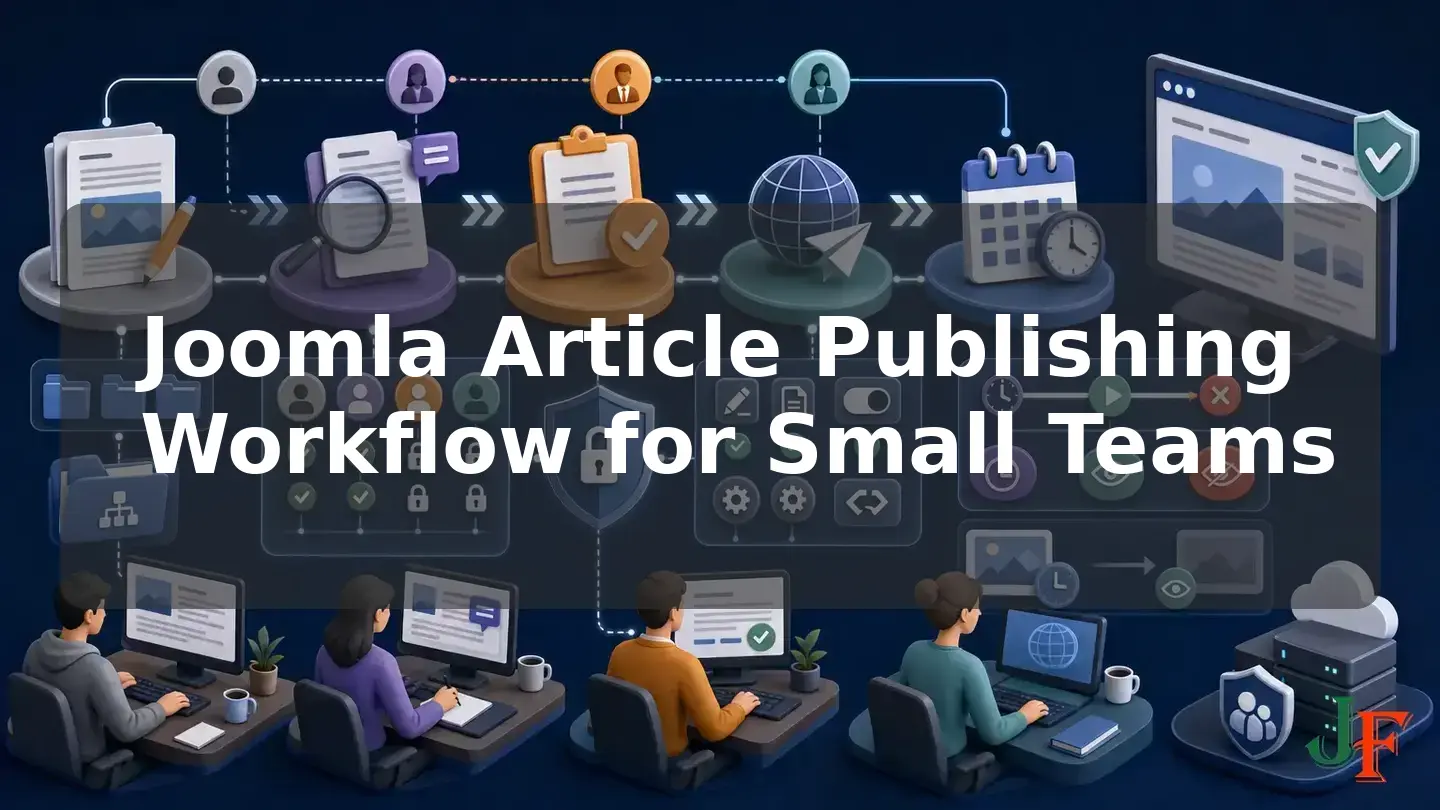
A well-designed Joomla publishing workflow gives a small editorial team a repeatable path from first draft to reviewed, approved, scheduled, and published content. Instead of allowing every contributor to publish, the team can separate writing, editorial review, approval, and publication authority. This is useful for agencies, associations, businesses, and organizations where several people share content management responsibilities.
This guide explains how to build that process with Joomla's core workflow, permission, scheduling, version-history, and accessibility features. It targets Joomla 6.2 while retaining compatibility notes for Joomla 5.4. You will learn the important distinction between workflow stages and article states, plan forward and return transitions, assign workflows by category, restrict final approval, test with real team accounts, and combine approval with scheduled publishing. The recommended model is a practical starting point rather than the only valid configuration.
What a Joomla publishing workflow is
A workflow is a configurable sequence of stages connected by transitions. It can turn an informal exchange of messages into explicit handoffs: an author submits a draft, an editor requests changes or sends it for approval, and an authorized approver publishes it. Joomla supports multiple workflows, so categories with routine content can use a simple process while categories requiring client, legal, or organizational approval can use a stricter one. These are core capabilities; a third-party extension is not required for the basic process described here. See the official Publishing Workflow documentation.
A workflow is most valuable when different people are responsible for drafting, editing, and publication. A site on which one trusted person performs every task may not need a multi-stage design. Even for a larger team, begin with the smallest process that represents real responsibilities. Extra stages create more transitions and permissions to maintain.
Supported Joomla versions and context
As of the research date, 8 November 2026, Joomla 6.2.0 is the current release in the actively developed 6.x series. Joomla 5.4.10 is also supported, but Joomla 5 is in security-fix-only support through its scheduled end-of-support date of 12 October 2027. Current release and lifecycle details are maintained in the official Joomla Project Roadmap.
Version note: The primary instructions in this tutorial target Joomla 6.2. The researched workflow concepts and procedures also apply to Joomla 5.4, although interface labels and screen presentation should be checked on the exact version installed.
Understand stages, transitions, states, categories, and permissions
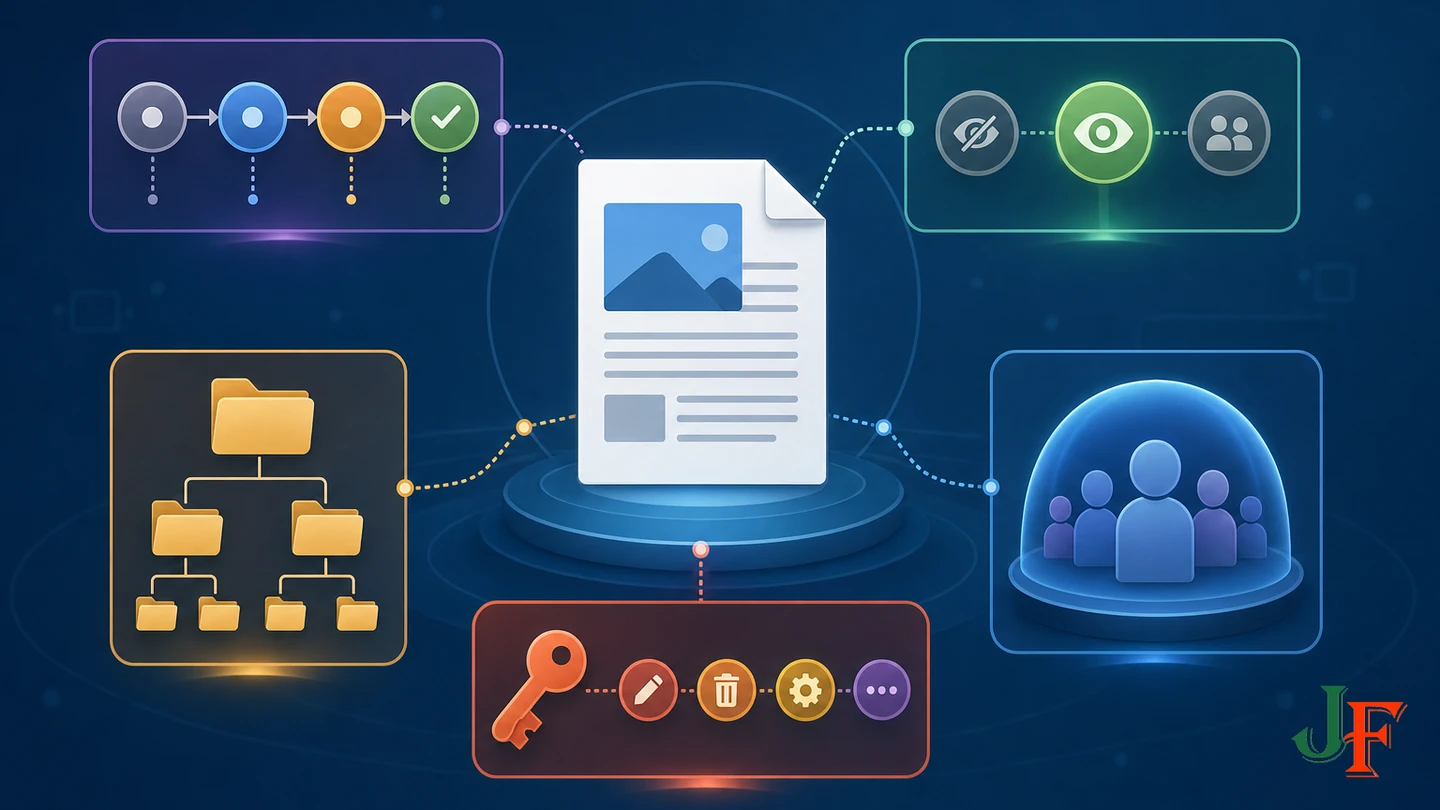
Define the following terms before configuring anything. Confusing a workflow stage with an article state is one of the easiest ways to create a process that appears to work but does not publish content.
| Term | Meaning | Example |
|---|---|---|
| Workflow | The complete editorial process assigned to content. | Standard Editorial Workflow |
| Stage | A configurable position in the process. | Draft, Review, or Approval |
| Transition | An allowed movement with a current stage and target stage. Its configured actions may also affect publishing state, featured state, or notifications. | Submit for Review |
| Article state | The article's separate publication state. | Published, Unpublished, Archived, or Trashed |
| Category | The content classification through which a workflow can be selected. | News or Client Announcements |
| Viewing access | Which user groups may view an item. | Public, Registered, or a custom access level |
| Action permission | What a user may do to content or a workflow. | Create, Edit, Edit Own, Edit State, Manage Workflows, or Execute Transition |
Draft, Review, Approval, and Published are useful stage names, but those names are configurable. Published, Unpublished, Archived, and Trashed are article states. Joomla stores and manages the workflow stage and article state separately. A transition can change a stage, a state, both, or neither, depending on its configuration. A stage named Published therefore does not prove that the article is publicly available. The actual state, publishing dates, viewing access, and applicable permissions also matter. This distinction is documented in Publishing Workflow.
Viewing access and action permissions solve different problems. The article's Access value is a Viewing Access Level that determines who can view it, as explained in How Joomla Access Works. Permissions determine what a user can do. Joomla resolves article permissions through an asset hierarchy that includes the article, its category hierarchy, the content component, and Global Configuration. A Denied permission on an applicable level or group path cannot be overridden by a lower Allowed setting. See the official Permissions documentation.
Related guidance: Joomla viewing access levels.
A practical small-team Joomla publishing workflow
The following model is a recommended starting pattern, not a mandatory design:
| Workflow stage | Typical article state | Responsible role | Next choices |
|---|---|---|---|
| Draft | Unpublished | Author | Submit for Review |
| Review | Unpublished | Editor | Return to Draft or Send for Approval |
| Approval | Unpublished | Approver or Publisher | Return to Review or Approve and Publish |
| Published | Published, or Pending until a future start date | Approver or Publisher | Optional retirement or archival process |
Return transitions are essential in a practical design. An editor must be able to return Review to Draft, and an approver should be able to return Approval to Review. This lets the team request changes without manually manipulating the article's state. The official Workflow Example 1 demonstrates role separation, forward transitions, return transitions, and a four-stage process.
Do not treat Scheduled as a required workflow stage. An approved article can have the Published state while a future Start Publishing date keeps it Pending. Scheduling controls site availability; it does not automatically move the article from Draft to Published as a workflow transition.
Prerequisites and safety checklist
Before changing a production editorial process:
- Create a current backup and confirm that the team has a rollback plan.
- Build and test the workflow on a staging or test site first.
- List each role, the actions it needs, and the actions it must not have.
- Identify the categories that will use the workflow.
- Create test accounts representing the author, editor, and final approver.
- Record the existing article state, category, access, scheduling, and permission conventions.
- Plan a limited pilot category before applying the process broadly.
These are operational recommendations, not automatic benefits supplied by the workflow feature. The workflow still requires careful permission design, testing, and ongoing maintenance.
back up Joomla before configuration changes or use a staging copy before editing the production design.
Step 1: Plan roles, handoffs, and return paths
Write a short responsibility matrix before opening Joomla. For each role, specify who may create an article, edit their own article, edit another person's article, execute each transition, and change the article state. Also decide who can return work for changes.
The default Joomla role example distinguishes Authors, Editors, and Publishers: an Author creates and edits their own articles, an Editor can edit articles from other users, and a Publisher can change state and publish. This documented example is useful for learning, but those default groups are not necessarily optimal for every agency or regulated organization. Custom groups may provide a clearer least-privilege design. The default Author can also be unable to see or reopen an unpublished article from the frontend after saving it, so recurring frontend drafting must be tested or supported with a carefully designed custom access level, group, or limited backend configuration. These behaviors are described in Workflow Example 1.
Step 2: Enable workflows and version history
- Open Content > Articles.
- Select Options.
- Open the Integration tab.
- Enable Workflow.
- Save the options.
This documented setting enables customized article workflows. The option location is covered by Articles: Options and the workflow guide.
If the team wants revision history, enable article versions in Articles: Options and configure the maximum retained versions in the Editing Layout settings. Version history is a useful recovery and comparison safeguard, but it is not a complete workflow rollback. When workflows are enabled, workflow-managed state and featured fields are excluded from normal article versioning to avoid permission conflicts. Restoring an article version must not be assumed to restore every workflow-related value.
Step 3: Design user groups and viewing access separately
Create or select groups according to responsibility rather than job title alone. A simple plan might use a contributor group, a reviewer group, and an approver group. Apply least privilege: contributors should not receive publication authority merely because they need to see and edit their drafts.
Then decide which groups need to view unpublished or restricted content. Granting a viewing access level does not grant Create, Edit, Edit State, Manage Workflows, or Execute Transition. Conversely, action permissions do not by themselves define who may view an article on the site. Keep the two decisions in separate columns in your role matrix.
When a permission does not behave as expected, inspect the calculated result for the actual group and account. Remember that an explicit Denied value inherited through any applicable group path prevents the action even if Allow appears lower in the asset hierarchy.
Related guidance: Joomla user permissions.
Step 4: Configure category-level article permissions
Use category permissions to limit each team to the content area it manages. For example, contributors may need Create and Edit Own in a specific category, reviewers may need Edit, and the final approver may need Edit State. Avoid granting broad global permissions when a category-level permission is sufficient.
Check parent categories as well as the target category. Because permissions are inherited, a denial higher in the hierarchy can explain why an apparently allowed category action is unavailable. Test the calculated permissions instead of inferring the result from one setting.
Step 5: Create stages and forward and return transitions
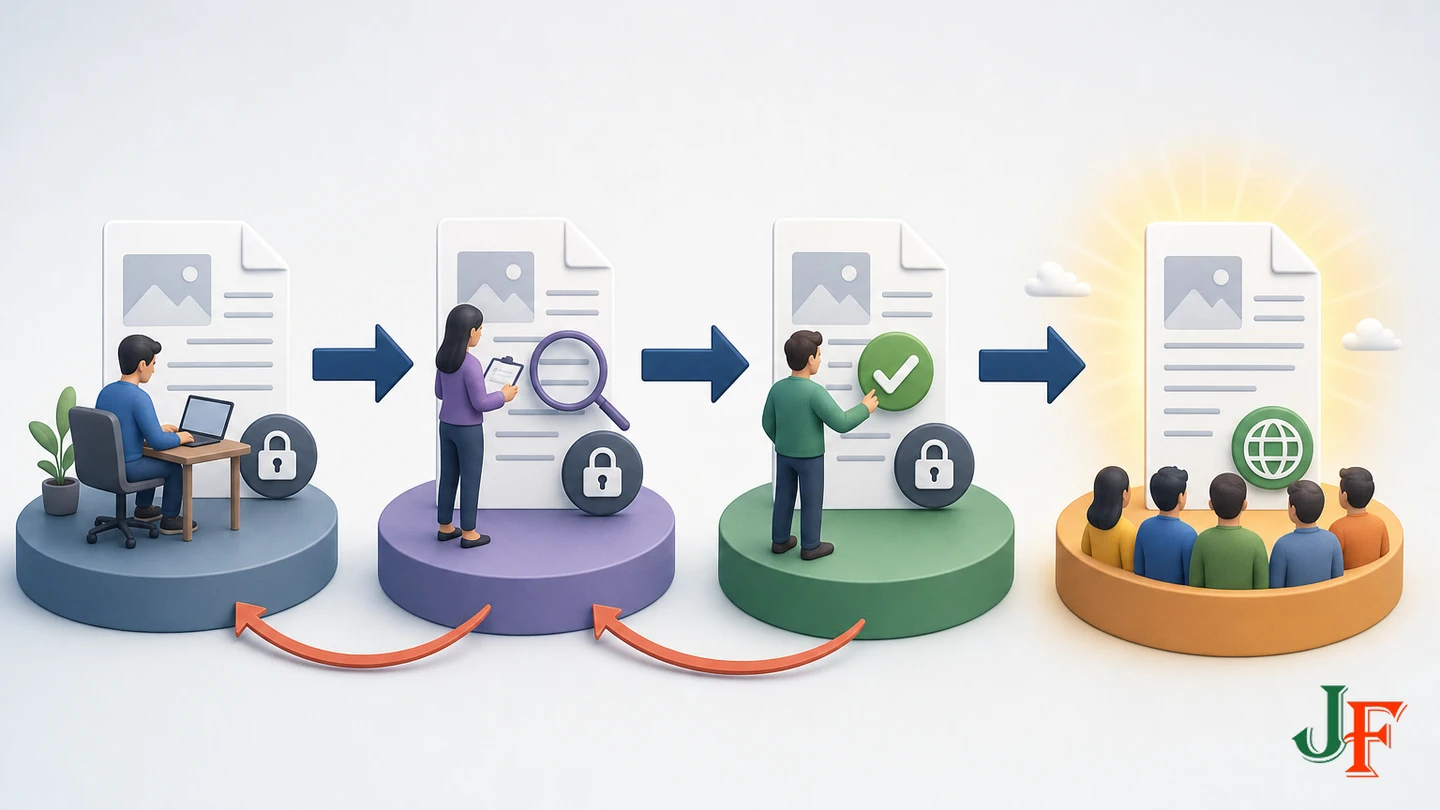
In the article workflow management area, create or edit a workflow for the pilot category. Add these configurable stages:
- Draft as the initial working stage.
- Review for editorial checking.
- Approval for final authorization.
- Published as the final process stage.
Next, create forward transitions such as Draft to Review, Review to Approval, and Approval to Published. Add return transitions from Review to Draft and Approval to Review. Give every transition a clear action-oriented name, such as Submit for Review, Request Author Changes, Send for Approval, Return to Review, and Approve and Publish.
Keep the article state Unpublished through Draft, Review, and Approval. Configure only the final approval transition to apply the Published state. A later retirement transition may apply Archived if that matches the team's content policy. The core workflow actions can affect publishing state, featured state, and notifications according to their individual configuration; not every transition needs to change every value. The available workflow concepts and actions are documented in Publishing Workflow.
Step 6: Restrict transitions to the appropriate roles
Assign Execute Transition capability so each group sees only the handoffs it is responsible for. The contributor should be able to submit a draft but not execute final publication. The reviewer should be able to return an article or send it to approval. The approver should control the final transition.
The final actor needs both permission to execute the transition and permission to change article state. This is critical: a workflow transition can succeed while the Workflow Publishing action fails because the user lacks Edit State permission. The result can be an article in a stage named Published while its article state remains Unpublished. Restrict the final transition appropriately, then test it using the actual approver account rather than only a Super User account.
Step 7: Configure publishing actions and notifications
For the final approval transition, configure the core Workflow Publishing action to apply Published status. Configure a featuring action only where the editorial process genuinely controls featured placement. A transition can also use the core notification action, but notification functionality must be distinguished from successful email delivery. Test Joomla's mail configuration, recipient settings, and actual delivery before relying on notifications for time-sensitive handoffs.
Do not assume that entering a stage named Published makes an article visible. Verify its article state, Start and Finish Publishing values, viewing access, category and menu context, and the permissions used to perform the transition.
Step 8: Assign the workflow to the content category
Select the intended workflow in the relevant article category. Workflow assignment is category-dependent: when an article is first saved, Joomla assigns it according to the selected category or the default workflow. Authors should therefore choose the correct category before the first save. Category assignment and first-save behavior are covered by Publishing Workflow and Workflow Example 1.
If an article is assigned to the wrong workflow or stage, a Super User can use the documented Articles batch process and Change Stage action to select an appropriate workflow and stage. Use that supported correction method rather than treating direct database editing as a routine repair technique.
Related guidance: Joomla content categories.
Step 9: Test with real non-administrator accounts

Create a disposable article in the pilot category and run this acceptance test:
- Sign in as the contributor, create an Unpublished article, select the correct category, save it, and confirm that it can be reopened through the team's intended interface.
- Execute Submit for Review and confirm that no publication action occurs.
- Sign in as the reviewer, edit the article, and test both Return to Draft and Send for Approval.
- Sign in as the approver and test Return to Review.
- Test Approve and Publish and confirm both the new workflow stage and the Published article state.
- Repeat final approval with a future Start Publishing date and verify Pending behavior.
- Test the article with every intended viewing access level.
- Confirm that contributors and reviewers cannot execute the final publication transition.
- Confirm that notification messages, if configured, are actually delivered.
Do not validate only while signed in as Super User. A Super User can conceal permission failures that affect normal team accounts.
Daily process for authors, reviewers, and approvers
Author
The author selects the correct category before the first save, writes the article, sets an appropriate viewing access level, and leaves the state Unpublished. Before submitting, the author checks links, images, headings, and required article fields. The author then executes Submit for Review.
Reviewer
The reviewer checks factual accuracy, structure, spelling, links, media alternatives, metadata, access, and any scheduling request. If changes are needed, the reviewer executes Return to Draft. Otherwise, the reviewer sends the article to Approval.
Approver
The approver confirms that the article is authorized for release, verifies the intended audience and publication timing, and executes the restricted final transition. If the article must appear later, the approver verifies Published status and the future Start Publishing value rather than leaving the article Unpublished.
How approval and scheduled publishing work together

Scheduled publishing uses the article's Start Publishing and Finish Publishing fields. For scheduling to operate, the article Status must be Published. Before a future Start Publishing time, Joomla treats it as Pending. After its Finish Publishing time, Joomla treats it as Expired and it is unavailable on the site. This does not mean that expiry must change the stored status to Unpublished. The current behavior and terminology are documented in Timed Publishing.
Dates and times are interpreted relative to the Website Time Zone configured in Global Configuration. If an article appears early or late, verify that setting first. Also review the Publishing tab's metadata fields, including Meta Description and Robots, as part of approval; their availability is documented in Edit Publishing. Reviewing metadata does not guarantee or automatically improve search rankings.
The official timed-publishing procedure uses Start and Finish Publishing and does not list Joomla Scheduled Tasks or cron setup as part of that procedure. However, this research did not perform a complete code-path or hosting-environment audit. For a time-critical embargo, test the actual production combination of Joomla cache, server cache, reverse proxy, CDN, hosting configuration, time zone, and request behavior.
Do not confuse ordinary article scheduling with automated workflow movement. As of 8 November 2026, delayed or timer-driven workflow transitions were not part of released Joomla 6.2. Pull request 48480 remained an open proposal targeting the Joomla 6.3 development branch. Its existence does not establish that the feature will be merged or released.
Review safeguards and maintenance
- Version history: Enable and size article version retention according to the team's recovery needs, while remembering that workflow-managed state and featured fields are excluded from normal article versioning.
- Accessibility: Enable the core System - Joomla Accessibility Checker plugin and run the checker from the Article Edit toolbar before approval. The checker identifies issues but does not replace human accessibility review. See Article: Accessibility Check.
- Security: Review permissions when staff responsibilities change, remove unneeded transition authority, and continue testing calculated permissions.
- Content quality: Include links, image alternatives, headings, access, metadata, start and finish dates, and the intended category in the approval checklist.
- Operations: Maintain backups, document rollback steps, and repeat account-based acceptance tests after meaningful workflow or permission changes.
Troubleshooting

The transition succeeded, but the article is still unpublished
Check whether the acting account has both Execute Transition and Edit State capability. Also check the Workflow Publishing action. Stage movement and state change are separate, so the former can succeed while the latter fails.
An author cannot reopen a saved draft
Test the exact frontend and backend experience with the author's account. In the documented default-role example, an Author may be unable to view an unpublished article from the frontend after saving it. Use a carefully limited backend setup or a tested custom group and access-level design without granting publication authority.
A permitted action is still unavailable
Inspect calculated permissions for the user and category. Check the article, parent category hierarchy, content component, Global Configuration, and every group path to which the user belongs. An inherited Denied value cannot be overridden by a lower Allow.
The wrong workflow was assigned
Confirm which category was selected on the article's first save. Use the Articles batch process and Change Stage action as a Super User to move it to an appropriate workflow and stage.
A scheduled article appears too early or too late
Verify Published status, Start Publishing, Finish Publishing, and the Website Time Zone. For precise embargoes, test caches, proxies, CDN behavior, hosting, and the production delivery path rather than relying only on a staging result.
An article is in Published stage but is not visible
Check the actual article state, Pending or Expired timing, viewing access, and relevant site presentation. A workflow stage name is not proof of public availability.
A notification was configured but no message arrived
Confirm the workflow notification action, Joomla mail configuration, recipient settings, and deliverability. The presence of a notification action does not guarantee end-to-end email delivery.
Joomla 5.4 compatibility
The researched workflow, category assignment, ACL, timed-publishing, version-history, and accessibility concepts apply to Joomla 5.4 as well as Joomla 6.2. Joomla 5.4 remains security-supported as of the stated research date but no longer receives regular bug-fix feature development. Verify labels and screen presentation on the site's installed version rather than assuming that Joomla 5.4 and 6.2 interfaces are visually identical.
For broader version-migration planning, Joomla 5 to Joomla 6 upgrade separately from child-template maintenance.
Frequently asked questions
Is Draft a Joomla article status?
Not necessarily. In this model, Draft is a configurable workflow stage. The article's publication state remains Unpublished while it moves through Draft, Review, and Approval.
Can an approved article be published later?
Yes. Give the article Published status and set a future Start Publishing date. It remains Pending until the configured date and time, interpreted in the Website Time Zone.
Can different categories use different workflows?
Yes. A workflow can be selected by category, allowing routine and tightly controlled content to follow different editorial processes.
Why should the final transition be tested with the real approver?
The approver needs both Execute Transition and Edit State capability. Testing only as Super User can hide a permission problem that leaves the article unpublished.
Can Joomla 6.2 automatically move Draft to Review after a delay?
Not according to the supplied evidence dated 8 November 2026. The relevant automated-transition implementation was still an open Joomla 6.3 development pull request, not a released Joomla 6.2 feature.
Does version history restore the complete workflow?
No such assumption should be made. Article versions can help recover content revisions, but workflow-managed state and featured values are excluded from normal article versioning.
Final rollout checklist
- Workflow enabled and version-history retention configured.
- Stages and both forward and return transitions created.
- Draft, Review, and Approval kept separate from article publication state.
- Final transition restricted to an approver with Execute Transition and Edit State.
- Workflow assigned to the intended pilot category.
- Viewing access and action permissions reviewed separately.
- Author, reviewer, approver, return, scheduling, accessibility, and notification tests completed with real non-administrator accounts.
- Website Time Zone and production cache or delivery behavior checked for time-critical releases.
- Backup, rollback, and ongoing permission-review responsibilities documented.

Add comment