
A Joomla core update can fix bugs and important security problems, but updating safely involves more than clicking a button. For example, the Joomla 5.4.7 and 6.1.2 releases of 7 July 2026 included access-control and cross-site-scripting fixes, showing why timely maintenance matters.
They also came with a documented regression, showing why every update still needs preparation and testing. See the official release announcement.
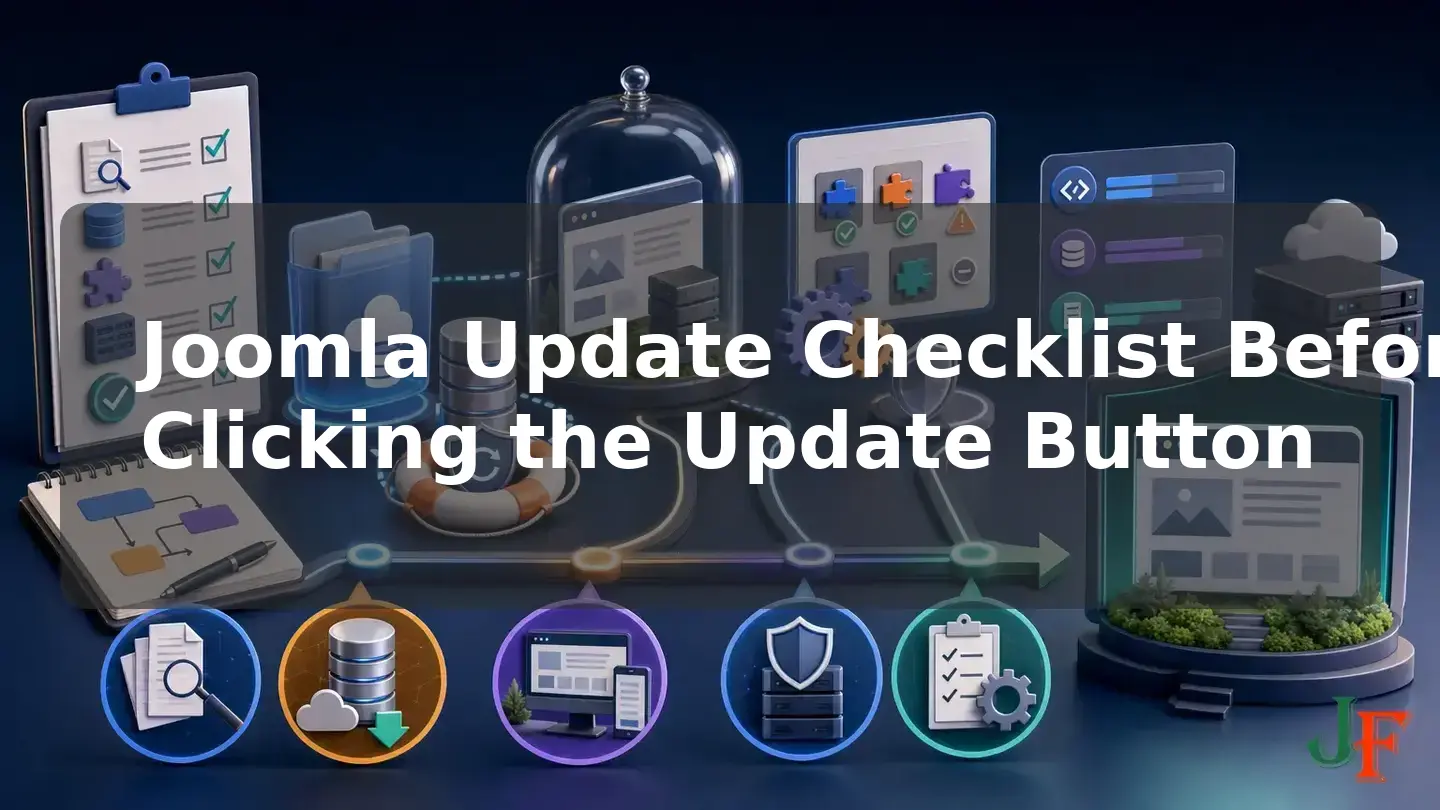
This beginner-friendly Joomla update checklist turns the update into a controlled maintenance task. You will identify the update type, review release information, create and restore-test a complete backup, test on staging, check extensions and server requirements, make a final go-or-no-go decision, and validate the site afterward. As of 8 August 2026, this tutorial focuses on the supported Joomla 5.4 and Joomla 6.1 series. Current-version information must be rechecked before you begin.
What this Joomla update checklist helps prevent
No checklist can guarantee a problem-free update. Its purpose is to reduce avoidable risks such as data loss, an incompatible extension, an unsupported PHP version, a failed business workflow, or discovering too late that the available backup cannot be restored.
The practical workflow is:
- Identify the installed version, target version, and update type.
- Read the release notes and current known issues.
- Create a complete files-and-database backup.
- Prove that the backup can be restored.
- Test the update on a restored staging copy.
- Verify extensions, templates, PHP, and database compatibility.
- Take a final production backup and run the update through Joomla Update.
- Validate the administrator area, frontend, database, extensions, and site-specific workflows.
This approach combines the official Version Update procedure, backup guidance, and the dedicated Joomla 5-to-6 guide.
First identify a patch, minor, or major update
Record both the version currently installed and the version Joomla is offering. Then classify the change by the part of the version number that changes:
- Patch update: the final number changes, such as the official documentation's example of 5.3.1 to 5.3.2. This normally stays within the same minor and major series.
- Minor update: the middle number changes while the major series remains the same.
- Major-version update: the first number changes, such as Joomla 5.4 to Joomla 6.
The distinction matters because the workflows are not identical. A patch update still needs release review, a backup, compatibility checks, and post-update validation, but the documented Pre-Update Check is not displayed for patch updates. A major upgrade requires more extensive compatibility work and, for Joomla 5.4 to 6, special backward-compatibility plugin handling. The official behavior and procedures are described in the Version Update documentation and Joomla 5-to-6 guide.
Check whether the installed Joomla series is supported
As of 8 August 2026, Joomla 6.1.2 is the current Joomla 6 release and Joomla 5.4.7 is the current supported Joomla 5 release. Joomla 5 regular bug-fix support is scheduled through 13 October 2026 and security support through 12 October 2027. Joomla 6 regular bug-fix support is scheduled through 17 October 2028 and security support through 16 October 2029. These are scheduled lifecycle dates and should be checked against the official Joomla roadmap immediately before maintenance.
The official Joomla 4 packages page identifies Joomla 4 as no longer supported. A Joomla 4 owner needs a version-specific migration plan rather than treating a move to a supported release as an ordinary one-click patch update. This tutorial does not provide that migration procedure.
Step 1: Read release notes and known issues
Begin every update by opening the official announcement for the exact target release. Check its release date, version applicability, security and bug-fix summary, upgrade notes, known problems, and links to any later guidance. Do not assume that an update is routine because its version number looks small.
A dated example explains why. Joomla 5.4.7 and 6.1.2, released on 7 July 2026, have a documented regression in which article-specific parameters may not be honored under certain frontend display conditions. The official Joomla 6.1.2 known-issues page provides a version-specific hotfix and instructs administrators to make a full backup and test the hotfix on staging first. This example is current only as of 8 August 2026; a later release may supersede it.
Stop before updating if the release notes disclose an issue that would unacceptably affect your site. Wait for verified guidance or plan a tested mitigation instead of proceeding merely because Joomla displays an update notification.
Step 2: Create a complete Joomla backup before the update

A complete Joomla backup has two principal parts:
- Site files: Joomla core files, installed extension and template files, images, media, configuration, and other files belonging to the site.
- Database: articles, users, menus, extension configuration, template styles, and other database-managed content and settings.
The official Joomla backup guidance warns against relying solely on a hosting-provider snapshot. A host snapshot may be useful, but it should not be assumed to be a complete or independently accessible Joomla recovery method. Retain the complete backup somewhere you can reach even if the website or hosting account has a problem, and document the restoration process.
A successful backup message does not prove that recovery will work. Before relying on the archive, restore it into a suitable non-production environment and verify that the restored site's files, database, frontend, and administrator area work. Restore testing reduces risk; it does not guarantee that production will behave identically.
create a complete Joomla backup or use a staging copy before editing the production design.
Step 3: Restore the site to staging and rehearse the update
The official Joomla 5-to-6 procedure recommends restoring a copy to a subdomain or local environment and completing the upgrade there before changing production. This directly applies to Joomla 5.4-to-6, and staging is also prudent risk reduction for minor updates, heavily customized sites, and sites with business-critical extensions.
- Restore both the files and database to the staging location.
- Prevent the staging copy from unintentionally affecting production services or data.
- Follow the same extension, PHP, database, and Joomla update sequence intended for production.
- Record every successful step, including configuration changes and extension actions.
- Run the post-update and site-specific tests described later in this checklist.
If a critical workflow fails on staging, the production update is a no-go until the failure is understood and a reliable procedure has been tested. Passing staging is valuable evidence, but it is not a promise of production success.
restore-test your Joomla backup or use a staging copy before editing the production design.
Related guidance: create a Joomla staging site.
Step 4: Inventory extensions, plugins, templates, and languages
Third-party software is one of the most important parts of Joomla maintenance. For a Joomla 5.4-to-6 upgrade, the official guide directs administrators to review the complete inventory under System → Manage → Extensions. For other updates, use the administrator's extension management area to make the same practical inventory without assuming that every Joomla 6.1 label is identical to older documentation.
Record the following for each important extension, plugin, package, template, and language:
- Name, installed version, developer, and purpose.
- Whether it is actively used.
- Whether the developer supports the target Joomla and PHP versions.
- Available updates and the vendor's required update order.
- Any replacement package needed for the new Joomla major version.
- What site workflow must be tested after the update.
The Joomla Pre-Update Check is not enough on its own. Its extension results depend on compatibility metadata supplied by extension developers, so missing or inaccurate metadata can produce an incomplete picture. Confirm compatibility through developer documentation, available Joomla extension updates, the full inventory, and staging behavior. See the official planning and upgrade guide.
There is no universal rule that every extension must always be updated before Joomla core. Follow the extension developer's instructions and the sequence proven on staging. Within the specific Joomla 5.4-to-6 procedure, the official sequence includes updating extensions that require it, disabling or uninstalling incompatible extensions, taking another backup, and testing restoration before launching Joomla Update.
Step 5: Verify PHP and database requirements

Check the production and staging server against the target Joomla series. Keep minimum, supported, and recommended values distinct:
| Target series | PHP | Database values used for this checklist |
|---|---|---|
| Joomla 5.x | PHP 8.1.0 minimum; PHP 8.3 recommended | Minimums: MySQL 8.0.13, MariaDB 10.4.0, or PostgreSQL 12.0 |
| Joomla 6.x | PHP 8.3.0 supported and absolute minimum; PHP 8.4 recommended | Supported baselines: MySQL 8.0.13, MariaDB 10.6, or PostgreSQL 14.0 |
These figures come from the official Joomla 5 technical requirements and Joomla 6 technical requirements. Joomla 6 also requires the PHP modules json, simplexml, dom, zlib, gd, and the applicable MySQL or PostgreSQL database driver. The documentation recommends mbstring and at least 256 MB of PHP memory.
Meeting Joomla's core requirements does not establish that every extension and template supports the same environment. Verify those products separately. Do not switch production to a new PHP version without first testing the full site with that PHP version on staging.
Related guidance: check Joomla PHP requirements.
Special checklist for Joomla 5.4 to Joomla 6
A Joomla 5.4-to-6 change is a deliberate major-version upgrade, not an ordinary patch. In addition to the general checklist:
- Confirm the site is on the appropriate Joomla 5.4 release and review the official Joomla 5-to-6 guide.
- Complete the extension inventory and resolve compatibility according to developer instructions.
- Verify the Joomla 6 PHP and database requirements on staging.
- Disable the older Behaviour - Backward Compatibility plugin.
- Use Behaviour - Backward Compatibility 6 only as the documented transitional support for some Joomla 5 extensions. The older plugin and the Joomla 6 compatibility plugin must not both be enabled during the upgrade.
- Restore-test the backup and complete the entire upgrade rehearsal before production.
These plugin instructions apply specifically to Joomla 5.4-to-6 and come from the official Joomla 5-to-6 procedure. They should not be generalized to ordinary Joomla 5 or Joomla 6 patch updates.
For broader version-migration planning, complete Joomla 5-to-6 upgrade guide separately from child-template maintenance.
Step 6: Review the Pre-Update Check without treating it as a guarantee
The supplied official Version Update documentation for Joomla 4 and 5 says that the Pre-Update Check is shown for major and minor version changes, but not for patch updates. Joomla 6 interface behavior and labels should be verified in the current installation before relying on Joomla 6-specific screenshots or instructions.
When the check is available:
- Review required server settings and resolve failures.
- Read every extension compatibility result, including warnings and unknown entries.
- Compare the results with your inventory and vendor documentation.
- Investigate conflicts rather than clicking through them.
- Repeat the check after making relevant changes.
A green result is an important signal, not proof that the update is safe. Compatibility information is only as reliable as the metadata supplied by extension developers. Patch updates also need independent backup, release-note, extension, environment, and staging checks even though this screen is documented as absent. See Version Update and the major-upgrade guide.
Step 7: Confirm the update channel and maintenance plan
Use the Default update channel for updates within the current major series. Select Joomla Next only when deliberately preparing to move to the next major series and after completing the applicable major-upgrade plan. Do not change channels merely to make a notification appear. This distinction is documented in Joomla's update guidance.
Choose a maintenance window when responsible people, hosting access, backups, and test results are available. Joomla documentation reviewed for this tutorial does not require every site to be offline for every update. However, a temporary offline state is a sensible risk-control recommendation for an active, transactional, or frequently edited site because new orders, registrations, or edits could otherwise occur after the final backup.
Related guidance: place Joomla temporarily offline.
Step 8: Take a final backup and make the go-or-no-go decision

After compatibility changes are complete and immediately before updating production, create another complete files-and-database backup. Retain it independently and label it clearly as the pre-update recovery point.
Do not click Update if the backup has not been successfully restored, the target environment is unsupported, a critical extension or template remains unverified, the release notes disclose an unacceptable issue, or staging fails an important workflow.
Proceed only when you can answer yes to all of these questions:
- Do I know the installed version, target version, and update type?
- Have I read the exact release notes and current known issues?
- Do I have a complete files-and-database backup?
- Have I proved that the backup can be restored?
- Has the intended procedure passed on staging?
- Are the target PHP and database versions supported?
- Have I reviewed every important extension and template?
- Have I resolved Pre-Update Check warnings when that check is available?
- Is the update channel correct?
- Do I have time and access to test or restore the site?
Step 9: Run the update with Joomla Update
The Joomla Update component is the recommended method for updating Joomla. Open it from the administrator interface, recheck the displayed source and target versions, acknowledge the backup and compatibility confirmations only when they are true, and begin the update. Avoid making unrelated configuration, extension, PHP, or content changes while the core update is running. Interface labels may differ between documented Joomla versions, so verify the current Joomla 6.1 screen before publishing screenshots.
Step 10: Complete the official post-update checks
Do not treat a successful progress message or a working homepage as complete validation. The official post-update guidance includes frontend testing, System Dashboard review, database structure verification, a Discover check, and cache handling.
- Confirm the version: verify that the administrator area reports the intended Joomla version.
- Test frontend and backend: open representative pages and confirm that administrator access and basic management tasks work.
- Review the System Dashboard: address relevant warnings and read post-update information.
- Check database structure: use the documented database maintenance screen to look for schema problems and apply the supported repair action if required.
- Run Discover: check for core or extension files that exist but are not registered correctly.
- Handle caches: clear relevant Joomla and browser caches, then retest instead of assuming cache clearing alone proves success.
- Test important extensions: verify their administrator screens and frontend output.
The documented Joomla 4 and 5 path for the database check is System → Maintenance → Database, but exact Joomla 6.1 paths and labels should be verified in the current interface before publication.
Run customizable site-specific smoke tests
The official procedure requires frontend and backend checks. Expand those checks into a short test plan based on what your particular site must do. The following are practical editorial examples, not a universal Joomla-mandated list:
- Submit important contact, registration, login, password-reset, and search forms.
- Test ecommerce checkout, payments, orders, memberships, subscriptions, or restricted content where applicable.
- Verify outgoing mail, scheduled tasks, APIs, analytics, and third-party integrations.
- Check menus, multilingual navigation, template layouts, and custom template overrides.
- Open important URLs and verify redirects, metadata, robots directives, and structured data.
- Test keyboard operation, focus behavior, labels, error messages, and other accessibility interactions important to the site.
- Compare representative page-speed and performance measurements with the pre-update baseline.
These tests do not happen automatically as a benefit of the core update. Select the workflows that matter to your users and keep a reusable record of the expected result.
Troubleshooting a failed or incomplete update

If the administrator area or frontend reports an error, stop making speculative changes and preserve useful evidence. Note the exact message, URL, time, current PHP version, Joomla version, and the last successful step.
- Review the database maintenance screen for an incomplete schema update.
- Check whether a specific extension is clearly identified and follow its developer's documented recovery guidance.
- Consult the Joomla update log. The official Version Update documentation identifies its location as
administrator/logs/joomla_update.phpand says it records major update steps useful for troubleshooting. Confirm that exact location for the current Joomla 6 release before publication. - Compare the production failure with the successful staging procedure and confirm that the environments and steps really matched.
- If there is no reliable supported fix, restore the complete pre-update files and database.
Do not try to recover by reinstalling older Joomla core files. Joomla downgrades are unsupported; restoration from the backup made immediately before the update is the documented recovery route for supported Joomla 5 and 6 update work. See the official Backward Compatibility Policy.
Related guidance: troubleshoot a failed Joomla update.
Related guidance: read the Joomla update log.
Printable Joomla update checklist
- □ Record installed version, target version, and update type.
- □ Confirm the installed Joomla series is supported.
- □ Read the exact release announcement and known issues.
- □ Create a complete backup of files and database.
- □ Store the backup independently and restore-test it.
- □ Rehearse the update on a restored staging copy.
- □ Inventory extensions, plugins, templates, and languages.
- □ Follow vendor-specific compatibility and update instructions.
- □ Verify target PHP, database, modules, and memory requirements.
- □ Complete the special compatibility-plugin steps for Joomla 5.4-to-6 only.
- □ Review Pre-Update Check results when the check is available.
- □ Confirm the update channel and maintenance window.
- □ Take the final production backup.
- □ Apply the go-or-no-go rule before clicking Update.
- □ Update through Joomla Update.
- □ Check version, frontend, backend, dashboard, database, Discover, and caches.
- □ Run the site's own critical workflow tests.
- □ Retain the pre-update backup until validation is complete.
Frequently asked questions
Do I really need a Joomla backup before an update?
Yes. The backup must include both site files and the database. The safer workflow also restores the backup in a non-production environment before relying on it. A reported backup success by itself does not prove recoverability.
Is a hosting snapshot enough?
It may be a useful additional recovery layer, but official Joomla guidance says not to rely on it as the sole Joomla recovery method. Keep a complete, independently accessible backup and understand how both its files and database will be restored.
Can I trust a green Pre-Update Check?
No result is a guarantee. Treat green results as useful information and still review the full extension inventory, vendor documentation, environment, and staging behavior. The extension section depends on metadata supplied by extension developers.
Why is there no Pre-Update Check for my patch update?
The supplied official Joomla 4 and 5 documentation says the check appears for major and minor version changes, not patch updates. The rest of the Joomla update checklist still applies. Joomla 6 behavior should be verified in the current interface.
Does Joomla 6 require PHP 8.4?
No. Joomla 6.x documents PHP 8.3.0 as its supported and absolute minimum and recommends PHP 8.4. Your extensions and template must also support the PHP version you intend to use.
Must I move from Joomla 5 to Joomla 6 immediately?
Not solely because Joomla 6 exists. As of 8 August 2026, Joomla 5 remains supported, with regular bug fixes scheduled through 13 October 2026 and security fixes through 12 October 2027. Keep Joomla 5 on its current patch release while you verify the Joomla 6 environment and extension compatibility. Recheck the roadmap before acting.
Should every site be placed offline?
The reviewed sources do not establish that as a universal requirement. A maintenance window and temporary offline state are sensible recommendations for active, transactional, or frequently edited sites, especially when database changes during maintenance would complicate restoration.
What should I do if the site fails after updating?
Review the database maintenance information and Joomla update log, identify any clearly failing extension, and use supported developer guidance. If a reliable fix is unavailable, restore the complete pre-update backup. Do not attempt an unsupported Joomla downgrade.

Add comment