
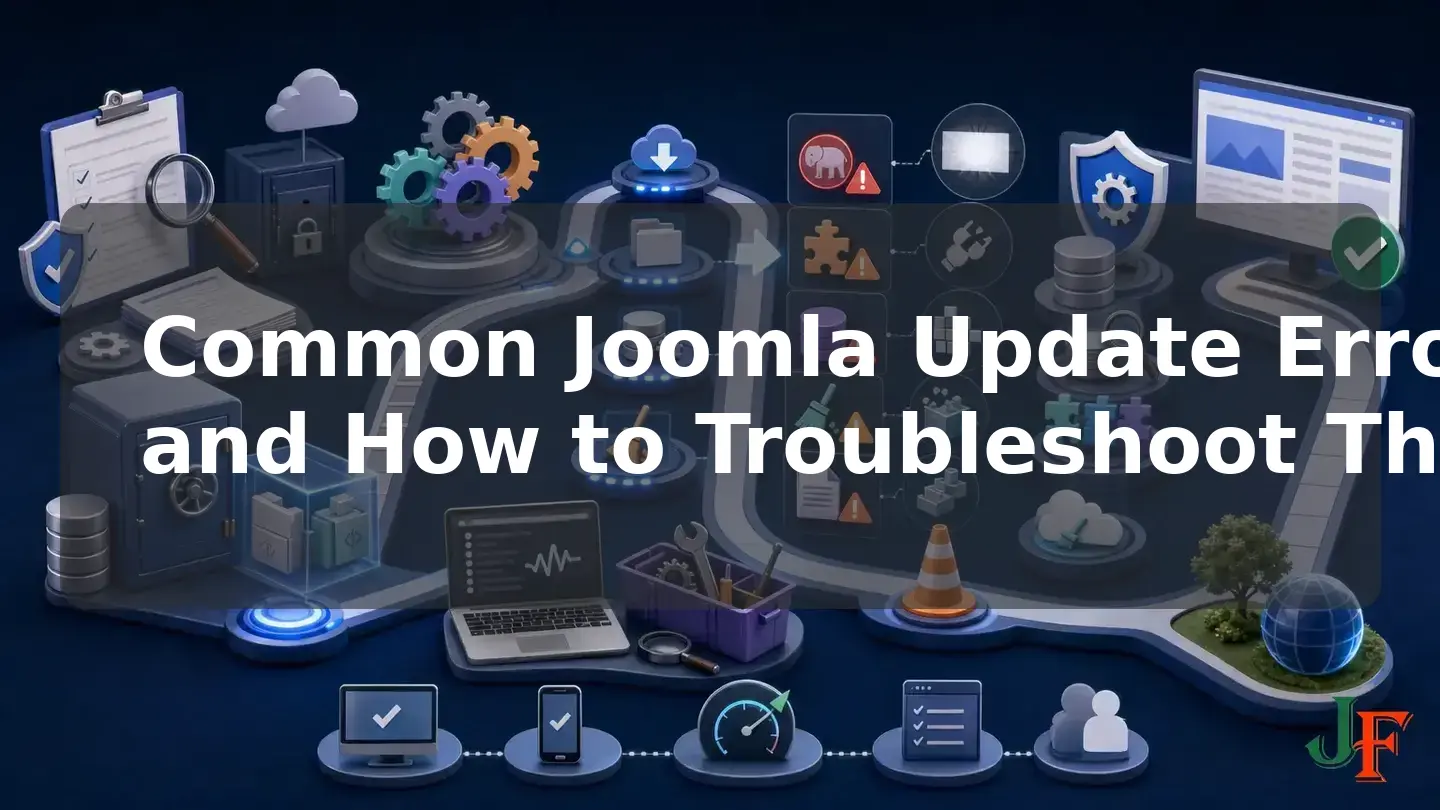
Joomla update errors can appear before an update begins, while the package is being downloaded or installed, or only after the site loads the new code. A Joomla update failed message, a white screen, an HTTP 500 response, a database warning, or a broken administrator page can therefore have very different causes. Effective Joomla troubleshooting starts by identifying the failed stage instead of applying random fixes.
This tutorial provides a safe diagnostic workflow for Joomla administrators and support users. It covers hosting requirements, extension conflicts, PHP errors, stale caches, database schema problems, interrupted updates, recovery, and post-update testing. The instructions focus on the Joomla 5 and Joomla 6 branches current as of August 10, 2026. They also separate ordinary patch updates from the more demanding Joomla 5.4-to-6 major-upgrade process.
Version scope for these Joomla update errors
As of August 10, 2026, the current stable releases were Joomla 5.4.7 and Joomla 6.1.2. Joomla 5 regular bug-fix support was scheduled through October 13, 2026, followed by security-only support through October 12, 2027. Joomla 6 bug-fix support was scheduled through October 17, 2028, followed by security-only support through October 16, 2029. These release and support details are date-sensitive; they are documented in the official Joomla Project Roadmap and the Joomla 6.1.2 and 5.4.7 release announcement.
Joomla 4 security support ended on October 14, 2025, according to the official Joomla 5.3.4 release announcement. Joomla 4 instructions should consequently be treated as historical or migration-related rather than as guidance for a supported production branch.
Understand the stages of a Joomla update
The core Joomla Update component is the recommended update method. It performs several distinct operations, including downloading the update package, installing or replacing files, running SQL schema updates, and cleaning up. The official Version Update guide documents this workflow.
This staged model explains why the symptom alone is not enough:
- Before download: the target update may not appear, the server may not meet its requirements, or the site may be unable to reach the update service.
- During download: Joomla may be unable to retrieve the package.
- During extraction or file installation: the operation may stop before all files are replaced.
- During SQL updates: the files may be current while the database schema remains behind.
- During cleanup or post-update rendering: the update may have completed, but an incompatible extension, PHP error, cache entry, or release regression may prevent a page from working.
A progress indicator reaching its end is not a substitute for database and functional checks. Conversely, a broken page does not prove that core installation failed; an extension or stale cached resource may be responsible.
Preserve evidence before making changes
Random changes can hide the original failure and make recovery harder. Before clearing logs, reinstalling anything, or changing extension states:
- Record the exact URL, time, visible message, and update version.
- Save the complete error text and any stack trace without publishing sensitive paths or configuration details.
- Inspect and preserve the Joomla update log.
- Confirm that the full pre-update backup is available and has both files and database data.
- If practical, preserve a copy of the failed installation for diagnosis. This is not a replacement for the clean pre-update backup.
- Move further diagnosis to staging when production availability is at risk.
A complete recovery backup must include the Joomla filesystem and database. The official Backup guide also cautions against restoring a backup directly over an unknown mixture of faulty files and tables. Follow the backup product's procedure and restore into a clean location or appropriately cleared installation.
Pre-update safety checklist

The most useful troubleshooting step is often the one performed before clicking the update button:
- Read the target release notes and known issues. A documented regression must be distinguished from a failure unique to your site.
- Verify the hosting environment. Joomla 5 requires at least PHP 8.1.0, MySQL 8.0.13, MariaDB 10.4.0, or PostgreSQL 12.0; PHP 8.3 and at least 256 MB of PHP memory are recommended by the versioned Joomla 5.4 technical requirements. Joomla 6 lists PHP 8.3.0 and MySQL 8.0.13 as supported minimums, while its technical requirements distinguish supported database versions from lower absolute enforced minimums for some database types.
- Review every third-party extension and template. Update them and confirm that their developers support the target Joomla and PHP versions.
- Review the Pre-Update Check when it is available. It reports server specifications and extension compatibility metadata, but it cannot execute every extension code path or guarantee runtime compatibility. The referenced update guide says it is not displayed for patch updates; exact Joomla 6 behavior and wording may vary by version.
- Check the database schema. Resolve reported schema problems before beginning another update.
- Create and test a fresh backup. Include both files and database data, and confirm that the restoration procedure works.
- Update a staging copy first. Reproduce the production PHP version, database type, extensions, template, and important workflows as closely as practical.
- Use the Joomla Update component. Avoid inventing a manual downgrade or mixing arbitrary core packages.
create and test a complete Joomla backup or use a staging copy before editing the production design.
Related guidance: verify the Joomla PHP requirements.
Quick Joomla troubleshooting decision table
| Symptom | First evidence to check | Initial safe action |
|---|---|---|
| No update appears | Update channel, target requirements, major-upgrade prerequisites | Correct the prerequisite on staging; do not force an unsupported target |
| Package download fails | Displayed error, update log, host connectivity | Preserve the error and ask the host to investigate environment-specific connectivity if needed |
| Installation stops | Last update-log stage, disk space, PHP error | Do not assume completion; assess whether restoration is safer |
| White screen or HTTP 500 | Temporary debug output, stack trace, update log | Identify the responsible code before disabling anything |
| Old layout or JavaScript remains | Browser and documented Joomla cache layers | Clear relevant caches and retest |
| Database is not current | Maintenance: Database and update log | Run the database structure update and recheck |
| Core extension is missing | System: Discover | Discover and register files present on disk |
When an update does not appear or cannot download
First determine whether this is a routine patch update or a major upgrade. Confirm the configured update channel, the installed Joomla version, and the target version's requirements. The update option can remain unavailable when a Joomla 5.4-to-6 environment does not meet that upgrade's requirements.
For the Joomla 5.4-to-6 workflow, the official Joomla 5 to 6 planning and upgrade guide operationally requires PHP 8.3, MySQL 8.0.13, MariaDB 10.6, or PostgreSQL 14. These stricter upgrade-guide values should be used for this major upgrade rather than assuming that a lower database version accepted by an earlier Joomla branch is a suitable upgrade target.
If the package cannot be downloaded, preserve the exact message and inspect the update log. Connectivity blocks involving the host, firewall, or proxy are environment-specific. Ask the relevant provider to investigate with the timestamp and error instead of applying universal permission, firewall, or network changes.
When extraction or file replacement stops
An interrupted file-installation stage can leave old and new core files together. Check available disk space, PHP errors, and the final update-log entry. Insufficient disk space, exhausted memory, and script timeouts are documented diagnostic possibilities, but none should be assumed without evidence.
Do not set every file to a universal permission value, and do not upload an older Joomla package over the site. File ownership and write failures depend on the hosting environment. If the log indicates incomplete replacement and the installation cannot be confidently reconciled using supported procedures, restore the verified pre-update files-and-database backup and reproduce the failure on staging.
Diagnose a Joomla white screen, fatal error, or HTTP 500 response

A Joomla white screen is not always a plugin conflict. Possible causes include an incompatible PHP version, an incompatible extension, insufficient disk space or memory, or a script timeout. The official FatalError guide recommends temporarily exposing enough error detail to obtain a stack trace.
When administrator access still works
- Open Global Configuration.
- Temporarily enable Debug System.
- Temporarily set Error Reporting to Maximum.
- Reload the failing page and save the complete stack trace privately.
- After diagnosis, turn Debug System off and return Error Reporting to System Default.
Interface wording can vary slightly between Joomla versions. Debug output can disclose filesystem paths, code locations, and other sensitive details, so do not leave it enabled on a public site.
When the administrator is unavailable
After creating or confirming a fresh files-and-database backup, edit configuration.php and temporarily use the documented values:
public $debug = true;
public $error_reporting = 'maximum';
Reload the failing page, preserve the trace privately, and then return both settings to their normal values immediately after diagnosis. A syntax mistake in this file can make the site unavailable, so use this route only when administrator access is lost and you can safely edit and restore the file.
Read the stack trace without blaming the first core file
Read from the fatal message into the call sequence and look for a third-party component, module, plugin, template, or library path. A Joomla core file may merely be the point from which incompatible third-party code was called. Its presence does not prove that a core extension caused the problem.
If the trace identifies a third-party extension, disable that specific extension through the administrator interface and retest. Do not mass-disable core plugins. If administrator access is unavailable, an advanced administrator may disable the correctly identified record by setting its enabled value to 0 in the site's prefixed #__extensions table. This database action requires a verified backup and exact identification of the extension record.
Special checks for a Joomla 5.4-to-6 upgrade
The following instructions apply only to the Joomla 5.4-to-6 major-upgrade workflow, not to an ordinary patch update. While still on Joomla 5.4:
- Disable the Joomla 5 Behaviour - Backward Compatibility plugin.
- Enable Behaviour - Backward Compatibility 6.
- Test the frontend, administrator, and every important third-party workflow under that configuration.
- Resolve extension failures before starting the major upgrade.
The required plugin states are documented in the Joomla 5-to-6 guide. Joomla's Backward Compatibility Policy explains that an extension is fully compatible only when it works without relying on the previous major version's compatibility plugin. Enabling a compatibility plugin does not make every Joomla 5 extension compatible with Joomla 6.
Related guidance: plan a Joomla 5-to-6 upgrade.
Clear cache only when the evidence fits
A completed update can appear broken when the browser continues using old CSS or JavaScript, or when Joomla serves output generated before the update. Joomla supports separate page, view, and module cache layers, as described in the official Cache guide.
- Clear the relevant Joomla cache groups through the administrator cache controls.
- If Joomla page caching is enabled, clear or bypass that page cache.
- Force-refresh the browser or clear its cache.
- Retest in a private browsing session.
Cache clearing can resolve stale output, but it cannot repair incomplete core files or missed database schema updates. External systems such as a CDN or reverse proxy require evidence and their vendor's instructions; they should not be purged automatically as a universal Joomla remedy.
Repair database schema problems
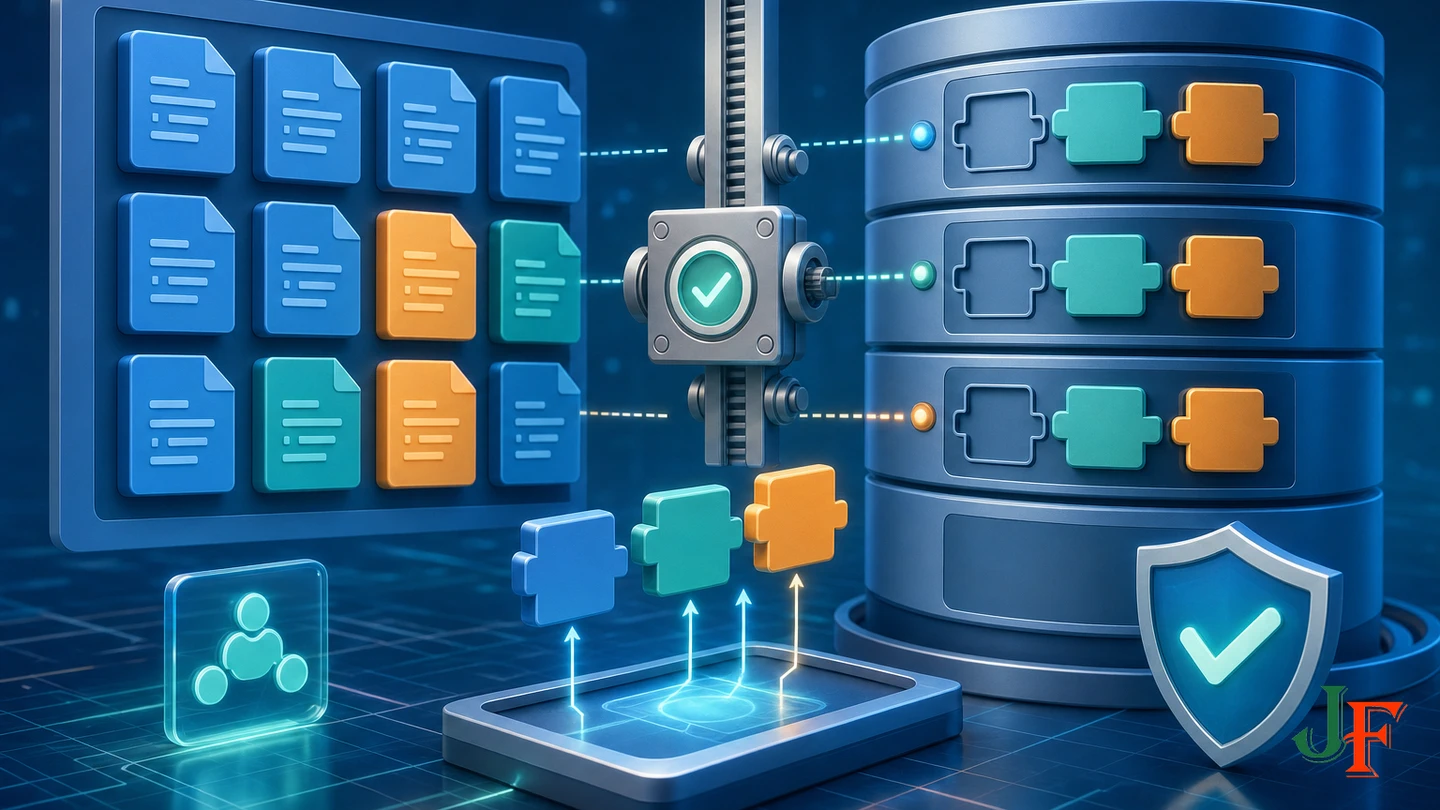
A partial update can leave Joomla program files and database schema at different versions. In the administrator interface, open the area labelled Maintenance: Database, or its version-equivalent wording, select the affected entry, and run Update Structure. This executes schema scripts that did not run during the update. Recheck the result afterward. The process is documented by the Version Update guide.
Use System: Discover for unregistered core extensions
If an interrupted update copied a core extension to the filesystem without registering it in the database, use System: Discover, or the equivalent label in the installed version. Run Discover, review the results, and install the appropriate discovered core items. Do not use Discover as a substitute for diagnosing incomplete core file replacement.
The less-common empty #__schemas case
The official Database Table Structure guide documents a Joomla 4-derived case in which an empty #__schemas table caused a pre-update structure warning even though Maintenance: Database showed no normal repair entry.
This is an advanced, version-sensitive diagnosis. Do not insert a copied extension ID or schema value. A qualified administrator must first verify the actual table prefix, database type, files_joomla extension ID, and latest installed SQL schema filename. Make a full backup and obtain expert assistance where appropriate before changing this table, then run Database Update Structure and recheck.
Related guidance: run Database Update Structure.
Read the Joomla update log by stage
The documented update log is administrator/logs/joomla_update.php. It records major stages such as package download, file installation, SQL updates, and cleanup. The final successful entry can distinguish a download problem from an extraction or database failure. This path is documented for the current update workflow, although it should be confirmed on the particular Joomla 6 installation before treating it as a Joomla 6-specific path.
When reviewing the log:
- Start with the entries matching the failed update's timestamp.
- Identify the last stage reported as completed.
- Compare that stage with the visible symptom.
- Preserve the relevant section before running another update attempt.
- Avoid posting paths, credentials, or sensitive environment details publicly.
Related guidance: read the Joomla update log.
Distinguish a release regression from a site-specific failure
Release notes matter because a problem can affect a specific Joomla release rather than one site's configuration. Joomla 5.4.7 and Joomla 6.1.2 contained multiple access-control and cross-site-scripting fixes, but they also had a documented regression affecting article-specific options. The official release announcement provided a version-restricted hotfix while Joomla 5.4.8 and 6.1.3 were scheduled.
That hotfix is relevant only when the installed version is exactly Joomla 5.4.7 or 6.1.2 and the symptom matches the documented issue. It must not be applied as generic advice to another version. This example also shows why administrators should patch supported sites promptly while still reviewing release notes, making backups, and testing staging first.
Use a safe recovery order
- Preserve evidence. Save the error, trace, update log, version information, and timestamps.
- Confirm recovery assets. Verify the matching pre-update files-and-database backup.
- Make the smallest evidence-based change. For example, disable one identified third-party extension rather than many unrelated plugins.
- Repair a missed schema update. Use Maintenance: Database when it reports a structure problem.
- Register discovered core extensions. Use System: Discover only when files exist but database registration is missing.
- Clear relevant caches. Do this after file, extension, and schema state have been assessed.
- Restore when reconciliation is unsafe. If files and schema cannot be confidently aligned, restore the verified pre-update backup and continue investigation on staging.
Joomla downgrades are unsupported because file, database, or dependency changes may be irreversible. Do not copy an older Joomla version over a newer database. Restore the matching pre-update files and database instead, following the backup tool's procedure and avoiding an overlay onto an unknown mixture of old and new data.
Post-update validation checklist

After the error is repaired—or after any apparently successful update—perform structured smoke tests:
- Open representative frontend pages and confirm expected HTTP status codes.
- Sign in to the administrator interface and verify normal navigation.
- Test frontend and administrator authentication.
- Submit important forms and verify their expected workflow.
- Test menus, media, template layouts, article rendering, and JavaScript-driven controls.
- Exercise important component, module, plugin, and template functions.
- Run applicable scheduled tasks and verify their expected result.
- Check representative SEF URLs rather than only the home page.
- Test keyboard navigation, menus, forms, dialogs, and other interactive controls.
- Review logs for new fatal errors or repeated warnings.
- Compare representative performance behavior with a known baseline.
Accessibility, rendering, crawlability, and SEO checks are practical operational tests, not evidence that an update automatically changes search rankings. A fatal error, broken template, or unusable script can prevent people and automated clients from retrieving or using a page, which is why representative testing matters.
When to request specialist help
- Contact the hosting provider when evidence points to server connectivity, disk capacity, PHP limits, ownership, or environment-specific timeouts. Supply timestamps and relevant log excerpts.
- Contact the extension developer when a stack trace identifies its code or the problem appears only when that extension is enabled.
- Use an appropriate Joomla support channel when core update behavior remains unclear. Include Joomla and PHP versions, database type and version, update source and target, last update-log stage, and a sanitized error.
- Restore first when production downtime is unacceptable, the update is incomplete, multiple unknown extensions fail, or further repair would require unsupported downgrading or speculative core-file changes.
Frequently asked questions
Why did Joomla fail immediately after the progress bar completed?
The files may have installed while a SQL update, cleanup operation, extension, or cached resource still caused a failure. Inspect the update log, check Maintenance: Database, and run the post-update tests rather than relying on the progress indicator alone.
Can clearing the Joomla cache repair an incomplete update?
No. Cache clearing can remove old browser or Joomla output, but it cannot replace missing core files or execute missed schema scripts. Use the update log and database checks to identify those conditions.
Can I disable a plugin by renaming its directory?
That is not the documented universal procedure. Disable the identified extension through the administrator interface. If access is unavailable, an advanced administrator with a verified backup can set the correctly identified extension record's enabled value to 0 in #__extensions.
Can I downgrade Joomla by uploading the previous release?
No. Downgrading is unsupported. Restore the complete matching pre-update files-and-database backup into a clean or appropriately cleared location according to the backup product's instructions.
When should I stop troubleshooting and restore?
Restore when the log shows an incomplete update, files and schema cannot be reconciled confidently, multiple unidentified extensions fail, production downtime is unacceptable, or the proposed repair would involve an unsupported downgrade. Continue root-cause analysis on a restored staging copy.
Sources
- Joomla! Project Roadmap
- Joomla 6.1.2 & 5.4.7 Security & Bugfix Release
- Version Update
- Joomla 5 to 6 Planning and Upgrade Step by Step
- FatalError
- Cache
- Technical Requirements — Joomla 5.4
- Technical Requirements — Joomla 6.x
- Backward Compatibility Policy
- Database Table Structure
- Backup
- Joomla 5.3.4 Security & Bugfix Release

Add comment