
Effective Joomla image optimization is not a single switch in the administrator interface. It is a repeatable editorial workflow: decide where an image will appear, measure that space, crop and resize the source, choose an appropriate format, compress it to acceptable visual quality, name it clearly, add useful alternative text, preserve its dimensions, and verify how the finished page loads it.
This tutorial walks bloggers, content editors, and SEO users through that process in Joomla 6.1.x and Joomla 5.4.x. It covers embedded article images, Intro Images, Full Article Images, WebP and AVIF uploads, image SEO, lazy loading, and responsive images. You will also learn why accepting WebP does not mean Joomla automatically converts every upload, why the first visible image may need different loading behavior from images farther down the page, and what to inspect in the final HTML before considering the job complete.
What Joomla image optimization means
Optimizing a Joomla article image means preparing and delivering it for its specific role on the page. The process includes:
- Selecting a crop and pixel dimensions appropriate for the rendered space.
- Choosing a format that suits the image's detail, transparency, animation, and visual requirements.
- Reducing file size until the image is as small as practical without unacceptable visible damage.
- Using a concise, descriptive filename and contextual alternative text.
- Preserving intrinsic dimensions so the browser can reserve layout space.
- Lazy-loading off-screen images without delaying a critical hero image.
- Supplying responsive source candidates when one image file cannot efficiently serve every screen.
The safest beginner workflow is to crop, resize, encode, and visually inspect an image before uploading it. The reviewed Joomla evidence establishes format acceptance and image-output behavior, but it does not establish automatic core conversion, compression, or creation of responsive variants.
Joomla version and feature compatibility

As of 2026-08-23, Joomla 6.1.3 is the current release in the active Joomla 6 series, while Joomla 5.4.8 is the supported caretaker-series release. Joomla 5.4 is scheduled to receive regular bug fixes through 2026-10-13 and security fixes through 2027-10-12. Joomla 6 regular bug-fix support is scheduled through 2028-10-17, followed by security-only support through 2029-10-16. These release and schedule details come from the Joomla 6.1.3 and 5.4.8 release announcement and the Joomla Project Roadmap.
| Series | Tutorial coverage | Current status as of 2026-08-23 |
|---|---|---|
| Joomla 6.1.x | Primary | Active major series; current patch is 6.1.3 |
| Joomla 5.4.x | Compatible secondary workflow | Supported caretaker series; current patch is 5.4.8 |
| Joomla 4 and earlier | Outside this tutorial's tested scope | Historical for the purposes of this procedure |
The 2026-08-18 releases included security fixes relevant to upload configuration, including a fix for unrestricted SHTML uploads. Before changing Media upload rules, use Joomla 6.1.3, Joomla 5.4.8, or a later supported security patch rather than weakening validation on an outdated installation.
Related guidance: update Joomla safely.
Understand the three Joomla article image roles
Joomla offers more than one way to associate an image with an article. Choose the role before editing the file because each placement can have a different crop and rendered size.
- Embedded article-body image: Use this for an illustration placed among paragraphs. The documented TinyMCE workflow opens the image chooser through CMS Content > Media, although controls and labels can vary with the site's editor configuration.
- Intro Image: This standardized field is intended for category blog or list layouts.
- Full Article Image: This standardized field is intended for the full article page.
The separate Intro Image and Full Article Image fields are available under Images and Links. Their documented purposes are explained in the official Images and Links guide. Embedded-image handling is covered in the article image guide.
Do not assume that one crop will work equally well everywhere. A wide Full Article Image can lose its subject when reused in a compact category layout. Preparing separate files or crops for the Intro and Full Article roles is often the clearer solution.
Related guidance: add images to Joomla articles.
Before you start: measure and check the site
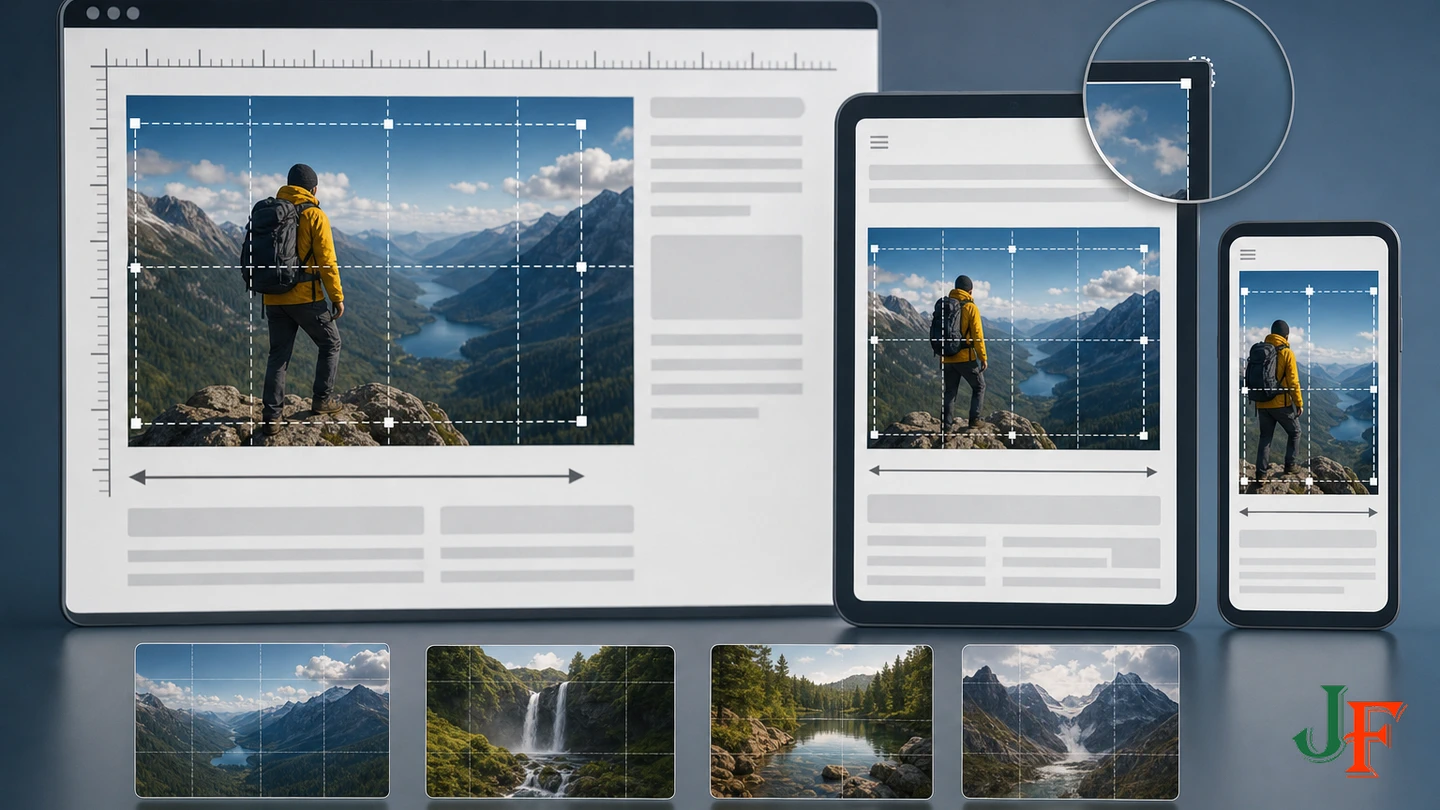
Gather the following information before exporting an image:
- The role: Intro Image, Full Article Image, or embedded body image.
- The largest CSS width at which the template displays that role.
- The placement's aspect ratio and how it changes at narrower viewports.
- Whether the image appears in the initial viewport or farther down the page.
- Whether multiple source candidates are already supplied by the template, an override, an extension, a CDN, or another image service.
Use the browser's inspection tools on an existing page with the same layout. Check the image's displayed dimensions at representative viewport widths. There is no universal Joomla image width, file-size ceiling, or encoder-quality percentage. The correct preparation depends on the actual slot, image content, template behavior, device density, and visual standard.
If the site needs sharper output on high-density displays, that does not mean every visitor should receive one enormous original. It may justify an additional larger responsive candidate, provided the final markup lets the browser choose between candidates.
Step-by-step Joomla image optimization workflow
Step 1: Select the image role and crop
Begin with the article layout rather than the camera original. Decide what the image must communicate in its intended placement, then crop unnecessary background and keep the important subject away from edges that may be trimmed in another layout.
For Intro and Full Article Images, compare the category view with the full article view. If their shapes differ substantially, export separate crops instead of forcing one file to cover both. For an embedded screenshot, retain the interface area readers need to understand the accompanying instruction.
Step 2: Resize for the rendered content slot
Resize the raster source close to what the placement requires rather than uploading a camera-resolution image and relying on CSS to make it look smaller. CSS can change the displayed size, but it does not by itself make an oversized source an efficient download.
Measure the slot rather than choosing a standard number from another website. If responsive candidates will be implemented, prepare sensibly spaced versions for the site's verified markup. Keep the same aspect ratio unless a placement intentionally requires a different crop. Guidance from web.dev on choosing an image format supports selecting raster dimensions and formats according to the actual use case.
Step 3: Choose WebP, AVIF, JPEG, PNG, or another appropriate format
Modern WebP and AVIF generally provide better compression than older raster formats, but neither format is automatically best for every image. Compare the result at the size at which visitors will see it.
| Format | Possible use | Editorial check |
|---|---|---|
| WebP | Many photographs, screenshots, and web graphics; lossy and lossless modes are available | Inspect text edges, gradients, transparency, and fine detail |
| AVIF | Photographic or other raster content where its compression and supported features suit the result | Compare encoding result and visual quality with alternatives |
| JPEG | Photographs where a conventional lossy format is appropriate | Watch for blocking, ringing, and damaged fine detail |
| PNG | Graphics that need transparency or lossless preservation of fine edges | Compare its larger file possibility with lossless WebP |
| SVG | General format option for suitable vector artwork | Default Joomla SVG upload acceptance is not established by this research; do not weaken upload validation to permit it |
The current inspected Joomla 6.1 and 5.4 Media defaults include webp and avif as legal image extensions and include image/webp and image/avif in the accepted MIME types. See the official Joomla 6.1 Media configuration and Joomla 5.4 Media configuration. These are defaults from the inspected core branches; an administrator may have changed the site's options, permissions, or MIME rules.
Important: Format acceptance does not prove that Joomla automatically converts a JPEG or PNG into WebP or AVIF. Export the desired format before upload unless a separately verified site-specific system performs conversion. Changing a filename extension does not convert the file's actual encoding.
Step 4: Compress and visually compare the export
Use the image editor or encoder available in your publishing workflow. Export a candidate, inspect it at normal viewing size and at important detail areas, and compare it with another format or compression level. Continue only while the reduction does not create unacceptable artifacts.
Do not treat a particular quality number as portable between encoders or images. A photo, screenshot, transparent logo, and detailed diagram have different requirements. The goal is the smallest practical file that still meets the visual needs of that image and placement, not an unsupported universal kilobyte target.
Step 5: Create a concise descriptive filename
Name the file before uploading it. A useful editorial convention is lowercase words separated by hyphens, such as joomla-media-options-webp.webp, instead of a generic camera name. Ensure that the extension matches the actual encoded format.
Google's image SEO guidance recommends short, descriptive filenames. Treat the filename as a light descriptive signal, not as a promise of a measurable ranking increase, and never stuff it with repeated keywords.
Step 6: Upload the prepared image through Joomla Media
- Open the article for editing.
- For an embedded body image, use the documented editor control CMS Content > Media. Exact labels may differ when the site uses another editor or customized toolbar.
- Open the appropriate image folder in the chooser and upload the already optimized file.
- Select the uploaded image and complete the available description, caption, and related controls as required for that placement.
- Save the article without making it the default or most prominent page test until the output has been reviewed.
For standardized images, select the files under the article's Images and Links area instead. Use the Intro Image for blog or list presentation and the Full Article Image for the complete article page.
If Joomla rejects a valid WebP or AVIF, ask an administrator to inspect the Media component's upload restrictions, legal image extensions, MIME allowlist, MIME checking, upload size, permissions, and image path. Correct the relevant extension and MIME entries rather than broadly disabling MIME checking. Also confirm that the file is genuinely encoded in the format shown by its extension.
Step 7: Write contextual alt text
An informative image needs concise alternative text that conveys its relevant meaning in the article. Describe what a reader needs from the image rather than listing every visual detail. For example, a screenshot used to identify a setting might need alt text naming the visible setting and its selected state.
Do not add unrelated search terms or repeat keywords. Google uses alt text together with page context and other information to understand images, and specifically advises against keyword stuffing in alt attributes. Alt text primarily needs to work in context for people who cannot see the image.
If an image is genuinely decorative or merely repeats nearby information, use Joomla's Decorative Image or No Description control, as available in the configured workflow, so the result has an empty alt value. Do not omit the accessibility decision. If a visible caption adds useful context, write it as complementary text rather than copying the alt text word for word; identical wording can cause duplicate announcements for screen-reader users.
Step 8: Preserve intrinsic width and height
Width and height attributes let the browser calculate the intrinsic aspect ratio and reserve space before the image finishes loading. This helps prevent image-related layout shifts while responsive CSS can still resize the image. The underlying behavior is explained in the web.dev guidance on cumulative layout shift.
In the inspected Joomla 6.1 and 5.4 generic image layouts, Joomla extracts width and height from Joomla image URL metadata and outputs both attributes when that metadata is available. Review the Joomla 6.1 generic image layout and Joomla 5.4 generic image layout for the conditional behavior.
Do not assume that every image receives those attributes. Editor-produced markup, template overrides, plugins, extensions, and CDNs can change the result. Inspect the published HTML and verify that the dimensions describe the correct intrinsic aspect ratio.
Related guidance: understand Joomla Core Web Vitals.
Step 9: Use lazy loading without delaying the hero image
Lazy loading is mainly appropriate for images outside the initial viewport. It can avoid transferring an off-screen image until the browser determines that it is needed. An image visible immediately—especially a hero image or likely Largest Contentful Paint image—should normally load eagerly instead, according to browser-level lazy-loading guidance.
The inspected Joomla 5.4 and 6.1 generic layout conditionally adds loading="lazy" when both width and height metadata exist and no loading value has already been supplied. That useful default for off-screen content can be inappropriate for a critical first image.
- Load the finished page and identify which image is visible in the initial viewport at the tested screen size.
- Inspect that image's final
loadingattribute. - If a hero or likely LCP image is lazy-loaded, test an alternate insertion method or a carefully maintained template override that supplies eager loading for that specific role.
- Retest after the change because the critical image depends on the page, template, viewport, and final layout.
Do not remove lazy loading from every image as a blanket fix. Keep it for appropriate off-screen images and make the eager-loading decision only for genuinely critical content.
Related guidance: create and maintain a Joomla template override.
Step 10: Add responsive images where one source is insufficient
Responsive image markup lets the browser choose an appropriate candidate instead of sending the same large raster file to every viewport. Standard HTML solutions include srcset with sizes, or a picture element containing an img fallback.
The inspected standard Joomla Intro Image and Full Article Image path passes a single source into the generic layout and does not demonstrate automatic creation of multiple responsive candidates. This is a limitation of the inspected layouts, not proof that another layer on a particular site cannot produce responsive output. A verified template override, extension, CDN, image service, or manually authored markup may provide it.
The following is an illustrative HTML pattern, not a universal set of widths or a promise of Joomla-generated files:
<img
  src="/images/articles/media-options-960.webp" srcset="/images/articles/media-options-480.webp 480w,
          /images/articles/media-options-960.webp 960w"
  sizes="(max-width: 700px) 100vw, 700px"
  width="960"
  height="640"
  alt="Joomla Media options showing accepted image settings"
  loading="lazy">
Each listed file must actually exist, and the sizes value must describe the site's real layout. Keep the normal img element and its src fallback, as recommended by Google's responsive-image guidance. If this image were an initial-viewport hero rather than an off-screen screenshot, its loading choice would require separate inspection and testing.
Test the final Joomla article
Optimization is not complete when the upload succeeds. Open the public article and its category or list view, then check every image role on representative viewport sizes.
- Confirm that the crop works in both narrow and wide layouts.
- Use browser developer tools to inspect the final
imgorpicturemarkup. - Verify
src,width,height,alt, andloading. - If responsive delivery is expected, verify
srcset,sizes, the available candidate files, and anypictureoutput. - Confirm that a decorative image has an empty alt value and that an informative image has meaningful contextual text.
- Check that the visible image is sharp enough without sending a needlessly large original.
- Run comparative accessibility and performance tests. A tool such as PageSpeed Insights can be part of the testing process, but interpret the result in the context of the actual page and template.
Repeat the inspection after changing the editor, template, override, extension, CDN, or image-processing layer because any of those can alter the final markup.
Related guidance: Joomla performance optimization guide.
Common problems and troubleshooting
| Problem | Likely check | Recommended response |
|---|---|---|
| WebP or AVIF upload is rejected | Media extension list, MIME list, MIME checking, user permission, upload size, and actual file encoding | Correct the specific configuration or file; do not broadly disable validation |
| A renamed JPG still fails as WebP | The file was renamed but not converted | Export it with a real WebP encoder and use the matching extension |
| The category thumbnail has an awkward crop | The Full Article Image was reused as the Intro Image | Prepare a separate Intro Image crop for the list or blog context |
| The page shifts while images load | Missing or incorrect intrinsic dimensions | Inspect width and height, preserve the proper aspect ratio, and verify the final HTML |
| The first large image appears late | A hero or likely LCP image has loading="lazy" | Inspect and performance-test it; consider a site-specific alternate insertion method or override for eager loading |
| Mobile visitors receive the same large file as desktop visitors | No verified srcset, sizes, or picture output | Implement and test responsive candidates through a verified site-specific method |
| Alt text is announced twice | The caption duplicates the alt value | Keep alt text concise and let the caption add different visible context |
| Dimensions or loading attributes differ from this tutorial | An editor, template override, plugin, extension, or CDN changed the markup | Treat the rendered HTML as authoritative and investigate the layer producing it |
Joomla image optimization checklist
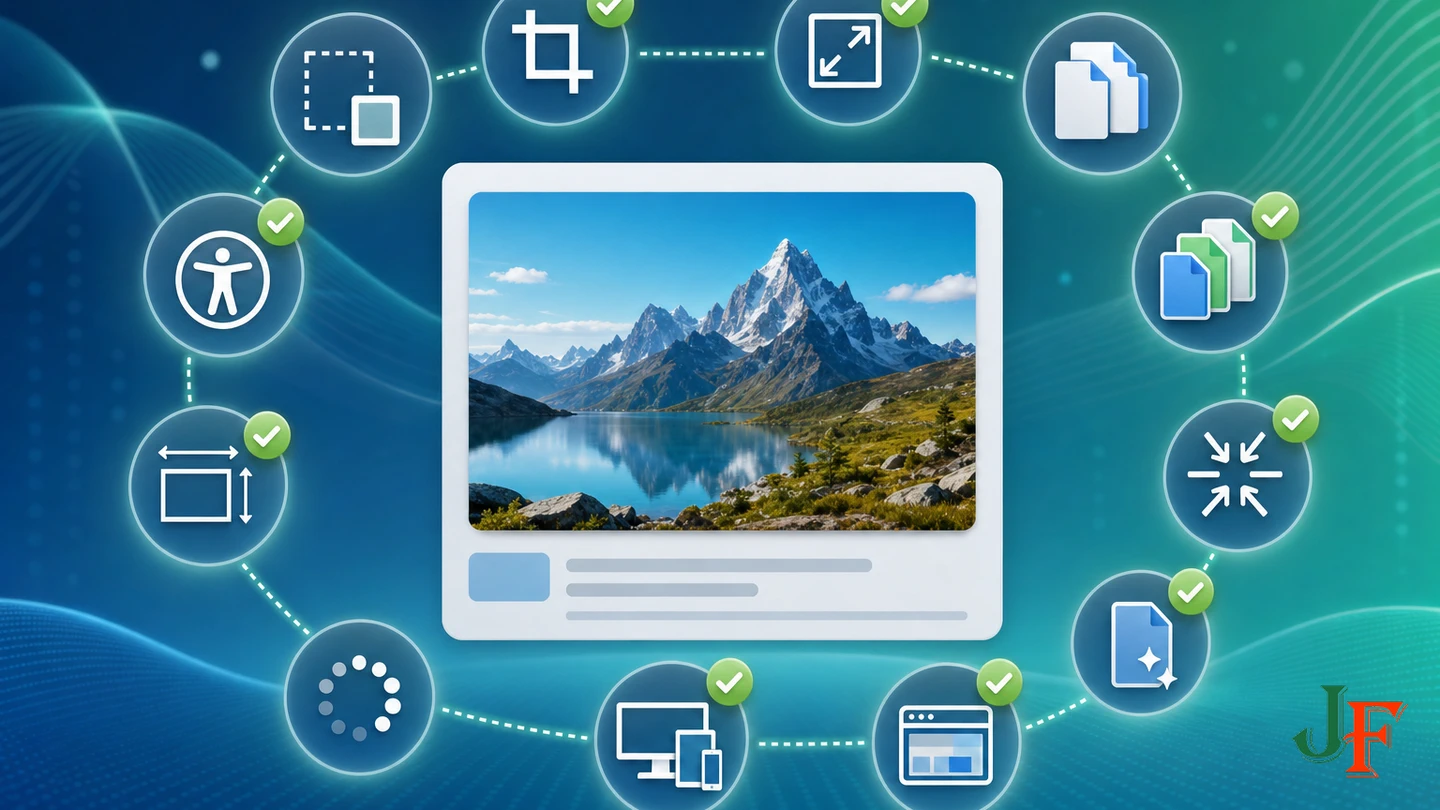
- Choose the embedded, Intro Image, or Full Article Image role.
- Measure the rendered slot and select a suitable crop.
- Resize before upload rather than relying only on CSS.
- Compare WebP, AVIF, JPEG, PNG, or another suitable format.
- Compress until the smallest acceptable visual result is reached.
- Use a short descriptive filename with the correct extension.
- Write contextual alt text or mark a decorative image correctly.
- Verify intrinsic width and height.
- Lazy-load off-screen images, but inspect the critical first image.
- Verify responsive markup rather than assuming Joomla generated it.
- Test the public article and category layout after saving.
Frequently asked questions
Can Joomla upload WebP images?
Yes. WebP is included in the inspected default Media extension and MIME settings for Joomla 6.1 and 5.4. A customized site may differ, so check its Media configuration if an otherwise valid file is rejected.
Does Joomla automatically convert JPEG or PNG uploads to WebP?
The reviewed core evidence verifies upload acceptance only; it does not establish automatic conversion. Export WebP before upload or separately verify the extension, CDN, or service expected to perform conversion.
What dimensions should a Joomla article image use?
There is no universal Joomla width. Measure the maximum rendered width for the image's role, account for the template and device-density requirements, and prepare responsive candidates if the verified site markup can use them. Preserve the correct intrinsic aspect ratio.
Should every Joomla article image use lazy loading?
No. Off-screen images are suitable candidates, but a hero or likely LCP image visible in the initial viewport should normally load eagerly. Inspect and test the individual page rather than applying one loading rule to every image.
Is the Intro Image the same as the Full Article Image?
No. The Intro Image is intended for category blog or list layouts, while the Full Article Image is intended for the full article page. The fields can use separate files and crops.
Does Joomla automatically generate responsive srcset markup?
The inspected standard layouts do not demonstrate automatic generation of multiple source candidates. Treat responsive output as a separately verified feature of a template, override, extension, CDN, image service, or manually authored markup.
What should alt text say?
Describe the image's relevant meaning in the context of the article. Avoid keyword lists and unnecessary detail. For a genuinely decorative image, use Joomla's decorative-image control so the output contains an empty alt value.
Sources
- Joomla 6.1.3 & 5.4.8 Security & Bugfix Release
- Joomla! Project Roadmap
- Article: Edit - Images
- Article: Edit - Images and Links
- Joomla CMS Media Component Configuration — 6.1-dev
- Joomla CMS Media Component Configuration — 5.4-dev
- Joomla CMS Generic Image Output Layout — 6.1-dev
- Joomla CMS Generic Image Output Layout — 5.4-dev
- Image SEO Best Practices
- Choose the Right Image Format
- Optimize Cumulative Layout Shift
- Browser-Level Image Lazy Loading for the Web

Add comment