
A practical Joomla template checklist for business sites — quick tests for speed, Bootstrap support, accessibility, module positions, update history and vendor
Why the Right Template Matters for Business Websites
Choosing the right Joomla business template affects more than appearance — it shapes customer experience, operational risk and the time you spend maintaining the site. A well-built template keeps pages fast, which helps visitors stay and convert; slow templates increase bounce rates and cost potential sales. For example, a small local service business (a plumbing company) can lose callers if the site is slow or the contact button is hard to tap on a phone.
Mobile users are often the majority of visitors for local businesses, so a responsive joomla template that adapts cleanly to phones and tablets is essential. Poor mobile UX means lost leads and lower credibility.
Accessibility matters both for reaching more customers and reducing legal risk. Templates that ignore keyboard navigation, color contrast or semantic markup can exclude users and cause problems for businesses that must meet accessibility expectations.
Security and maintenance are also driven by template quality and vendor practices. Templates with frequent updates and clear support reduce the chance of compatibility problems or security gaps. Finally, consider long-term compatibility with extensions you rely on — choosing a template that supports common Joomla extensions lowers future rework.
Always verify vendor claims and official guidance via the Joomla project resources on Joomla.org. If unsure, test templates on a staging site before purchase.
Quick Pre-purchase Checklist (At-a-glance)

Before you view demos or buy, run this concise checklist to rule out obvious problems and save time when comparing templates. For general how‑to steps see the Joomla Documentation.
- Responsive & mobile‑first: Verify the demo adapts smoothly on phones and tablets, uses touch‑friendly controls and shows consistent layouts at different widths.
- Update history & support: Look for a visible changelog, recent updates and clear support/contact details with expected response channels.
- Demo content & module positions: Confirm demos use real content and include a position map so your hero, CTAs, testimonials and footer areas are supported.
- Documentation: Ensure downloadable, step‑by‑step docs (installation, demo import, troubleshooting) and screenshots or video walkthroughs are available.
- Performance: Check demo speed scores with tools and remember demos may use CDNs—plan to repeat tests on a staging install. (See the Performance & Speed section for recommended tools.)
- Extension compatibility: Confirm support for page builders, form builders, e‑commerce or other extensions you need and plan to test them on staging.
Copy or print this checklist and use it to compare vendors before purchase.
Performance & Speed: What to Check and How to Test
A template’s front‑end code, shipped assets (CSS, JavaScript, fonts) and the number of HTTP requests directly affect how quickly pages render — and faster pages convert better. Poorly optimized templates can add render‑blocking files, unused styles and many requests that slow both desktop and mobile visitors; see general front‑end guidance for how assets and lazy loading work on MDN Web Docs.
Before purchase, run a few tests against the template demo and — critically — against a staging install. Use free tools such as Lighthouse (built into Chrome DevTools), WebPageTest and GTmetrix to compare results. When you review reports, focus on visible user metrics (load time or Largest Contentful Paint), total requests, page weight, and warnings about render‑blocking resources.
- Watch for demo optimizations: Demos often run on fast servers or CDNs that hide real-world performance. Verify on a staging site after installation on your hosting.
- Suggested targets: as a guideline, aim for fast desktop loads and mobile LCP under roughly 2–3 seconds where practical — treat these as goals, not guarantees.
- Optimization features to prefer: minified/combined CSS and JS, lazy‑loading for images, critical CSS support and options to defer non‑essential scripts.
For Joomla‑specific testing steps (installing the template on a test site, importing demo content and using site caching settings) consult the Joomla documentation. Always re‑test performance after you add your real content and extensions.
Quick testing checklist: run Lighthouse, inspect the Network panel in your browser, run WebPageTest for a mobile view, and compare results on a staging instance before buying.
Responsive Design & Bootstrap Support
Responsive design means the template layout fluidly adapts to any screen size; adaptive design delivers separate fixed layouts for specific breakpoints. For most business sites responsive templates are preferred because they preserve layout, content flow and conversions across many devices without creating separate page versions.
Many Joomla templates use a front‑end framework such as Bootstrap to provide a responsive grid and UI components. "Bootstrap support" usually means the template includes the framework’s grid, utility classes and responsive breakpoints—but the exact version and integration approach vary by vendor. Check the template documentation or vendor page for explicit mentions of Bootstrap and version, and consult developer resources for advanced details (see Joomla Developer Network).
Quick checks you can do on a demo site:
- Open the demo in your browser and use the device toolbar (Developer Tools) to simulate phones/tablets while resizing the window.
- Look for visible breakpoints: does the navigation collapse, do columns stack, and are images/hero areas scaled correctly?
- Test touch interactions (mobile menu, sliders) on a real device when possible, and try pages with your own content—not only the vendor’s demo text.
Implications for layout and editing: responsive grids affect module positions, column widths and how WYSIWYG editors render content. Verify that your required module positions (hero, feature grid, CTA) collapse logically and that the editor or page builder provides responsive controls. For user-facing instructions on template settings and device testing see the Joomla documentation at Joomla! Documentation.
Tip: always test templates with real content on a staging site before purchase or launch.
Accessibility & Web Standards
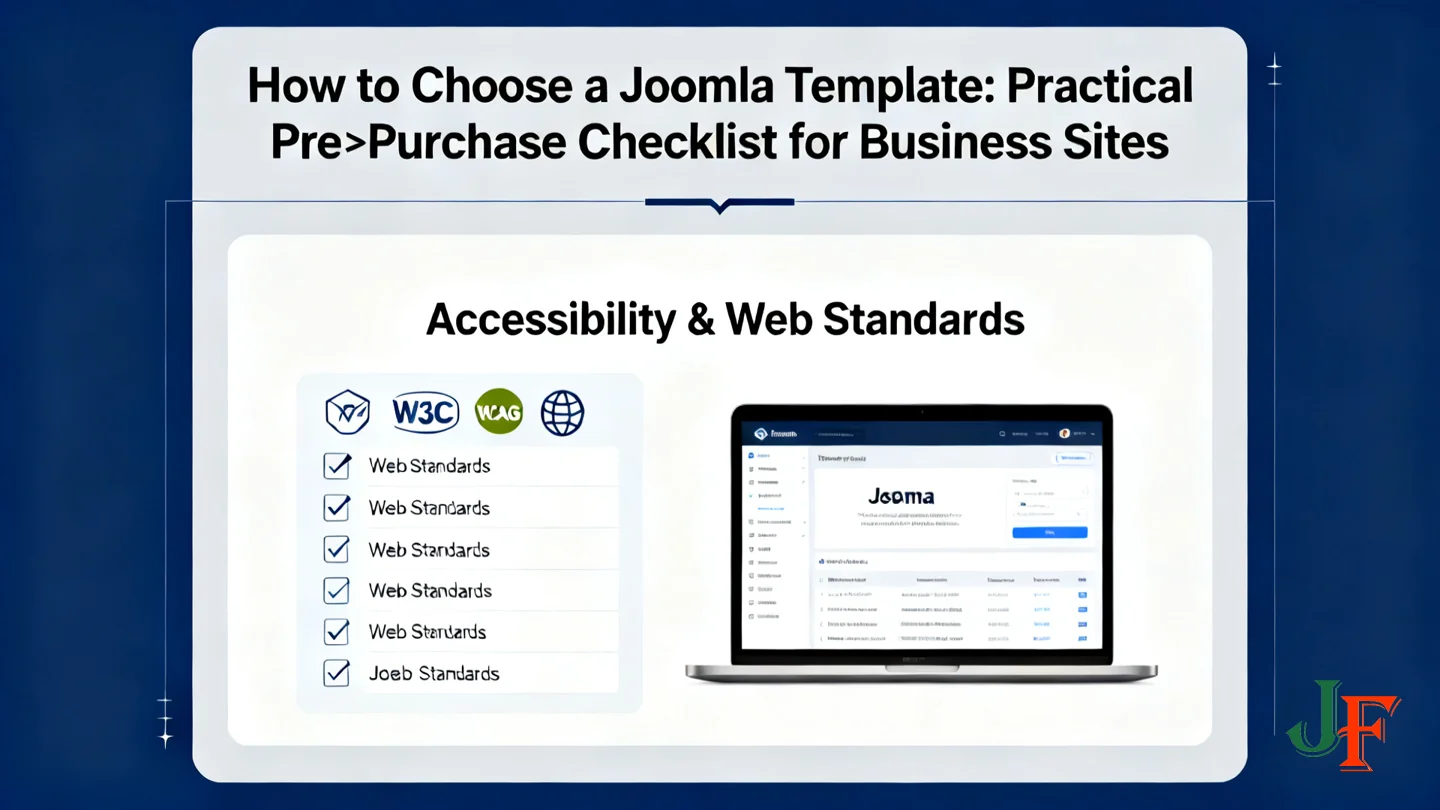
Accessible websites reach more customers and reduce legal risk. For business sites, choose a template that uses semantic HTML, keyboard-friendly navigation and clear focus styles so visitors with disabilities can use your site.
Quick, simple checks you can run yourself:
- Tab navigation: press Tab to move through links and form fields; focus is visible.
- Screen-reader basics: try a screen reader or ask someone to test key pages.
- Color contrast: use a contrast checker to verify text contrast ratios.
- Forms and labels: use labels and ARIA attributes for controls.
When a template claims WCAG compliance, ask the vendor for evidence—audit reports, examples of live sites, or the testing tools and levels used. Request accessibility notes in documentation.
For technical guidance, consult MDN Web Docs and the Joomla Documentation for accessible templates and CMS settings.
Questions to ask the vendor:
- Do you have an accessibility audit or report for this template?
- Which WCAG level(s) do you claim, and what tests support that?
- Are accessibility fixes covered by support or updates?
Update History, Vendor Support & Licensing
Choosing a template with a reliable update record and clear support reduces long‑term risk for your business. Frequent updates help fix security issues and keep the template compatible with core Joomla and popular extensions; timely vendor support saves you hours when problems occur.
Before purchase, check the vendor's public changelog and update dates, review support channels (ticket system, forum, email) and confirm support hours and response expectations. Use the Joomla Extensions Directory to view vendor pages, ratings and support links: Joomla Extensions Directory (JED). Also consult official project guidance on vendor and community support at Joomla.org.
- License type: Confirm whether the license is single‑site, multi‑site or developer, and whether commercial support or renewal fees apply.
- Change log & updates: Look for regular commits or dated changelog entries — long gaps are a red flag.
- Support test: Ask a pre‑sale question and note response time and usefulness.
- Red flags: no changelog, anonymous vendor, broken contact links or unclear refund/support policy.
Always verify licensing terms and support guarantees before deployment and keep a rollback plan and backups in case an update causes issues.
Module Positions, Layout Flexibility & Customization Options
Joomla uses named module positions to place blocks of content (menus, sliders, contact forms) around your pages. Templates that show a clear position map in their demo make it much easier to judge whether the layout fits your business content — for example, where a hero area, feature grid or footer widgets will appear. Check the template demo for a visible position map and ask the vendor for backend screenshots if the map isn’t obvious. For official guidance on module positions and managing templates, see the Joomla documentation linked below.
Customization usually comes in two forms: template overrides and custom CSS. Template overrides let you change how components or modules output HTML without editing core files; adding custom CSS adjusts styles. Some vendors also provide child-theme or inheritance features — ask the vendor to confirm how upgrades are handled if you plan heavy customizations. For technical details about template architecture and overrides, consult the Joomla Developer Network reference linked below.
Common module positions business sites need:
- Hero / top banner
- Feature grid or services area
- Calls to action (CTA) area
- Testimonials / social proof block
- Sidebar and full-width content areas
- Footer with widget regions (contact, links, copyright)
Quick verification checklist:
- Does the demo include a position map or backend screenshots?
- Can header and footer layouts be adjusted (logo, menus, contact area)?
- Are content width options available (boxed vs full-width)?
- Are theme options or a page builder provided, or will coding be required?
- Ask the vendor for instructions on making overrides and how updates affect custom files.
Documentation, Demo Content & Ease of Use
Clear documentation and usable demo content make a business site much faster to launch and easier to maintain. Before purchase, verify the vendor provides step‑by‑step installation instructions, demo‑import guidance, module‑position maps and troubleshooting or FAQ pages. Also check for changelogs and support contact details.
- Installation & demo import: one‑click or clear manual steps.
- Configuration: theme options, module placement and common settings.
- Troubleshooting & FAQs: known issues, fixes and update notes.
- Media & walkthroughs: screenshots, video tutorials and searchable docs.
- Support info: response channels, forum or ticket system and expected hours.
Sample/demo content (site content, menus and images) is valuable because it lets you rebuild the demo look quickly. Always try importing demo content on a staging site first — demo servers are often optimized and may not reflect a real hosting environment. Check the template listing on the Joomla Extensions Directory for links to documentation and demos, and consult the official Joomla documentation for guidance on installing templates and importing sample data.
Extensions Compatibility & Security Considerations
When picking a Joomla business template, check compatibility and security before purchase. Start by confirming the template explicitly supports the extensions you need (page builders, form builders, e-commerce). Look for mentions in the vendor’s demo and documentation, and cross‑check extension pages in the Joomla Extensions Directory (JED) for compatibility notes and user reviews.
Ask the vendor for an update/change log and average response time to security reports. Third‑party templates can include insecure or outdated code—regular updates and an active support channel reduce risk. Check whether bundled extensions are updated separately and whether source code or changelogs are available. Prefer templates with transparent changelogs and a clear license.
- Quick checks: vendor docs mention the extension names; demo pages show working examples; changelog shows recent fixes.
- Test on staging: install the template and your required extensions on a staging site, exercise key workflows, and run basic security scans.
- Document & escalate: record issues and ask the vendor to fix them; if problems are serious and vendor is unresponsive, report technical concerns to the Joomla project (for example via the project's GitHub repository).
When in doubt, get an expert security audit before going live.
SEO & Structured Data Considerations
Choose a template that outputs semantic HTML (meaningful header, nav, article elements), preserves logical heading order (H1→H2), and keeps page weight low — these factors help search engines index and rank pages. See general guidance on semantic HTML and front‑end best practices at MDN. Also confirm the template exposes Joomla SEO settings and editable metadata rather than hiding them behind the theme UI.
Check for built‑in SEO features and structured data support:
- View page source to confirm <title> and meta description are editable.
- Ensure a single H1 exists on content pages and headings follow a logical order.
- Confirm breadcrumb markup and visible breadcrumbs for users and bots.
- Test structured data snippets on staging (use Google Rich Results Test) and ask the vendor for examples.
- Avoid templates that hide main content behind scripts or images that search engines cannot index.
How to Test a Template Safely (Staging Checklist)
Before installing a template on a live site, run it on a staging environment—local or hosted. This checklist shows practical steps to spot layout, performance, accessibility and extension issues without risking production.
- Create a staging environment. Install a clean Joomla instance on a local machine or staging server and confirm it mirrors your production environment. See the Joomla! Documentation for installation and staging tips.
- Install the template and import demo content if available. Import sample articles, menus and modules so pages reflect real content rather than empty placeholders.
- Run performance tests with Lighthouse, WebPageTest and GTmetrix. Compare mobile and desktop results and repeat tests after disabling CDN/caching to simulate a typical host.
- Check accessibility with Axe or the WAVE checker. Manually test keyboard navigation, form labels and color contrast.
- Run SEO checks. Inspect page source for title/meta/H1; use Google Rich Results Test and a crawler such as Screaming Frog (free mode) to find indexability issues.
- Test content scenarios and extensions. Create sample posts, product pages and forms. Install required extensions and verify they display and work correctly with the template.
- Document issues and contact the vendor. Record screenshots, steps to reproduce and open a support ticket; note response time and helpfulness.
- Prepare rollback and backups. Before going live, back up site and database (for example with Akeeba Backup) and schedule the launch during low traffic.
Do not perform these checks on production. Treat staging as your safety net and promote only once tests pass or vendor fixes are applied.
Where to Find Trusted Templates and Vendors
Start at the Joomla Extensions Directory (JED) — the searchable catalog for templates and vendor pages. JED listings let you compare ratings, read user reviews, view vendor contact links and follow changelogs before buying.
Also consult community and project resources on Joomla.org for broader context about community‑vetted vendors and links to official support channels.
Checklist when vetting a marketplace listing:
- Review recent user feedback, not just overall rating.
- Visible changelog and frequent updates.
- Clear support policy, contact channels and stated response times.
- License terms: number‑of‑site limits, redistributable status and refund policy.
- Demo content showing module position maps and screenshots.
- Avoid packages that bundle closed‑source extensions.
If possible, request a trial or a staging license and test the template on a staging site to confirm vendor support response before purchase. Keep purchase receipts and terms for future updates or disputes.
Do basic due‑diligence: confirm license and refund policy, check support hours and try a staging install before committing.
Final Decision Flow: A Simple Checklist to Choose and Proceed
Use this compact flow to decide, install and launch your Joomla business template. Mark items required before purchase or go‑live.
- Final pass/fail checklist (required):
- Performance acceptable on mobile and desktop
- Responsive layout and needed module positions present
- Accessible basics met and vendor documents available
- Update history, support and licensing are clear
- Compatible with required extensions
- Immediate post-purchase steps (required):
- Install on a staging site and import demo content
- Run performance, accessibility and SEO checks
- Backup the staging site before customization
- Customize, test forms and extensions
- Schedule regular updates and backups
- Fallback plan (required): If tests fail, document issues, contact vendor support with steps and screenshots, and request remediation or a refund per the vendor policy.
- Go-live checklist (required): Final backup, disable staging indexing, monitor the site and confirm update and backup schedules.
See the Joomla! Documentation for installation, backups and update procedures.

Add comment